
Pages, blog and menus
Create custom website pages, publish blog articles, and organize navigation menus.
Pages, blog and menus
Use the Pages, blog and menus screens to manage content, news articles, and site navigation on your public website. You can create custom pages like About Us or Terms of Service, publish marketing blogs categorized by topics, and structure header and footer menus.
When you use this
- Create informative content pages such as FAQ, About Us, Privacy Policy, and Contact information.
- Write promotional and educational blog articles organized with custom categories and featured cover images.
- Structure main header navigation bars and footer menu links to guide visitors around your storefront.
- Review publishing status and preview pages directly on your live website.
Screen layout
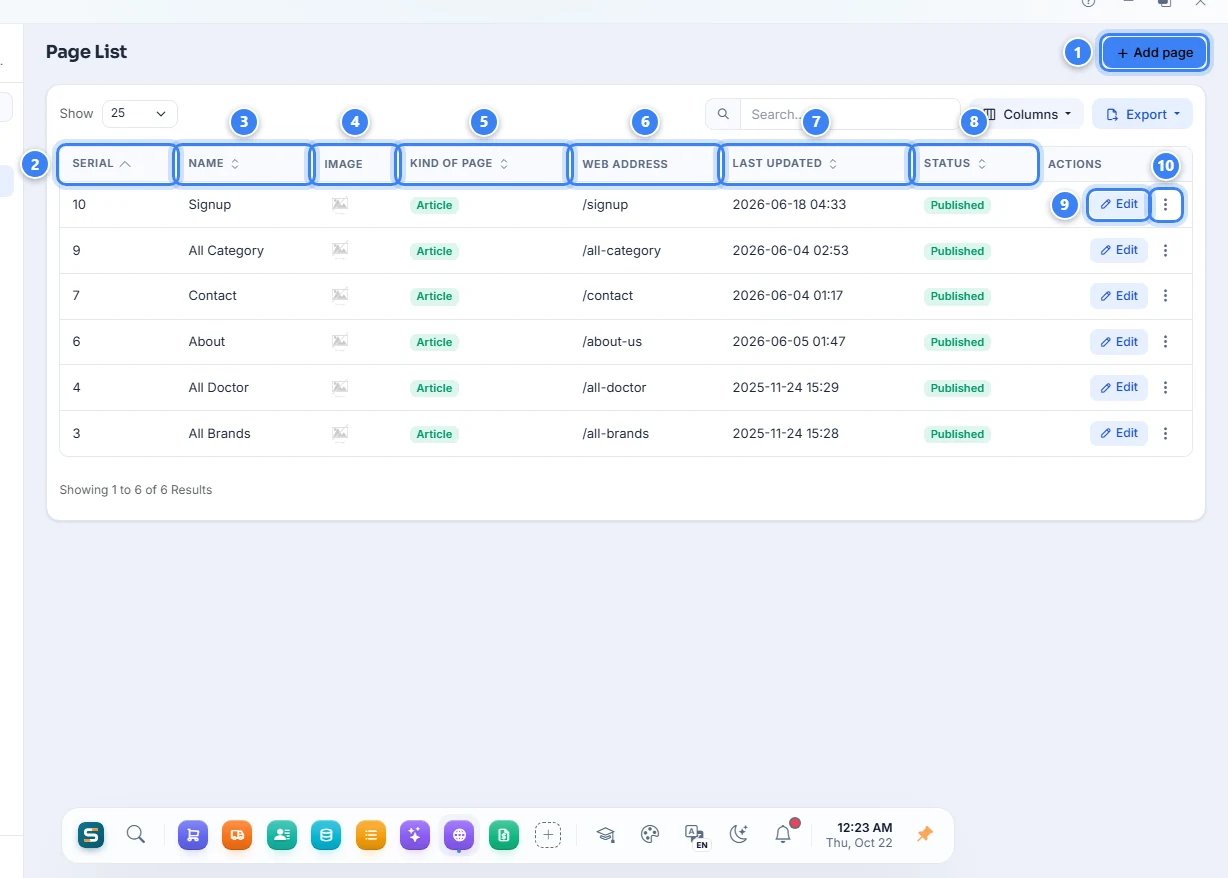 Custom pages list
- Add page — opens the form to create a new website page.
- Serial column — sequential index of the page record.
- Name column — title and headline of the page.
- Image column — featured cover image or banner thumbnail.
- Kind of page column — indicates whether the page is a standard content page or system template.
- Web address column — public slug and web URL path.
- Last updated column — date and time when the page was last modified.
- Status column — shows whether the page is published or draft.
- Edit page — modifies page content, SEO attributes, and visibility.
- More actions menu — opens row actions including view on website and delete.
Step-by-step: Creating and publishing a new page
- Go to Website > Pages in the main navigation menu.
- Click Add page (1) in the top header.
- Enter the page title, choose an optional cover image, and set the unique URL web address slug.
- Enter your content using the rich-text editor and configure SEO meta titles and descriptions.
- Set the status to Published and save the form.
- Click the row action menu to select Open on website and verify how the page appears to visitors.
Every field and control
Pages list
- Add page (1): Opens the modal window to create a new content page.
- Serial column (2): Sequential display number of the row in the table.
- Name column (3): Title of the page displayed in page headers and browser tabs.
- Image column (4): Thumbnail of the featured cover image or social sharing banner.
- Kind of page column (5): Indicates whether the page is a standard user-created page or an internal template page.
- Web address column (6): Relative URL path (slug) where visitors access the page.
- Last updated column (7): Timestamp showing when the page was most recently edited.
- Status column (8): Displays whether the page is currently active and visible (
Published) or hidden (Draft). - Edit page (9): Opens the edit form to modify text, layout options, SEO settings, or featured images.
- More actions menu (10):
- Open on website: Opens the published page in a new browser tab.
- Delete: Permanently removes the page from your website.
Blog posts list
When you navigate to Website > Blog, you manage published news articles:
- Add blog: Opens the article creation form to write news, guides, or announcements.
- Serial: Sequential numbering for the article row.
- Name: Article headline and title.
- Image: Cover thumbnail displayed on blog archive cards and article headers.
- Blog Category: Assigned category grouping related posts together.
- Last updated: Date when the article was last revised.
- Status: Indicates whether the post is visible to visitors or saved as a draft.
- Edit: Opens the blog editor to update text, categories, or cover images.
- Delete: Deletes the blog article from your publication list.
Navigation menus list
When you navigate to Website > Menus, you organize header and footer links:
- Add menu: Creates a new navigation menu container.
- Serial: Row number of the menu record.
- Name: Descriptive name for the menu (such as Main Header or Footer Links).
- Position: Theme location slot where the menu displays (for example Header, Footer Column 1, or Mobile Navigation).
- Items: Total count of active menu links contained inside this menu.
- Status: Toggle showing whether the menu is active on the live theme.
- Edit: Opens the menu builder to add, rename, reorder, or nest menu links.
- Delete: Removes the menu container and its linked items.
Common questions
How do I link a new page to my header menu?
First create and publish your page under Pages. Then go to Website > Menus, click Edit on your main header menu, add a new menu item, and select your published page URL as the link destination.
Can I save a blog article without publishing it immediately?
Yes. When writing a blog post, set the status to Draft. The post remains saved in your admin list but will not appear on your public website blog feed until you change its status to Published.
Related pages
- Website themes and builder: Customize website styling, typography, and section layouts.
- Sliders: Create animated banners and hero carousels for your homepage.
- Forms: Build custom inquiry forms and collect visitor responses.