
Customer profile
Manage your contact information, shipping address, profile photo, and password in the customer portal.
Customer profile
The Customer profile screen lets registered buyers and customer accounts update their identity records, billing and shipping addresses, email alerts, contact numbers, and security credentials.
When you use this
- Update your contact name, telephone number, or correspondence email address.
- Change your default shipping street address, country, or district for future orders.
- Upload a personal or company profile photo for brand recognition.
- Update your portal account password to safeguard access.
Screen layout
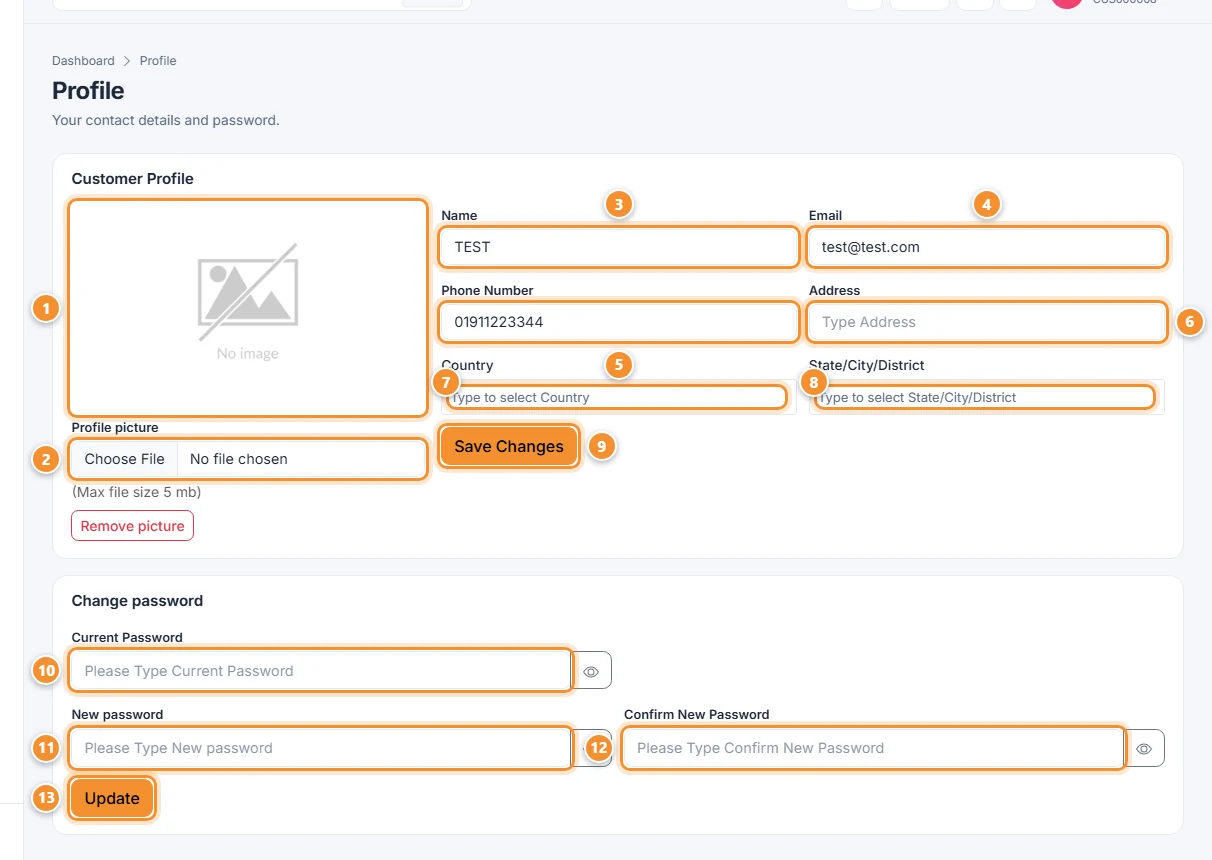 Customer portal personal profile and security settings
- Profile picture preview — customer profile avatar preview.
- Upload profile picture — file selector to upload a new profile photo.
- Name field — customer individual or corporate legal name.
- Email field — correspondence email address for invoices and alerts.
- Phone number field — contact mobile telephone number for SMS notifications.
- Address field — street address and delivery location.
- Country selector — customer nationality or business country.
- State and district selector — regional division or district for dispatch routing.
- Save changes button — saves contact and delivery location updates.
- Current password field — verification of current password before allowing change.
- New password field — new account security passphrase.
- Confirm new password field — re-typed confirmation of the new passphrase.
- Update password button — saves and activates the updated password.
Step-by-step: Updating profile details
- Navigate to Profile from the portal sidebar or avatar dropdown menu.
- Under Profile picture (1), click Upload profile picture (2) to select a local JPEG or PNG image.
- Modify your Name (3), Email (4), and Phone Number (5).
- Update your Address (6), Country (7), and State/City/District (8) to ensure deliveries arrive accurately.
- Click Save Changes (9). A green confirmation toast indicates that your details have been saved.
Step-by-step: Changing your password
- Scroll to the Change Password section of the profile page.
- In Current Password (10), enter your current secret passphrase.
- In New password (11), type a secure new password containing at least eight characters.
- In Confirm New Password (12), re-type the exact new password.
- Click Update (13) to activate your new password. Use this password for future sign-ins.
Every field and control
Profile Details
- Profile picture (1, 2): Displays the current avatar image and provides a file selector to upload a replacement photo.
- Name (3): Full legal or trading name associated with the customer account.
- Email (4): Primary email address used for order confirmations, ledger statements, and password reset requests.
- Phone Number (5): Mobile telephone number used for delivery courier contact and dispatch SMS alerts.
- Address (6): Physical street address, building number, suite, or warehouse loading dock.
- Country (7): Searchable dropdown menu to pick the customer home country.
- State/City/District (8): Regional jurisdiction or district used to calculate shipping zones and freight taxes.
- Save Changes (9): Submits personal and address updates to the server.
Change Password
- Current Password (10): Authentication input confirming current account ownership before accepting security modifications.
- New password (11): The new password string, requiring at least eight characters.
- Confirm New Password (12): Must match the new password input exactly to prevent accidental typos.
- Update (13): Submits the password change request and terminates existing active sessions where required.
Common questions
Can I change my registered email address at any time?
Yes. Updating your email address changes where order receipts and statement notifications are delivered immediately upon clicking Save Changes.
What should I do if I forget my current password?
If you cannot remember your current password, sign out and use the Forgotten password recovery process to reset it via your email inbox.
Set a password
Under the password box, the line Signed up with a social sign-in and never chose a password? links to Set a password. Use it when you signed up with Google or another social sign-in and never chose a password. You prove the account is yours with a code sent to your email. See Set a password.