
Transfers and adjustments
Move stock between branches, balance inventory levels across warehouses, and record inter-store transfers.
Transfers and adjustments
Use this screen to manage stock movements and transfers between your business outlets and warehouses. When a store experiences high demand, a central warehouse replenishes it. Recording a stock transfer ensures products decrease from the sending location and increase at the destination. You can track dispatched quantities, verify recipient branches, and inspect financial valuation postings.
When you use this
- You replenish inventory from a central warehouse to a retail shop.
- A store location runs out of stock and requests products from a nearby branch.
- You consolidate seasonal merchandise or excess stock into a main distribution depot.
- You need to audit inter-branch shipments and reconcile transit inventory balances.
Before you start
- Ensure both the sending and receiving Outlets exist and are active.
- Verify that products exist in Products with current stock quantities in the sending outlet.
- Ensure your user account has permission to dispatch and receive inventory transfers.
Quick actions from the list.
You can perform essential transfer management tasks directly from this table.
- New stock transfer: Click Add Stock Transfer to open the dispatch window. Select the sending outlet, the receiving outlet, add products with their quantities, and confirm the shipment.
- View transfer details: Click View on any transfer row to open the details modal. Review individual product lines, dispatched units, cost valuations, and dispatch timestamps.
- Export transfer history: Click Export to download your transfer logs to Excel or CSV for logistics audits or store replenishment tracking.
Browse and filter stock transfers
Filter and search your stock transfer records to locate specific inter-branch shipments:
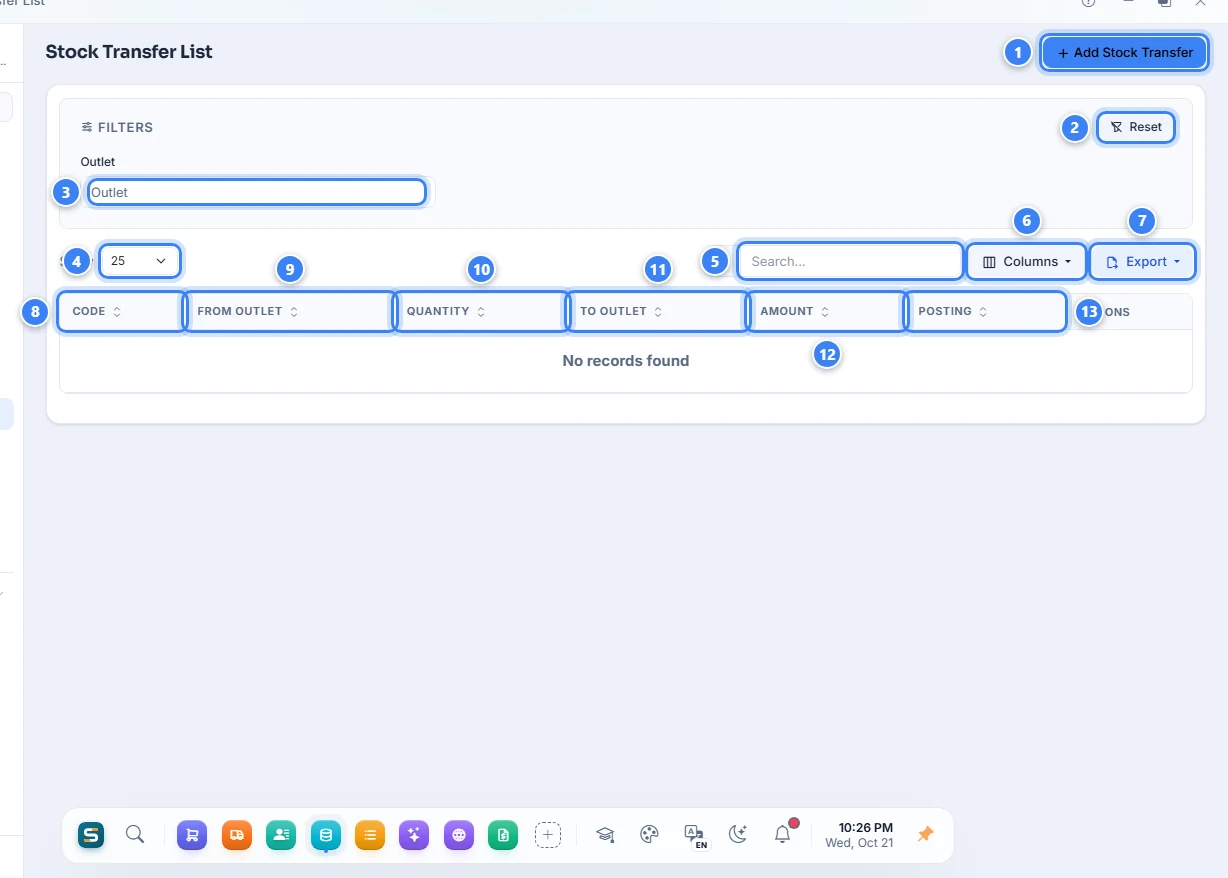 Stock transfers and adjustments
- Add Stock Transfer — opens the window to dispatch inventory to another outlet.
- Reset — clears active filter and search options.
- Outlet filter — filter transfers by sending branch or warehouse.
- Rows per page — choose how many transfer records to display on one page.
- Search — search transfers by code, outlet, or notes.
- Columns — toggle visibility of table columns.
- Export — export transfer records to Excel or CSV.
- Code column — displays unique stock transfer reference code.
- From Outlet column — displays the origin warehouse dispatching the goods.
- Quantity column — shows total unit count transferred.
- To Outlet column — displays the destination branch receiving the inventory.
- Amount column — shows total monetary cost of transferred goods.
- Posting status column — indicates whether transfer accounting entries have posted.
Create an inter-outlet stock transfer
Follow these steps to record a shipment between branches:
- Click Add Stock Transfer in the upper toolbar to open the dispatch modal.
- Select the sending location in the From Outlet dropdown.
- Select the receiving destination in the To Outlet dropdown.
- Search and select the products you are transferring.
- Enter the quantity of each product to send. Ensure the sending outlet has sufficient available stock.
- Add any dispatch notes, such as courier details or shipment batch numbers.
- Click Save to confirm the transfer.
Verify received stock at destination
Once the transfer is saved:
- The system reduces stock quantities at the origin warehouse immediately.
- The destination outlet receives the stock and updates its local on-hand quantities.
- Review the Posting badge. A green badge indicates that financial inventory asset accounts between locations have balanced.
Every field and filter explained.
| Field or action | Type | Description |
|---|---|---|
| Add Stock Transfer | Primary button | Opens the modal window to create a new inter-branch stock shipment. |
| Reset | Secondary button | Resets active filters and search inputs to default values. |
| Outlet filter | Search dropdown | Filters transfers by origin dispatch location. |
| Rows per page | Dropdown select | Sets the number of transfer records shown per page. |
| Search | Search input | Searches transfer records by reference code, outlet name, or notes. |
| Columns | Dropdown menu | Opens a checklist to show or hide table columns. |
| Export | Dropdown menu | Downloads your filtered transfer records as an Excel spreadsheet or CSV file. |
| Code column | Table column | Displays the unique reference code assigned to the transfer. |
| From Outlet column | Table column | Shows the branch or warehouse that dispatched the inventory. |
| Quantity column | Table column | Displays the total number of units included in the transfer. |
| To Outlet column | Table column | Shows the branch or warehouse receiving the products. |
| Amount column | Table column | Displays the total monetary cost valuation of the transferred stock. |
| Posting status column | Table column | Indicates whether inter-branch inventory asset entries have posted. |
Real-life example
A retail chain notices that its downtown boutique has sold out of 256GB smartphones, while the central warehouse has 40 units available. The inventory manager opens Transfers and adjustments and clicks Add Stock Transfer. The manager selects "Central Warehouse" as the sending outlet and "Downtown Boutique" as the destination outlet.
The manager adds 15 units of smartphones and enters "Courier Express dispatch #4412" in the notes. Upon clicking Save, the system creates transfer record ST-00045 with a valuation of $6,750. Central warehouse stock decreases by 15 units and the downtown store stock increases by 15 units immediately. The posting badge confirms that internal asset accounts between branches have synchronized.
Common questions
Does a stock transfer change my company's overall inventory value?
No. Stock transfers move products internally between business locations. Overall inventory valuation remains unchanged, although individual branch asset balances adjust accordingly.
What happens if products are damaged during inter-store transit?
If products sustain damage during shipment, record the full transfer upon receipt. Then create a Stock Damage entry at the receiving outlet to write off the broken units.
Can I transfer products that have serial numbers or batch expiry dates?
Yes. When adding serialized or batch-tracked products to a transfer, select the specific serial numbers or batch lots being dispatched.
How do I check transfers made between specific dates?
Use the date range selectors or search input to filter your transfer log. You can also export the filtered list to Excel or CSV for reporting.
Related pages
- Stock receipts: adjust inventory counts or record damaged products.
- Purchases and supplier bills: receive incoming supplier purchases into your warehouse.
- Outlets: configure warehouse locations and retail store outlets.
- Products: check catalog products, buying costs, and stock levels.