
Enter opening balance for a contact
Record historic starting balances per branch outlet when moving existing customer or supplier accounts into Sylloo.
Enter opening balance for a contact
Use this window to record the starting account balance for an existing customer or supplier when moving from an older accounting system. You specify the starting date, balance type (debit or credit), and enter amounts per branch outlet.
Debit means the customer owes money to your business. Credit means your business owes money or holds advance deposits for the contact.
When you use this
- You set up a new Sylloo installation and bring forward existing customer receivables from your previous ledgers.
- You onboard an existing vendor who is already owed payment for prior deliveries.
- A customer has separate opening balances across different branch store outlets.
Before you start
- You need permission to update contact records. If you do not see the opening balance icon, ask your administrator.
- The contact must already be created and saved in Sylloo.
- Check your previous ledger to confirm the exact balance amount and whether it is a debit or credit.
Open the opening balance window
On the Contact list, locate the contact, open the actions menu on their row, and click Opening Balance (book icon).
Every field in the Enter opening balance window
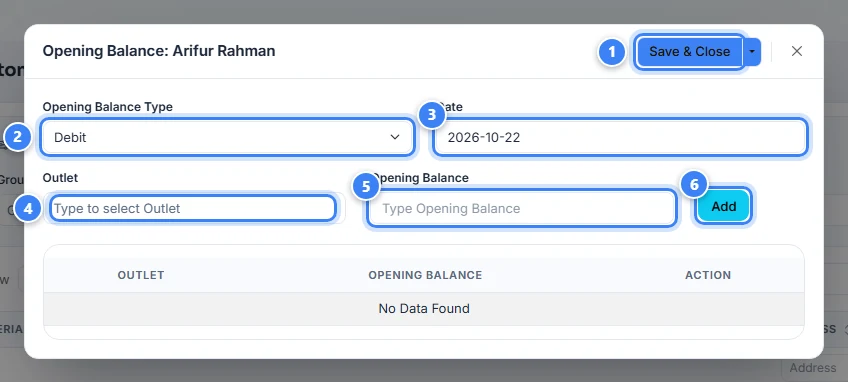 Enter opening balance window
- Save — saves all outlet balance lines and posts starting balances to the accounting ledger.
- Opening Balance Type — choose Debit if the contact owes you money, or Credit if you owe them money or hold an advance.
- Date — the accounting cutoff date for this opening balance. Default: today or first open fiscal period date.
- Outlet — select the store or branch outlet where this opening balance belongs.
- Opening Balance — enter the starting monetary balance amount for the selected outlet.
- Add — adds the outlet balance line to the summary table below.
Add outlet balance lines and save
- Select the Outlet and enter the Opening Balance amount.
- Click Add. The balance line appears in the table with the outlet name and amount.
- If the contact has balances in other branches, repeat the steps for each branch.
- Click Save. Sylloo saves the balance lines and updates the contact's outstanding ledger balance.
Example
You onboard an existing wholesale customer named Premier Goods who owes 75,000 across two stores:
- Click Opening Balance on the Premier Goods row.
- Set Opening Balance Type to
Debit. - Select
Main Warehousein Outlet, type50000, and click Add. - Select
Downtown Branchin Outlet, type25000, and click Add. - Click Save. Premier Goods now shows an opening debit balance of 75,000 ready for payments.
Common questions
Can I enter more than one opening balance line for the same outlet? No. Sylloo requires exactly one opening balance line per outlet for each contact. If you need to change the amount, remove the line and add it again with the correct total.
What happens if I made a mistake in the opening balance? Open the window again, click the remove icon next to the incorrect outlet line, enter the corrected amount, and click Save.