
Forms and submissions
Build custom interactive forms, collect visitor inquiries, and review submissions.
Forms and submissions
Use the Forms and submissions screen to create interactive forms and collect customer feedback, job applications, quotation requests, and support inquiries directly from your website. You can customize form fields with the drag-and-drop builder, publish forms via unique links or website embeds, and review all submitted responses.
When you use this
- Create custom contact forms, warranty registration forms, survey questionnaires, or customer quote requests.
- Add text fields, dropdown selectors, date pickers, checkboxes, and file upload attachments to any form.
- Review and export customer submissions with full timestamps and response details.
- Duplicate existing forms to quickly create variations for seasonal marketing campaigns.
Screen layout
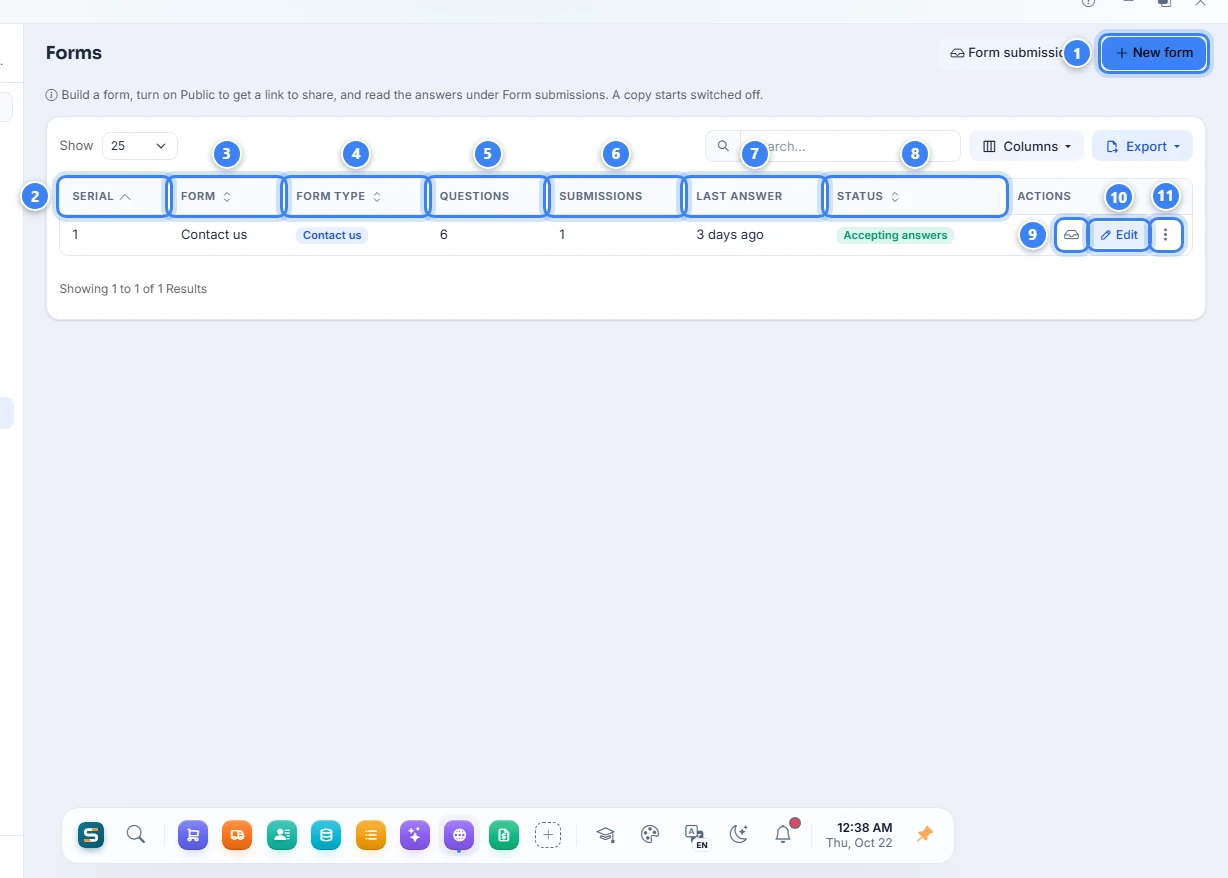 Custom forms and submissions
- Add form — opens the visual drag-and-drop form builder.
- Serial column — sequential row index of the form record.
- Form column — title and headline of the custom form.
- Form type column — classification badge for the form purpose.
- Questions column — number of fields and inputs in this form.
- Submissions column — total responses submitted by visitors.
- Last answer column — date and time of the most recent submission.
- Status column — indicates whether the form is active for submissions.
- View submissions — opens responses recorded for this specific form.
- Edit form — opens the form builder to modify fields and settings.
- More actions menu — opens actions to duplicate or delete the form.
Step-by-step: Building and publishing a form
- Go to Website > Forms (or Settings > Forms).
- Click Add form (1) in the header.
- Enter the form title, description, and confirmation message displayed after submission.
- Drag and drop desired form components (such as Name, Email, Phone, Dropdown choices, and File Upload) onto the form canvas.
- Configure validation rules for required fields and save your layout.
- Set the form status to Active (8) so visitors can submit answers.
- Copy the public link or embed code to place the form on your website pages.
Every field and control
Header controls
- Form submissions: Navigates to the combined inbox showing all recorded customer entries across all forms.
- Add form (1): Opens the visual builder to design a new form layout with customizable questions.
Forms list
- Serial column (2): Chronological numbering of the form record.
- Form column (3): Display title and internal name of the form.
- Form type column (4): Purpose classification badge indicating whether the form is a contact form, feedback survey, or inquiry.
- Questions column (5): Total count of active input fields and questions built into the form.
- Submissions column (6): Total count of completed submissions received from visitors.
- Last answer column (7): Timestamp indicating when the most recent customer response arrived.
- Status column (8): Badge showing whether the form is currently open (
Active) or closed (Inactive). - View submissions (9): Opens the submission log filtered specifically for this form to inspect each customer entry.
- Edit form (10): Reopens the visual builder to add, reorder, or edit questions and validation rules.
- More actions menu (11):
- Duplicate: Clones the form questions and settings into a new editable draft.
- Delete: Permanently deletes the form and removes its public web address.
Common questions
Where do notification emails go when a visitor submits a form?
In the form builder settings, you can configure notification email addresses so staff members receive an instant alert whenever a customer submits an entry.
Can customers attach documents or photos through a form?
Yes. Drag a File Upload field into your form builder canvas. You can set accepted file types (such as PDF, JPG, PNG) and maximum file size limits.
Related pages
- Website themes and builder: Place forms and contact blocks inside theme templates.
- Pages, blog and menus: Embed forms into dedicated content pages and header links.
- Sliders: Promote interactive surveys with homepage banner carousels.