
Withholding tax kinds
Configure tax deduction at source rates, calculation bases, and certificate templates.
Withholding tax kinds
The Withholding tax kinds screen enables you to configure statutory tax deduction at source (TDS) and withholding VAT (VDS) rules. When you record payments to suppliers, service contractors, or landlords, the system calculates legal deductions automatically, records tax payable liabilities, and issues official withholding certificates.
When you use this
- Set up statutory withholding tax rates for vendor payments, contractor fees, or rent.
- Configure deduction calculation bases (whether applied to pre-tax amounts or invoice totals).
- Link tax categories to official certificate templates for supplier compliance.
- Update statutory withholding percentages when tax authorities revise tax schedules.
Screen layout
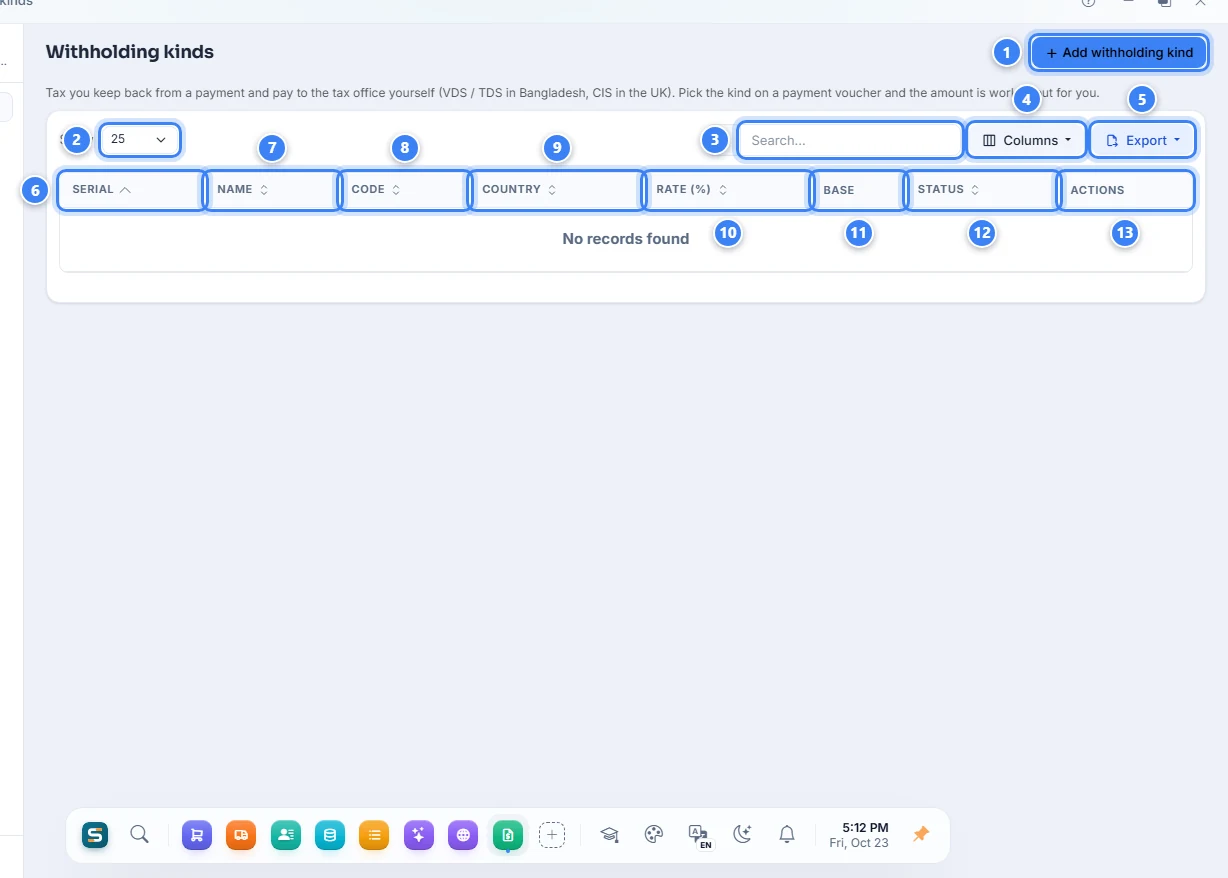 Withholding tax kinds setup
- Add withholding kind — opens the modal window to configure a new withholding tax rate category.
- Rows per page — selects how many tax categories appear on each page.
- Search filter — filters withholding kinds by name, code, or country keyword.
- Columns toggle — customizes which data columns are visible in the table.
- Export button — downloads the withholding tax rate list as an Excel spreadsheet or CSV.
- Serial column — system sequential indexing number.
- Name column — statutory name or label of the withholding tax deduction.
- Code column — official tax section code or statutory reference identifier.
- Country column — applicable legal tax jurisdiction.
- Rate (%) column — statutory deduction percentage deducted at source.
- Base column — tax calculation basis (tax-exclusive gross amount or total amount).
- Status column — active or inactive operational availability indicator.
- Actions column — row action buttons to modify withholding rates or delete.
Step-by-step: Creating a withholding tax kind
- Navigate to Settings and select Withholding tax kinds.
- Click Add withholding kind (1) in the header toolbar.
- In the modal dialog, enter a descriptive title into Name (7) (such as
Contractor TDS). - Select the official regulatory tax section in Code (8) (such as
52or statutory tax section). - Enter the statutory deduction percentage in Rate (%) (10) (such as
5or7.5). - Choose the calculation foundation in Base (11) (such as invoice gross or total inclusive).
- Specify the two-letter jurisdiction code in Country (9) (such as
BDorFI). - Enter the ledger tag in Payable ledger tag to post the liability into your tax withholding account.
- Select an official printed layout under Certificate template.
- Set Status (12) to Active and click Save.
Every field and control
Datatable toolbar and filters
- Add withholding kind (1): Opens the setup window to define a new withholding rule.
- Rows per page (2): Selects whether to show 10, 25, 50, or 100 tax rates per page.
- Search filter (3): Rapid text filter querying tax names, section codes, and country identifiers.
- Columns toggle (4): Checklist dropdown to show or hide specific table columns.
- Export button (5): Downloads the complete tax schedule to an Excel spreadsheet or CSV.
Table columns and row actions
- Serial (6): Chronological record order assigned automatically upon creation.
- Name (7): User-defined title for the tax category (
name). - Code (8): Statutory tax code or legislative section reference (
code). - Country (9): Jurisdiction country code governing the deduction (
country_code). - Rate (%) (10): Percentage deducted from payments (
rate_percent). - Base (11): Foundation rule used to calculate deductions (
base_name), such as gross pre-tax or net total. - Status (12): Operational state (
status_badge). Active allows cashiers and accountants to apply the deduction on payments. - Actions (13): Controls including Edit (ti ti-pencil) to adjust rates and Delete (ti ti-trash) to remove unused tax rules.
Withholding tax modal fields
- Name: Clear descriptive name identifying the statutory deduction purpose.
- Code: Regulatory code or legislative section from your national tax code.
- Withholding rate: Percentage number deducted from qualifying supplier disbursements.
- Withholding base: Calculation basis (calculates on invoice amount excluding tax, or including tax).
- Country: Two-letter ISO country code for geographic tax compliance.
- Payable ledger tag: Account tag routing withheld funds into your government tax payable liability account.
- Status: Mark Active for current use or Inactive to retire the rate.
- Certificate template: Printable document template used to generate official withholding tax certificates for vendors.
- Note: Internal guidance notes or regulatory reference memos.
- Save: Validates the tax parameters and saves the category.
Common questions
How does withholding tax affect supplier payment vouchers?
When you apply a withholding tax kind to a payment voucher, the system reduces the net cash paid to the supplier by the withholding amount. The system automatically credits your withholding tax payable account for future tax remittance.
Can I print withholding tax certificates for my suppliers?
Yes. If you link a Certificate template to the withholding kind, you can generate and print official withholding certificates directly from the payment voucher or withholding reports.
Can I delete a withholding tax kind that has been applied to vouchers?
No. To preserve ledger fidelity and audit trails, tax categories with historical deduction entries cannot be deleted. Set their status to Inactive instead.
Related pages
- Tax and VAT — configure value added tax brackets and sales tax rates.
- Vouchers — record vendor payment vouchers with automatic tax deductions.
- Financial reports — review tax payable balances and withholding statements.