
Add or edit voucher
Create or edit a voucher with counterparty details, cash or bank account, itemized lines, and document attachments.
Add or edit voucher
Use this window to record or update a single-entry voucher transaction. Single-entry vouchers automatically handle the double-entry bookkeeping between your chosen cash or bank account and the entered lines.
When you use this
-
Recording cash or bank collections from customers, debtors, or investing partners.
-
Disbursing money from cash registers or bank accounts to pay operating expenditures or bills.
-
Settling outstanding debts or recording capital contributions and cash withdrawals.
-
Updating accounts, descriptions, or attachment files on an unposted draft voucher.
Before you start
- You need an active user account with permission to create or edit this voucher type.
- Make sure at least one active cash or bank ledger account exists with sufficient balance.
- Confirm the transaction date falls within an open accounting period.
Open the voucher window
- Go to Accounting in the left sidebar and select your voucher list.
- Click the green Add Receipt button above the table.
- The Add or edit voucher window opens with a new blank form.
Fill voucher header and lines
- Select the counterparty contact (customer, vendor, or partner).
- Choose your receiving or disbursing bank account or cash register.
- Pick the matching Payment Method (such as Cash, Cheque, Bank Transfer, or card).
- Review the transaction Date and enter an optional external bill or cheque number in Reference.
- Add one or more rows in the lines table by choosing a ledger account, description, quantity, and unit price.
- Attach supporting bills, payment slips, or receipts if needed.
- Click Save & Close to record the voucher and post the entries to your ledger.
Every field on this screen
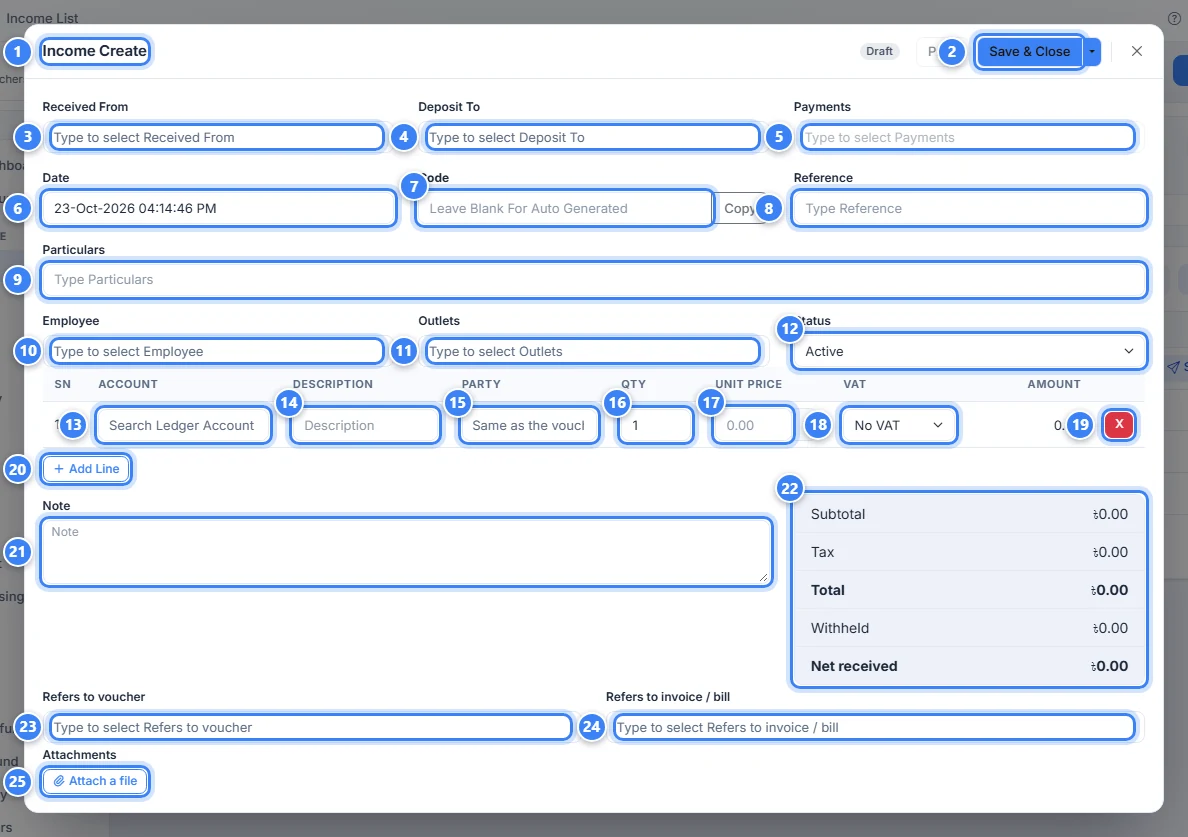 Add or edit voucher window
- Voucher modal title — Shows the voucher type and whether you are creating a new entry or updating an existing draft.
- Save & Close button — Validates the entire voucher, saves changes, and posts the journal transaction. Also referred to as Save in draft mode.
- Contact field — Searchable dropdown to choose the customer, supplier, or counterparty. Labeled Received From for collections and Paid To for disbursements.
- Cash or bank account field — The cash account or bank ledger account that receives or disburses the funds. Labeled Deposit To for collections and Paid From for disbursements.
- Payment Method field — The specific payment instrument, such as Cash, Cheque, Bank Transfer, or card terminal.
- Receipt date field — The accounting posting Date. It defaults to today and must fall within an open accounting period.
- Voucher code field — Unique sequential voucher Code. Leave blank to let the system generate the next sequential number.
- Reference field — Optional external document tracking code, such as a supplier bill number or cheque number.
- Particulars field — A clear description or summary note explaining the overall purpose of this transaction.
- Employee field — The staff member or manager responsible for making or authorizing this transaction.
- Outlet field — The store branch or warehouse Outlets where the transaction originated.
- Status field — Transaction status dropdown. Choose Active to process the voucher normally or Inactive to suspend it.
- Line Ledger Account — The chart of accounts category debited or credited for this specific line. Search ledger account by name or code.
- Line description — Memo describing the specific purpose or service for this row.
- Line contact party — Optional contact for this specific line. Defaults to Same as the voucher if left blank.
- Line quantity — Numerical quantity for this row. Defaults to 1 for flat amounts.
- Line unit price — The monetary rate or amount paid or received for this line before tax adjustments.
- Line VAT rate — Select the applicable tax rate, or choose No VAT if exempt from sales tax.
- Remove line button — The red X button at the end of each row. Deletes that specific line from the voucher table.
- Add Line button — Appends a new blank row to the table so you can split transactions across multiple ledger accounts.
- Note field — Internal remarks, audit notes, or explanations recorded alongside the voucher.
- Totals summary card — Summarizes the subtotal, applicable tax amounts, withholding deductions, and final net amount.
- Reference voucher field — Search select linking this transaction to an earlier voucher. Shown as Refers to voucher.
- Reference invoice field — Search select linking this transaction to an existing order or bill. Shown as Refers to invoice / bill.
- Add Attachment button — Click Attach a file to upload invoices, deposit slips, or receipts. You can add up to 10 files.
Cheque payment details
When you select a cheque payment method, additional cheque tracking inputs appear in the form header:
- Cheque no. — The numeric cheque serial number printed on the cheque leaf.
- Bank — The commercial bank where the checking account is held.
- Branch — The bank branch location holding the account.
- Cheque date — The date written on the cheque face for payment clearance.
- Cheque leaf — Dropdown to select an assigned leaf from your physical cheque book.
- Payee name — The person or business name written on the cheque payee line.
Tax and withholding deductions
When withholding tax is active, you can record source deductions:
- Withholding tax — Select the applicable withholding tax classification or tax ordinance category.
- Rate (%) — Enter the percentage rate deducted at source. The summary card recalculates the net amount.
Document workflow and actions
Workflow options appear after saving:
-
Print — Generates a printable voucher slip or PDF summary with your business header and accounting lines.
-
Print certificate — Prints a withholding tax deduction certificate when source tax has been withheld.
-
Duplicate — Creates a new draft voucher copying all accounts, lines, and contacts from the current voucher.
-
Make recurring — Configures this voucher as a recurring template that generates automatic vouchers on a schedule.
-
Submit — Submits a draft voucher into the approval list for managerial review.
-
Approve — Managerial action to approve a submitted voucher and post all financial journal entries.
-
Reject — Rejects a submitted voucher back to draft status so you can make corrections.
-
Withdraw — Recalls a previously submitted voucher back to draft state before review.
-
Cancel entry — Voids a posted voucher and creates reverse entries in the ledger.
-
Reason — Explanatory note entered by a manager when approving or rejecting a pending voucher.
-
Reason for cancelling — Mandatory note detailing why a posted voucher was cancelled.
-
Attachments — View and open uploaded media files and images linked to the voucher.
-
Remove — Deletes an uploaded attachment before saving changes.
Examples
Example: Customer revenue collection
Suppose a wholesale customer pays $1,000 for consulting services:
- In Received From, select
Global Trade Ltd. - In Deposit To, select
Business Bank Account. - Set Payment Method to
Bank Transfer. - In line 1, select account
4100 - Service Revenue, set Line quantity to1, and enter Line unit price as1000.00. - Select
No VATin Line VAT rate. - Click Save & Close. The bank account receives $1,000 and revenue is credited $1,000.
Example: Office supply purchase
Suppose your store pays $250 for printer paper and ink cartridges:
- In Paid To, select
Office Supply Depot. - In Paid From, select
Petty Cash Account. - Set Payment Method to
Cash. - In line 1, select account
5300 - Office Supplies Expense, set Line quantity to1, and enter Line unit price as250.00. - Select
No VATin Line VAT rate. - Click Save & Close. The cash account disburses $250 and office supplies expense is debited $250.
Common questions
Can I split a single voucher across multiple ledger accounts?
Yes. Click Add Line to add multiple rows. Allocate distinct amounts and particulars to different expense or revenue accounts within the same voucher payment.
What happens if I leave the voucher code field empty?
The system automatically generates the next sequential number based on your voucher type settings (for example, VOC-0001).
Can I modify a voucher after it has been saved?
Draft vouchers can be freely edited. Once you submit or approve a voucher, edits are locked to preserve audit integrity. An administrator can cancel the entry if you need corrections.
Related pages
- Voucher list — The main list view displaying all recorded vouchers, datatable filters, and action menus.
- Voucher list — Multi-line double-entry journal vouchers for complex accounting adjustments.
- Account receipt details and ledger postings — Inspecting posted accounting lines and transaction audit records.