
Add or change a unit
Create or edit measurement units for tracking item quantities, packaging, and retail sales.
Add or change a unit
Use this window to create a new measurement unit or update an existing one. Measurement units establish how your stock is counted, packaged, and sold across retail checkouts, purchase orders, and inventory audits.
Unit window opens when you click Add Unit on the unit list or click Edit on an existing unit row.
When you use this
- You introduce products sold in a new unit format, such as liters, kilograms, or yards.
- You want to standardize unit abbreviations across checkout screens and printed customer receipts.
- You need to temporarily suspend an obsolete measurement unit by marking it inactive.
- You rename an existing unit to match your supplier's packaging terminology.
Before you start
- Have the unit name or symbol ready (such as
Pcs,Kg, orBox). - Check that the unit does not already exist on the Unit list.
Open the unit window
On the Unit list, click the blue Add Unit button in the header, or click Edit on any unit row.
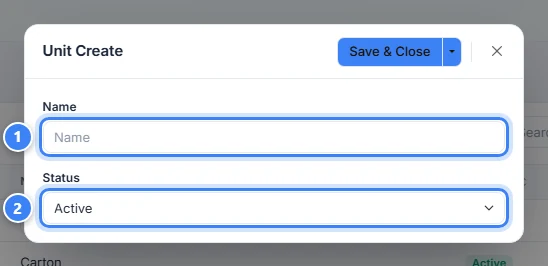 Unit creation window
- Name — measurement unit name or symbol.
- Status — Active or Inactive.
Every field on the unit window
| Control | What it is for | Example | Required? | Default | What happens when changed | What depends on it |
|---|---|---|---|---|---|---|
| Save | Button saving unit details and closing the window. | Click button | Yes | — | Saves the unit into the system. | Unit availability across catalog items. |
| Name | Display name or abbreviation of the unit. | Kilogram or Kg |
Yes | Blank | Sets unit label on items and receipts. | Display on POS registers and invoices. |
| Status | Operational availability status. | Active |
Yes | Active | Controls whether items can use this unit. | Unit selection dropdowns on product forms. |
Example
Farhana is setting up a bakery section in her grocery store:
- She opens Units from the Product dock and clicks Add Unit.
- In the Name field, she enters
Pack. - She verifies that Status is set to Active.
- She clicks the green Save button in the modal header.
- The new unit
Packis now immediately available when adding bakery goods.
Common questions
What happens if I set a unit to Inactive? Existing products linked to the unit keep their historical records and sales data intact. However, cashiers and catalog staff cannot assign an inactive unit to new items.
Can I delete a unit that has products attached? No. To preserve stock integrity and transaction accuracy, delete actions are blocked while active products reference the unit. Set the unit to Inactive instead.
Should I use full names or short symbols for unit names?
Short symbols (such as Pcs, Kg, Ltr, or Mtr) work best because they fit neatly on compact printed receipt rolls and mobile checkout screens.
Related pages
- Unit list — View, filter, export, and manage measurement units.
- Product list — View catalog items and filter by unit.
- Add or change a product — Assign measurement units to items on the Basic tab.