
Customer products catalog
Search, filter, and review available products in the customer portal, examine unit prices, and add items directly to your cart.
Customer products catalog
The Customer products catalog provides buyers with an interactive self-service ordering table. Customers can browse active store products, search by SKU or keyword, examine current unit selling prices, check availability, and add products to their purchasing cart.
When you use this
- Search for commercial products, spare parts, or retail stock by keyword or code.
- Filter product catalogs by category classifications and compare unit pricing.
- Check current availability status before placing wholesale or retail orders.
- Open detailed technical specifications and add products directly to your cart.
Screen layout
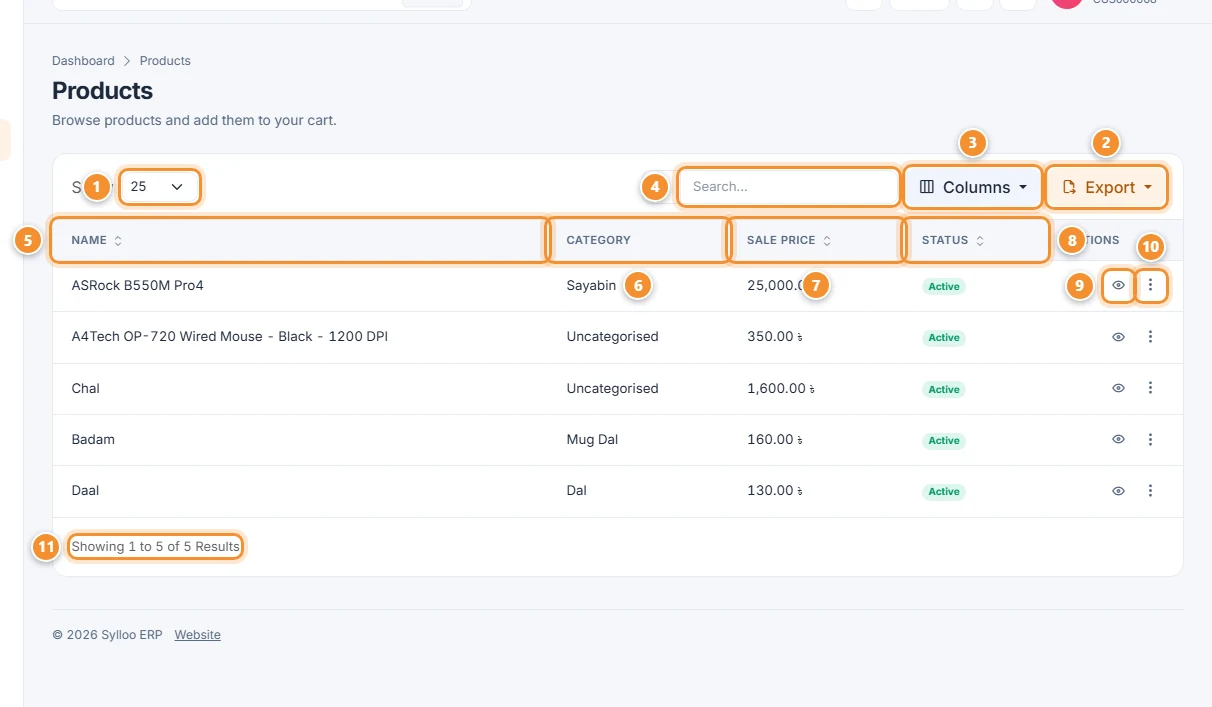 Customer product catalog with search, filtering, and ordering
- Page size selector — dropdown to choose the number of products shown per page.
- Export catalog button — exports visible product rows to Excel or CSV spreadsheet.
- Column visibility selector — customizes which product attributes and price columns are displayed.
- Catalog search input — filters products by name, code, or brand in real time.
- Product name column — shows the product description and allows alphabetical sorting.
- Category column — displays product category classification.
- Unit price column — standard unit selling price excluding taxes and discounts.
- Availability status column — active or discontinued status indicator.
- Product details button — opens the full product specifications and pricing page.
- Row actions menu — opens action dropdown including direct add-to-cart.
- Results counter — shows current page range and total matching products count.
Step-by-step: Searching and ordering catalog products
- Sign in to your customer account and navigate to Products in the portal sidebar.
- In Catalog search input (4), type the name, part number, or brand of the product you want to order. The table updates instantly.
- Use Column visibility selector (3) if you want to inspect extra data such as brand name, SKU code, or net price.
- Review the unit selling price under Unit price column (7) and ensure the product shows an Active badge under Availability status column (8).
- Click Product details button (9) to view detailed specifications, variants, and stock notes.
- To add the product to your order, click Row actions menu (10) and choose Add To Cart. A confirmation alert displays at the top-right corner.
- Click the cart icon in the portal header or navigate to Shopping cart to complete your order.
Every field and control
Catalog toolbar
- Page size selector (1): Configures the table to show 10, 25, 50, 100, or 250 products per page.
- Export catalog button (2): Downloads the filtered catalog table in Excel (
.xlsx) or CSV format for local procurement analysis. - Column visibility selector (3): Toggles optional columns such as Brand, Code, Net Sale Price, Discount, and Sale VAT.
- Catalog search input (4): Real-time keyword filter searching across product titles, descriptions, and catalog identifiers.
Products table
- Product name column (5): Primary title of the catalog product. Click the column heading to sort in ascending or descending alphabetical order.
- Category column (6): The store classification or department assigned to the product.
- Unit price column (7): Base unit price charged per piece, pack, or unit of measurement.
- Availability status column (8): Indicates whether the product is currently active and eligible for purchasing.
- Product details button (9): Eyeball icon opening the Customer product details screen.
- Row actions menu (10): Context menu icon revealing the Add To Cart action.
- Results counter (11): Summary text indicating the active row range and total products returned by the catalog query.
Common questions
Why are some products not visible in the catalog?
The catalog only displays products configured by the store owner as active, published to the storefront, and enabled for customer portal visibility.
Can I order more units than are currently in stock?
If backorders or out-of-stock ordering is disabled by the merchant, attempting to add excessive quantities to your cart prompts an availability warning during checkout.
For affiliates: Your commission and Copy link
When the signed-in person is an affiliate of the shop, the list shows two more things:
- Your commission column — what they earn on each product: the rate (for example
10%or5.00 per item) and the amount at today's price, for example10% · 120.00. No commission when the product earns nothing. - Copy link (link icon in the row) — copies the affiliate's own link to this product. Share it: an order made through it counts for them.
See Affiliate overview for the affiliate's own link and money.