
Add or change a category
Create, edit, and configure product categories across basic settings, uploaded banners, SEO metadata, and frontend display options.
Add or change a category
Use this modal window to create a new product category or update an existing one. You can set whether the category is a top-level parent department or subcategory, upload category banners and icons, configure SEO tags, and set frontend visibility.
Category window opens when you click Add Category on the category list or click Edit on an existing category row.
When you use this
- You introduce a new product department (like Footwear or Home Appliances) and want to assign a code and sorting priority.
- You create subcategories under an existing main department to organize items for easier POS touch-screen selection.
- You upload promotional banner images and navigation icons for your online storefront.
- You optimize category SEO descriptions for Google web searches.
Before you start
- Have the category name and desired short code ready.
- If creating a subcategory, verify that the parent department is already created.
Open the category window
On the Category list, click the blue Add Category button in the header, or click Edit on any category row.
Basic
The Basic tab contains essential category hierarchy and status settings.
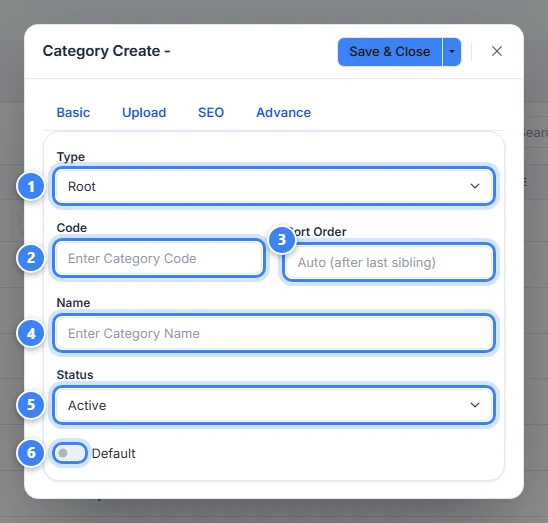 Category creation window - Basic tab
- Type (required) — choose whether this category is a top-level Parent department or a Sub category.
- Code — unique short code or department identifier.
- Sort Order — numeric display order to arrange categories on POS and web menus.
- Name (required) — official category title displayed to staff and customers.
- Status — Active allows products to be assigned and sold; Inactive suspends the category.
- Default — checkbox to set this as the default category for uncategorized products.
Upload
Upload visual media assets including category catalog banners and menu icons.
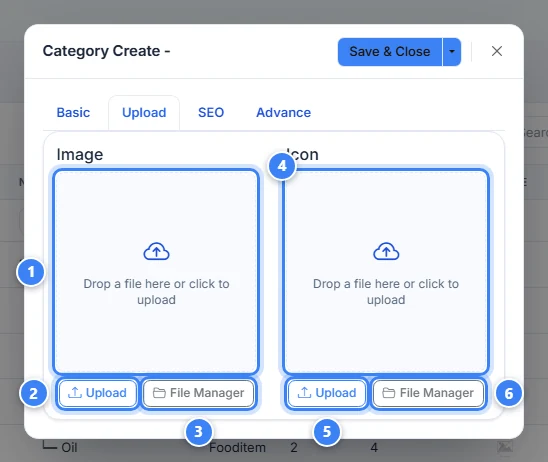 Category creation window - Upload tab
- Dropzone image — drag and drop a category banner image file directly from your computer.
- Upload image — browse your local hard drive to upload a banner picture.
- File Manager image — select an existing banner photo from the Sylloo media library.
- Dropzone icon — drag and drop a small category icon file directly from your computer.
- Upload icon — browse your local hard drive to upload a category icon.
- File Manager icon — pick an existing icon from the Sylloo media library.
SEO
Search engine metadata to optimize category landing pages on your public web storefront.
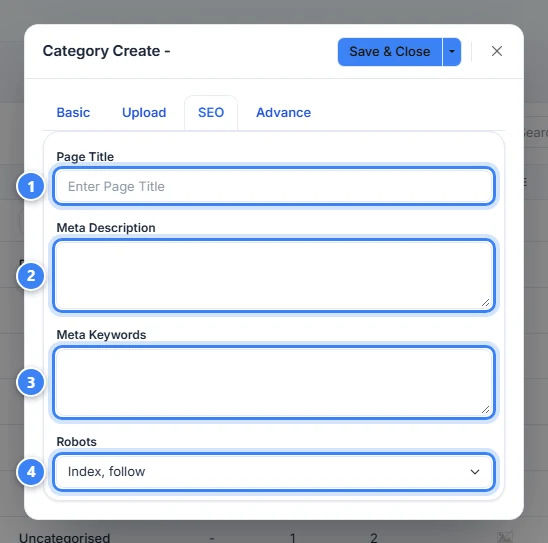 Category creation window - SEO tab
- Page Title — page title appearing on browser tabs and Google search engine results.
- Meta Description — concise 1-2 sentence overview shown in web search snippets.
- Meta Keywords — comma-separated search tags for SEO indexing.
- Robots — web crawler indexing instructions (Index/Follow or NoIndex/NoFollow).
Advance
Detailed category descriptions and storefront display settings.
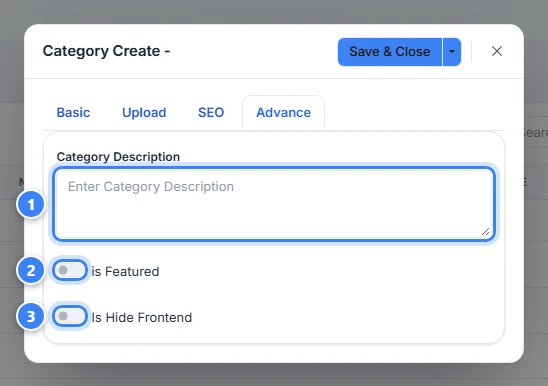 Category creation window - Advance tab
- Category Description — optional rich description explaining the products in this category.
- is Featured — toggle switch to spotlight this category on the web store homepage.
- Is Hide Frontend — toggle switch to hide this category from the online web navigation while keeping it active on POS.
Every field across all tabs
| Tab | Control | What it is for | Example | Required? | Default | What happens when changed | What depends on it |
|---|---|---|---|---|---|---|---|
| Basic | Type | Specifies parent or subcategory level. | Parent |
Yes | Parent | Reveals Root Category when set to Sub. | Category hierarchy tree depth. |
| Basic | Code | Unique category code. | CAT-ELEC |
Optional | Blank | Sets category identifier. | Category reporting and lookup. |
| Basic | Sort Order | Sequence ordering number. | 1 |
Optional | Auto | Controls category display sequence. | Ordering on POS and menus. |
| Basic | Name | Category title. | Electronics |
Yes | Blank | Sets category name on menus and receipts. | Displayed everywhere in ERP. |
| Basic | Status | Active or Inactive status. | Active |
Yes | Active | Determines whether items can be assigned. | Catalog browsing visibility. |
| Basic | Default | Default category indicator. | Unchecked | Optional | Unchecked | Auto-assigns to newly imported items. | Fallback category selection. |
| Upload | Dropzone image | Drag and drop banner target. | Drop image | Optional | — | Prepares banner upload. | Web shop department banner. |
| Upload | Upload image | File browser for category banner. | Click button | Optional | — | Opens OS file dialog for banner. | Banner picture file. |
| Upload | File Manager image | Media library button for banner. | Click button | Optional | — | Opens media library to pick banner. | Banner asset assignment. |
| Upload | Dropzone icon | Drag and drop icon target. | Drop icon | Optional | — | Prepares icon upload. | Mobile and POS menu icon. |
| Upload | Upload icon | File browser for category icon. | Click button | Optional | — | Opens OS file dialog for icon. | Category icon picture. |
| Upload | File Manager icon | Media library button for icon. | Click button | Optional | — | Opens media library to pick icon. | Icon asset assignment. |
| SEO | Page Title | HTML page title for web search. | Buy Electronics Online |
Optional | Blank | Sets HTML <title> tag. |
Search engine ranking. |
| SEO | Meta Description | Summary snippet for search results. | Explore top electronics... |
Optional | Blank | Sets meta description snippet. | Search result snippets. |
| SEO | Meta Keywords | Comma-separated search terms. | electronics, gadgets |
Optional | Blank | Adds search keywords. | Search engine indexing. |
| SEO | Robots | Crawler indexing instructions. | Index, follow |
Optional | Default | Controls web search indexing. | Web crawler behavior. |
| Advance | Category Description | Detailed category text. | Explore computers, audio... |
Optional | Blank | Sets detailed description. | Shown on category landing page. |
| Advance | is Featured | Web store showcase toggle. | Checked | Optional | Unchecked | Displays category on homepage. | Homepage category showcase. |
| Advance | Is Hide Frontend | Hides category from web catalog. | Unchecked | Optional | Unchecked | Hides category from website menu. | Online store navigation menu. |
Example
Farhana is setting up a department for a grocery supermarket:
- She opens Category list and clicks Add Category.
- On the Basic tab, she chooses Type
Parent, enters NameBeverages, and sets Sort Order1. - On the Upload tab, she uploads a colorful beverage banner and an icon.
- On the Advance tab, she checks is Featured so that shoppers see Beverages prominently on the website homepage.
- She clicks Save in the modal header to complete creation.
Common questions
How do I make a category a subcategory of another?
In the Basic tab, set Type to Sub category. A Root Category dropdown appears allowing you to choose which parent category this subcategory belongs to.
Can I change a category's parent later? Yes. Click Edit on any category row, switch the parent in Root Category, and click Save. All child subcategories and assigned products move automatically.
What is the difference between Inactive and Is Hide Frontend? Setting a category Inactive suspends it completely across the business. Setting Is Hide Frontend keeps the category fully available on in-store POS cash registers while removing it from the public web storefront.