
View order details
Review, inspect, and print complete transaction details, line items, and billing summaries.
View order details
Use this window to inspect the complete document voucher for any order in your business. The preview presents company branding, invoice reference codes, transaction dates, customer contact information, line products with unit prices and quantities, tax calculations, and billing summaries. You can review outstanding balances, print formatted paper vouchers, or open the editing form to make updates.
When you use this
- You want to examine full transaction details and line products before delivering goods.
- A customer requests a duplicate printed invoice or formal transaction summary.
- You need to verify billing terms, salesperson assignments, or closing remarks on an order.
Before you start
- You need permission to view orders of this order. If the view action is missing, ask your administrator.
- Ensure that the order exists and is accessible within your assigned outlet locations.
Open the order view window
From the Order list, click the View action button on any transaction row. The document preview window opens.
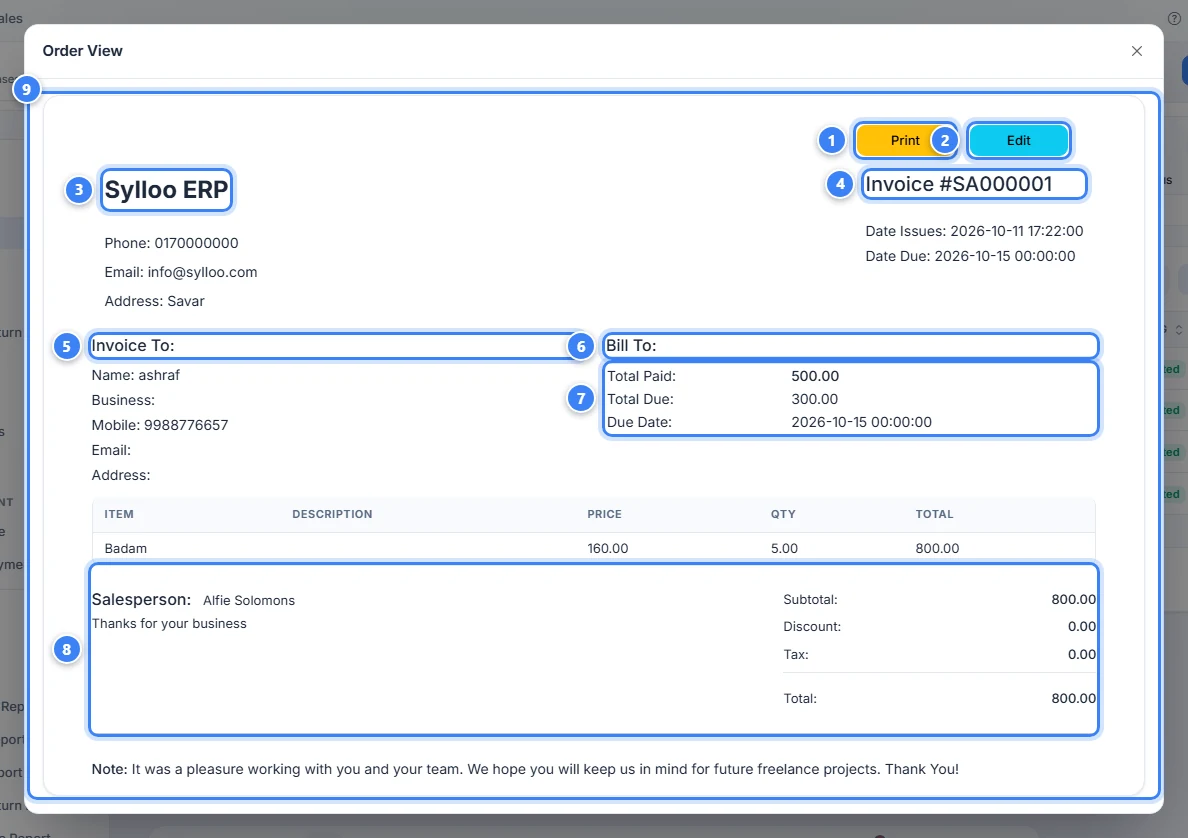 Order view window
- Print — prints the formatted document voucher.
- Edit — opens the full order editing window.
- Company branding — shows company name, contact numbers, and store address.
- Invoice reference — shows document reference code, issue date, and due date.
- Customer details — displays customer name, business name, mobile, and address.
- Billing summary — displays total amount paid, remaining balance due, and due date.
- Ordered products table — lists items, descriptions, unit prices, quantities, and totals.
- Order totals breakdown — shows subtotal, discount, vat, and net payable grand total.
- Closing note — shows thank you note or operational remarks.
Review document details.
Examine the structured sections of the preview voucher.
- Header and branding: displays your company name, official address, telephone, and email address as configured in store settings.
- Invoice metadata: shows the unique document code, official issuance date, and payment due date.
- Customer contact: reviews the buyer or supplier identity, business trade name, mobile number, and delivery address.
- Products table: lists each product, description, unit sales price, quantity ordered, and line subtotal.
- Financial summary: examines the subtotal, applicable discount deductions, tax charges, and final net payable total.
- Payment balance: compares the total collected sum against the remaining due balance.
Every field, button, and section explained
Header actions
| Button | Type | Description |
|---|---|---|
| Action button | Sends the formatted document voucher to your printer or PDF export. | |
| Edit | Action button | Opens the full order editing window to modify products, quantities, or prices. |
Document fields
| Field | Type | Description |
|---|---|---|
| Invoice # | Text | The unique reference code assigned to this order transaction. |
| Date Issued | Date | The official document date when you created the order. |
| Date Due | Date | The payment deadline or agreed credit settlement date. |
| Invoice To | Text block | Customer or party contact details including name, business, and phone. |
| Total Paid | Currency | The cumulative amount collected or disbursed toward this document. |
| Total Due | Currency | The outstanding balance remaining unpaid. |
| Subtotal | Currency | Gross total of all line products before taxes and deductions. |
| Discount | Currency | Overall promotional deduction or coupon savings applied. |
| Tax | Currency | Total value-added tax or sales tax calculated on taxable items. |
| Total | Currency | Final net payable grand total for the transaction. |
| Salesperson | Text | The staff member or sales representative assigned to the order. |
| Closing note | Text | Operational remarks, terms, or customer appreciation message. |
Common questions
Can I edit an order directly from this window?
Yes. Click the Edit button in the top right corner of the preview to launch the full order form.
How do I print the document or save a PDF?
Click the Print button in the top right toolbar. Your browser's print dialog opens, allowing you to select a physical receipt printer or save as a PDF.
Affiliate box
When your business runs the affiliate program, a sale, a sales return or a quotation shows the box Affiliate. It names the affiliate the order counts for, or No affiliate, with a badge for how it came: Link, Coupon, Chosen by staff or Code at the till. A table under it lists each commission line: Product, Sale amount, Rate, Commission and Status.
Change affiliate sets another affiliate on a completed sale. Its commission is written again for the new affiliate. Not possible once a commission is approved. Pick the affiliate and click Save. The message The affiliate of the order was changed. appears.
You can also ask the Octopus assistant to change or remove the affiliate of a completed sale. When the sale already has an affiliate, it asks you first.
See Affiliate on products, contacts and orders for more.
Related pages
- Orders — Search, filter, and manage all orders.
- Add or change an order — Create or modify order lines and pricing.
- Duplicate order — Clone transactions or convert quotations into sales orders.
- Record payment on order — Collect customer deposits or record payments.
- Affiliate on products, contacts and orders