
Octopus AI assistant
Interact with Octopus AI to analyze sales, draft designs, import data, and review automated actions.
Octopus AI assistant
Use the Octopus AI assistant workspace to collaborate with your intelligent business co-pilot. Octopus understands everyday language. It answers questions about sales trends, calculates stock balances, drafts website sections, parses spreadsheets, and automates tasks with your approval.
When you use this
- Ask commercial questions like "Which customers have overdue invoices this month?" or "What was yesterday's top selling product?".
- Draft and refine branded invoice templates, website banners, or promotional sliders.
- Parse uploaded supplier spreadsheets and validate customer or catalog data before import.
- Review proposed multi-step actions and approve or reject them before changes apply to your workspace.
Screen layout
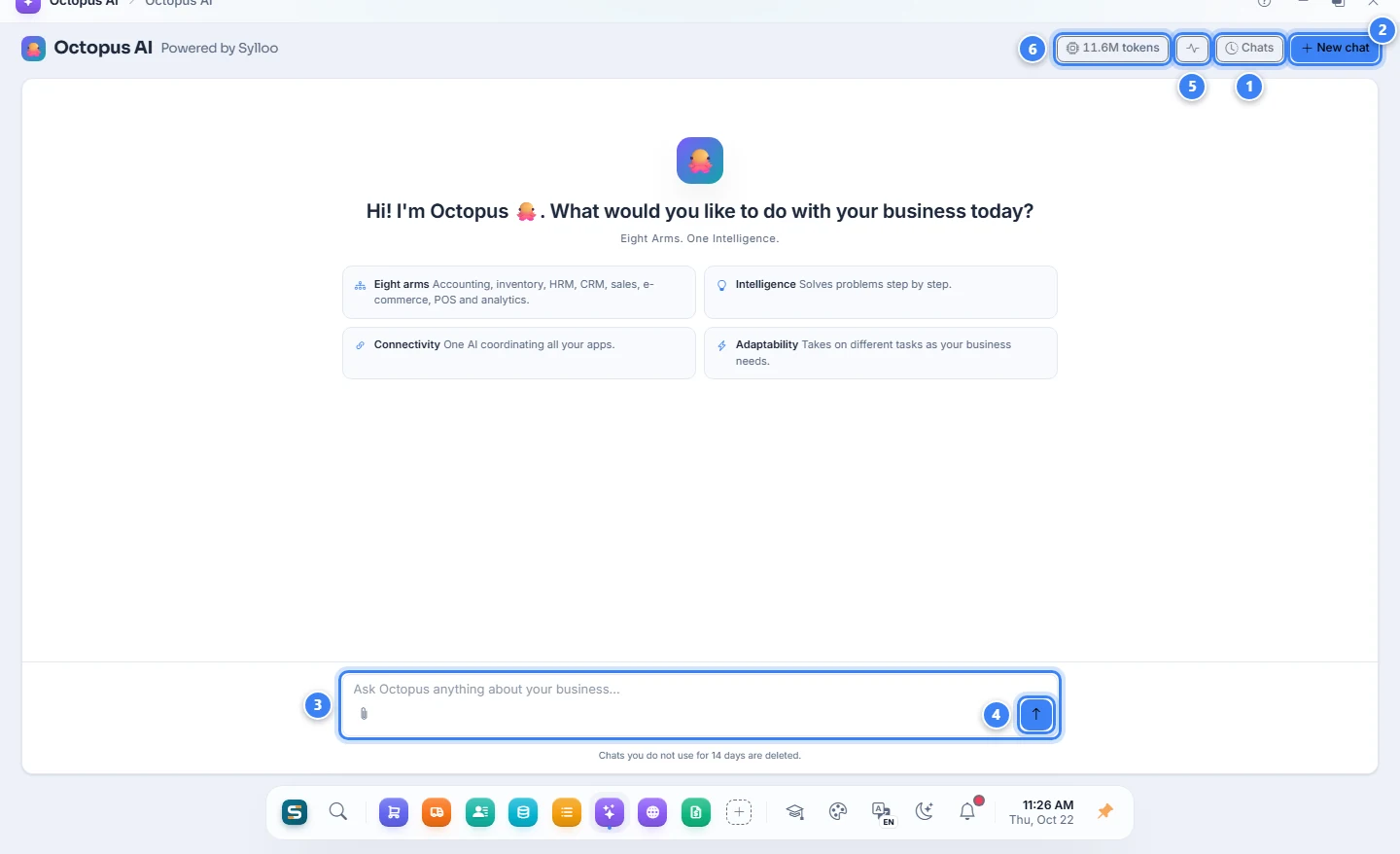 Octopus AI assistant workspace
- Chats sidebar toggle — opens the history panel showing past conversations with Octopus.
- New chat button — starts a fresh, isolated conversation session.
- Message input field — type instructions, queries, or requests in everyday language.
- Send button — submits your prompt and starts the AI processing turn.
- Activity link — navigates to the AI tool execution audit and security trail.
- This month (company) usage badge — shows monthly token consumption across your company workspace.
Step-by-step: Asking a question and approving an action plan
- Open Octopus AI from your main dock or navigation menu.
- Click New chat (2) to start a clean session, or open Chats (1) to resume a past inquiry.
- Type your instructions into the Message input field (3) (for example: "Review current sales and draft a promotion banner for next weekend").
- Optionally, drag and drop documents or click the file upload icon to Attach a picture, PDF, spreadsheet or HTML template.
- Click Send (4) to start processing. If Octopus is generating a response, click Stop anytime to halt generation.
- When Octopus proposes business writes or changes, an interactive proposal card appears.
- Click Approve all to execute the plan, click Reject to dismiss the proposal, or click Ask for changes to provide specific adjustments in the feedback box.
- If an unexpected network interruption occurs, click Continue the job where you stopped. to resume the turn seamlessly.
Every field and control
Navigation and session controls
- Chats (1): Opens the conversation panel to search and switch between previous chat sessions.
- New chat (2): Clears the conversation window and begins a fresh context session.
- Activity (5): Navigates to the comprehensive audit trail tracking every tool execution and data read.
- This month (company) (6): Live metric badge displaying monthly company token usage and quota consumption.
Message composer and turn actions
- Attach a picture, PDF, spreadsheet or HTML template: File attachment button allowing you to provide reference documents or product lists.
- Remove: Deletes a staged file attachment before submitting your prompt.
- Send (4): Submits your message and attachments to Octopus for processing.
- Stop: Immediately interrupts the active turn while Octopus is reasoning or compiling data.
- Continue the job where you stopped.: Appears when a turn encounters a transient error, allowing you to resume execution without repeating previous steps.
Action approval and feedback controls
- Approve all: Grants final authorization to commit the proposed changes to your workspace.
- Reject: Declines the proposed action and keeps your business data unchanged.
- Ask for changes: Opens a feedback input field to request refinements before deciding.
- What should Octopus do differently? e.g. "only one slide", "use the blue picture": Textarea field where you provide specific revision directions.
- Send: Transmits your modification notes back to Octopus to generate a revised plan.
- Cancel: Closes the revision input box and returns to the standard decision buttons.
Common questions
How do approvals keep my live data safe?
Octopus requires explicit user confirmation before creating, updating, or deleting important business records. You always inspect the full list of planned actions and click Approve all before changes take effect.
What is the difference between Practice and Live mode?
In Live mode, Octopus checks permissions and requests approval for sensitive modifications. In Practice mode, you can safely test complex designs, bulk imports, and automations without affecting real bookkeeping.
Can Octopus see all data across my organization?
Octopus only accesses data permitted by your user account role and outlet assignments. A cashier account cannot query restricted payroll or director profit summaries.
Affiliate program in the assistant
When your business runs the affiliate program, you can ask Octopus to work with it in plain words, for example "Which commissions are ready to approve?" or "Pay Ava her approved balance". It can:
- list affiliates (with their balance, those waiting and those with money to pay), commissions and payouts;
- approve or refuse commissions, and add a bonus or correction;
- pay affiliates and cancel a payout;
- add or change affiliates and commission rates;
- change or remove the affiliate of a completed sale.
Before it approves, refuses, adds a bonus or correction, pays, or changes a rate, Octopus always asks you first. The question names the total and any order that still has money due. When a sale already has an affiliate, it asks before it changes it.
Octopus never shows or asks for an affiliate's bank account or wallet number. A bank file for bank transfers is made only on Affiliate payouts.
Related pages
- AI activity and audit trail — inspect the historical log of tool executions and decisions.
- Practice and Live — learn how safe practice sandboxes work.
- Users and roles — manage employee access permissions and team roles.
- Affiliate on products, contacts and orders