
Employee designations and groups
Create staff categories, job titles, department groups, and organizational designations.
Employee designations and groups
Use the Employee designations and groups screen to structure your workforce into recognizable categories, departments, and job titles. You can define designations such as Sales Executive, Cashier, Warehouse Supervisor, Accountant, or Barista, making it easy to filter personnel rosters and maintain company structure.
When you use this
- Establish formal departments such as Sales, Inventory, Accounting, or Kitchen operations.
- Create standard job designations to assign when onboarding new team members.
- Filter employee reports and staff rosters by specific professional groups.
- Deactivate obsolete organizational designations when roles are restructured.
Screen layout
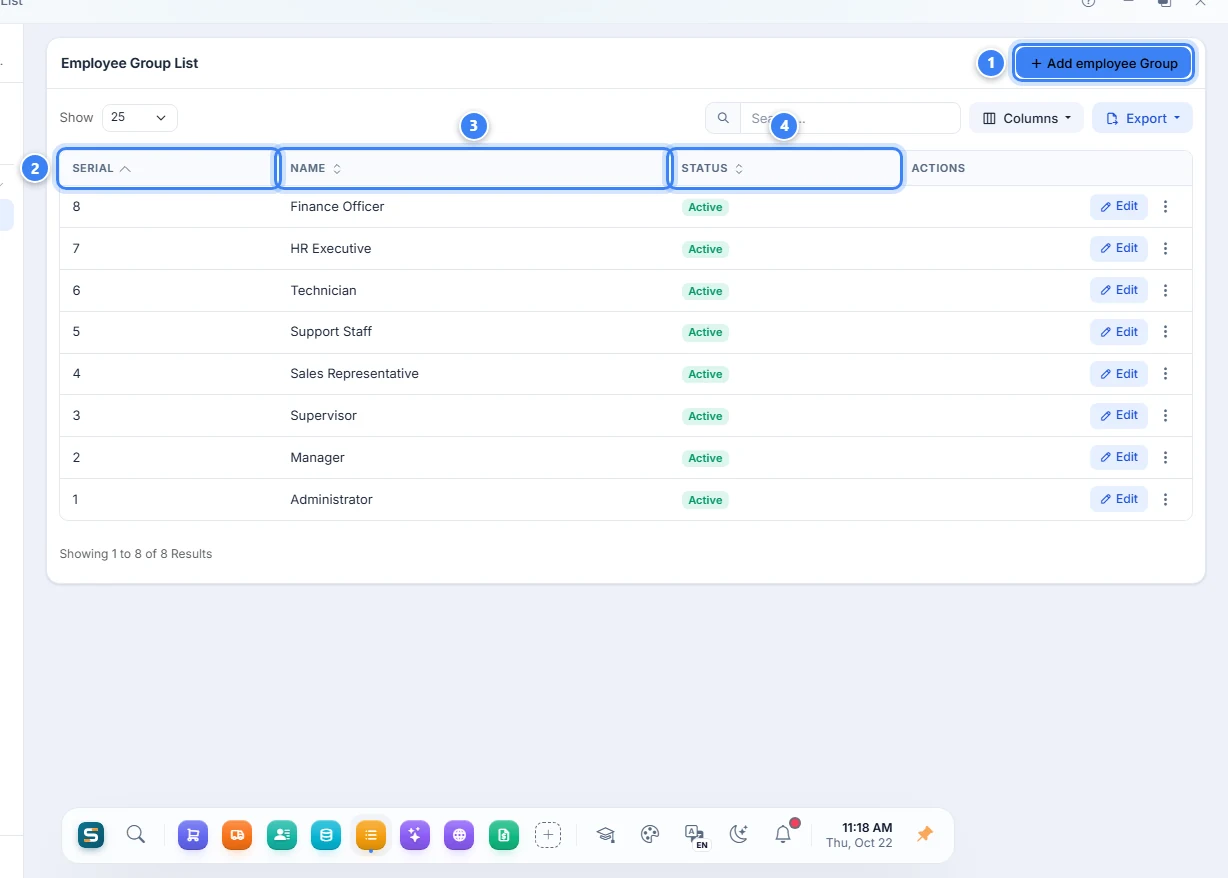 Staff designations and employee groups list
- Add employee Group button — opens the modal window to create a new designation or staff department group.
- Serial column — shows the sequential ordering index of the employee group.
- Name column — displays the departmental or designation title.
- Status column — indicates whether the staff group is active or inactive.
Step-by-step: Adding a new designation or employee group
- Open Human Resources > Settings > Employee groups from the navigation menu.
- Click Add employee Group (1) to launch the designation creation modal.
- Enter the group or job title Name (3) (for example, Store Associate or Warehouse Packer).
- Select the active status to make the designation immediately selectable during employee onboarding.
- Click Save to confirm. The new group appears in the roster with an assigned Serial (2) number.
Every field and control
Toolbar buttons
- Add employee Group (1): Opens the dialog to enter a new job title, department, or staffing category.
Roster columns
- Serial (2): Sequential index number generated for designation record ordering.
- Name (3): The official title of the department, role, or designation. Click to sort alphabetically.
- Status (4): Status badge indicating whether the designation is currently active for employee assignment.
Row actions
- Edit: Opens the designation editor to rename the group or toggle its active availability.
- Delete: Removes an unused employee group, provided no active employee records are linked to it.
Common questions
Can an employee belong to multiple designations?
Each employee profile links to one primary designation group to maintain clear reporting hierarchies across your organization.
What happens if I deactivate an employee group?
Deactivating a group prevents it from being selected for new hires while existing staff assigned to that group retain their title in past records.
Are employee groups the same as user roles?
No. Employee groups represent job titles and organizational departments for human resources. User roles in Users and roles define software permissions and login rights.
Related pages
- Employees — view and manage your staff directory and personnel files.
- Users and roles — configure sign-in accounts and system permissions.
- Outlets — assign staff and designations across multiple store locations.