
Account receipt details and ledger postings
Review full transaction details, counterparty contacts, financial totals, and line breakdowns for posted accounting receipts.
Account receipt details and ledger postings
Review full transaction details, counterparty information, payment status, and itemized ledger line amounts for any recorded receipt or voucher in your system.
When you use this
- Checking the breakdown, charges, and payment allocations of a completed cash or bank receipt.
- Verifying the counterparty, operator, transaction date, and reference number from accounting reports and ledger audit trails.
- Inspecting source transaction records directly when drilling down from general ledger and trial balance statements.
- Launching the edit window to adjust an unposted or draft receipt when you have editing permissions.
Before you start
- You need an active user account with permission to view accounting receipts.
- You can open this window by clicking transaction code links in reports or by selecting view actions on receipt records.
Open the receipt details window
- Go to Accounting in the left sidebar and open your receipts list or navigate to an accounting report (such as General Ledger or Day Book).
- Click on the receipt code link in the report table, or click the view action on any receipt row.
- The Receipt View window opens displaying the transaction summary and line items.
Review details or open editor
- Review the operator employee name, counterparty customer or vendor, receipt code, and payment information.
- Inspect the particulars table to verify descriptions, charges, and net payment amounts.
- If you need to make changes and have editing rights, click the Edit Receipt button in the header toolbar.
Every field on this screen
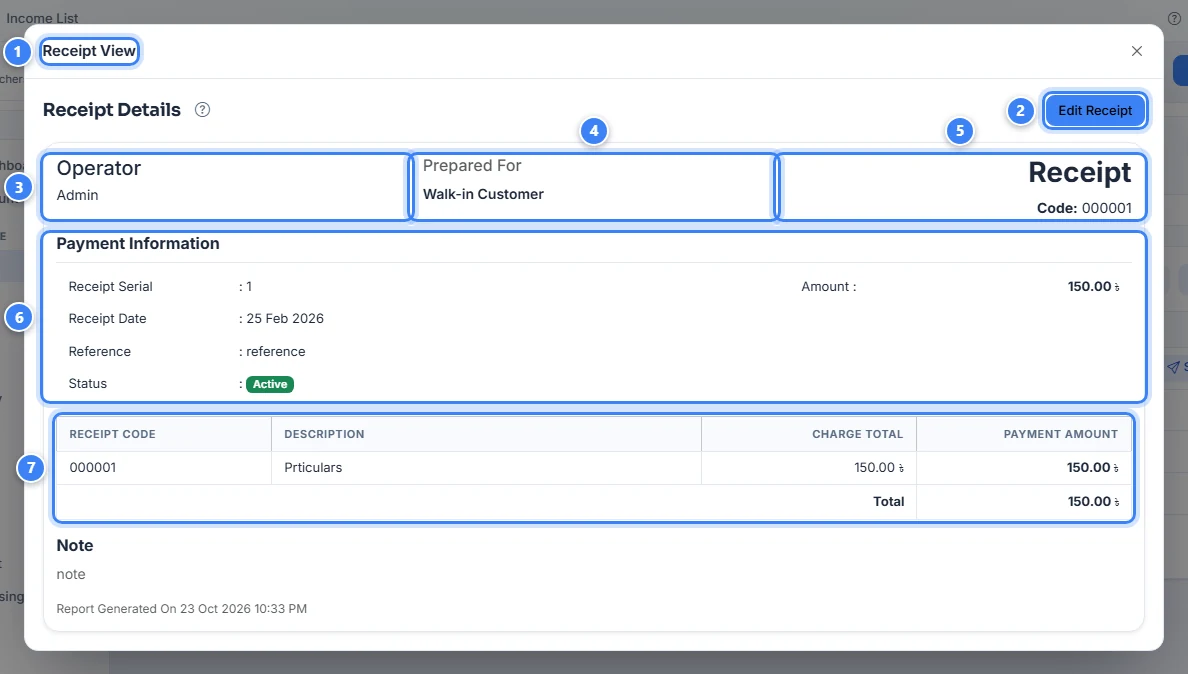 Account receipt details and ledger postings view modal
- Modal title — Displays the window title indicating receipt review mode.
- Edit Receipt button — Launches the editing form for this receipt if your user role has modification permissions.
- Operator details — Identifies the employee or cashier who recorded and posted this receipt transaction.
- Prepared for contact — Identifies payer customer or receiving party.
- Receipt code — Unique system receipt identifier code.
- Payment information card — Summarizes receipt serial, date, reference, status, and total amount.
- Particulars table — Details transaction breakdown, particulars description, charges, and payment amounts.
Payment information fields
| Field | Description |
|---|---|
| Receipt Serial | The sequential document number assigned to the receipt. |
| Receipt Date | The date on which the receipt was recorded and posted to the general ledger. |
| Reference | External reference number, such as a paper receipt number, cheque number, or bank deposit slip identifier. |
| Status | Current state of the transaction (for example, Active, Inactive, or Pending). |
| Amount | The total monetary value of the receipt formatted in your primary currency. |
Particulars breakdown columns
| Column | Description |
|---|---|
| Receipt Code | Unique identifier code matching the header transaction record. |
| Description | Particulars or memo text describing the service, goods, or accounting reason for the receipt. |
| Charge Total | Total charges or gross receivable amount for this particular transaction entry. |
| Payment Amount | Net received or disbursed amount allocated to this transaction row. |
| Total | Bottom summary row calculating the aggregate payment sum of all displayed lines. |
Examples
Example: Auditing an income receipt from the General Ledger
Suppose you are reconciling customer accounts and see an income entry of $1,200:
- Click the transaction code link in the General Ledger report table.
- The Receipt View window opens immediately showing operator name
Admin Userand counterpartyGlobal Trade Ltd. - Check the Receipt Serial and verify the Reference against your banking deposit slip.
- Review the Particulars table to confirm that the $1,200 total properly matches the sales invoice memo.
Example: Opening the edit form to correct a draft receipt
Suppose a bookkeeper entered an incorrect description on a recent draft transaction:
- Locate the entry in the receipt list and click view to inspect its contents.
- Verify in the Payment information card that the status is still unposted or active.
- Click the Edit Receipt button in the top right header.
- The editing modal opens, allowing you to update the particulars and save the corrected voucher.
Common questions
Can I print this receipt directly?
Yes. You can print formal receipts and delivery slips from the document preview modal or by clicking the print action on the receipts list.
Why is the Edit Receipt button disabled or not visible?
The Edit Receipt button requires modify permissions for this specific receipt type. If an accounting period is locked or your user role only has viewing rights, receipts cannot be altered.
Does viewing a receipt modify ledger balances?
No. This window is read-only. It inspects existing records and does not change account balances or timestamps.
Related pages
- Vouchers — The main list view displaying all recorded vouchers, datatable filters, and action menus.
- Add or edit voucher — Create and modify single-entry vouchers.
- Journal entries — Multi-line double-entry journal vouchers for complex accounting adjustments.