
Select product serial numbers
Assign, scan, and track individual serial numbers for serialized electronics, assets, and warranty products on an order.
Select product serial numbers
Use this window to attach unique product serial numbers to order lines before fulfillment. When your business sells or purchases serialized inventory (such as electronics, appliances, or machinery), tracking serial numbers guarantees precise warranty validation, after-sales service, and accurate asset tracking. You can scan barcodes or type serial numbers directly, review assigned serial codes in a list, and remove incorrect entries before saving the document.
When you use this
- You sell electronics or equipment that require individual serial numbers for warranty claims.
- A customer returns a defective serialized product and you need to verify that its serial code matches the original sales invoice.
- You receive serialized inventory from a supplier and register each unique unit on the purchase order.
Before you start
- The ordered product must have serial tracking enabled in product catalog settings.
- You need permission to edit orders of this order.
Open the serial numbers window
In the order editing form, click the Serial button on any serialized product line. The serial assignment window opens.
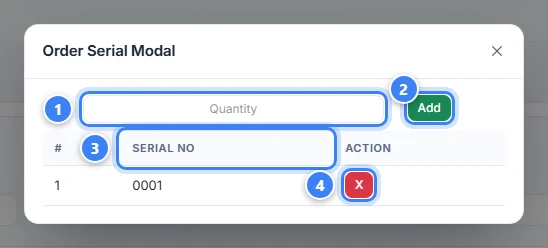 Order product serial numbers window
- Serial Number field — enter serial number or scan product barcode.
- Add — adds serial number to the order line.
- Serial No column — shows assigned serial numbers.
- Remove serial — removes the serial number from this line.
Assign and verify serial numbers.
Attach each unit's unique code to match the line quantity.
- Scan or type the code: click inside the Serial Number field and scan the product barcode using a handheld scanner, or type the code manually.
- Add to table: click the Add button or press Enter to register the serial number into the assignment table.
- Review assigned count: verify that the total number of assigned serials matches the ordered product quantity.
- Remove errors: click the red X button beside any incorrect serial number to remove it from the list.
Every field, column, and action explained.
Input controls.
| Control | Type | Description |
|---|---|---|
| Serial Number field | Text input | Text field where you scan or type the unique alphanumeric serial number. |
| Add | Action button | Registers the entered serial code into the assigned serial list below. |
Table columns
| Column | Type | Description |
|---|---|---|
| # | Number | Sequence number of the serial entry for this product line. |
| Serial No | Text | The unique registered serial number code for the product unit. |
| Action | Action button | Action column containing the removal button to detach a serial code. |
Row actions
| Action | Type | Description |
|---|---|---|
| Remove serial (X) | Button (red) | Removes the assigned serial number from the product line. |
Common questions
What happens if I scan a duplicate serial number?
The system rejects duplicate serial entries on the same product line to maintain unique inventory and warranty records.
Can I use a handheld barcode scanner with this window?
Yes. Place your cursor inside the Serial Number field and scan your product barcodes one by one. Each scan appends the code directly to the list.
Related pages
- Orders — Browse, search, and manage all orders.
- Add or change an order — Configure products, line quantities, and terms.
- View order details — Inspect complete invoice and customer summaries.
- Order delivery history — Track shipments and dispatches.