
Note list
Browse, filter, view, print, and audit counterparty note records including credit notes, debit notes, write-offs, and refunds.
Note list
The Note list manages financial balance adjustments and refunds directly linked to your customers or vendors. Unlike standard cash vouchers, party notes adjust ledger payables and receivables without requiring immediate bank settlement.
When you use this
- Issuing customer allowances, sales rebates, or post-invoice goodwill credits.
- Claiming supplier discounts, purchase cost reductions, or short-shipment corrections.
- Writing off uncollectible customer bad debts or expired supplier debit balances.
- Refunding customer cash deposits or recording returned payments from vendors.
Screen layout
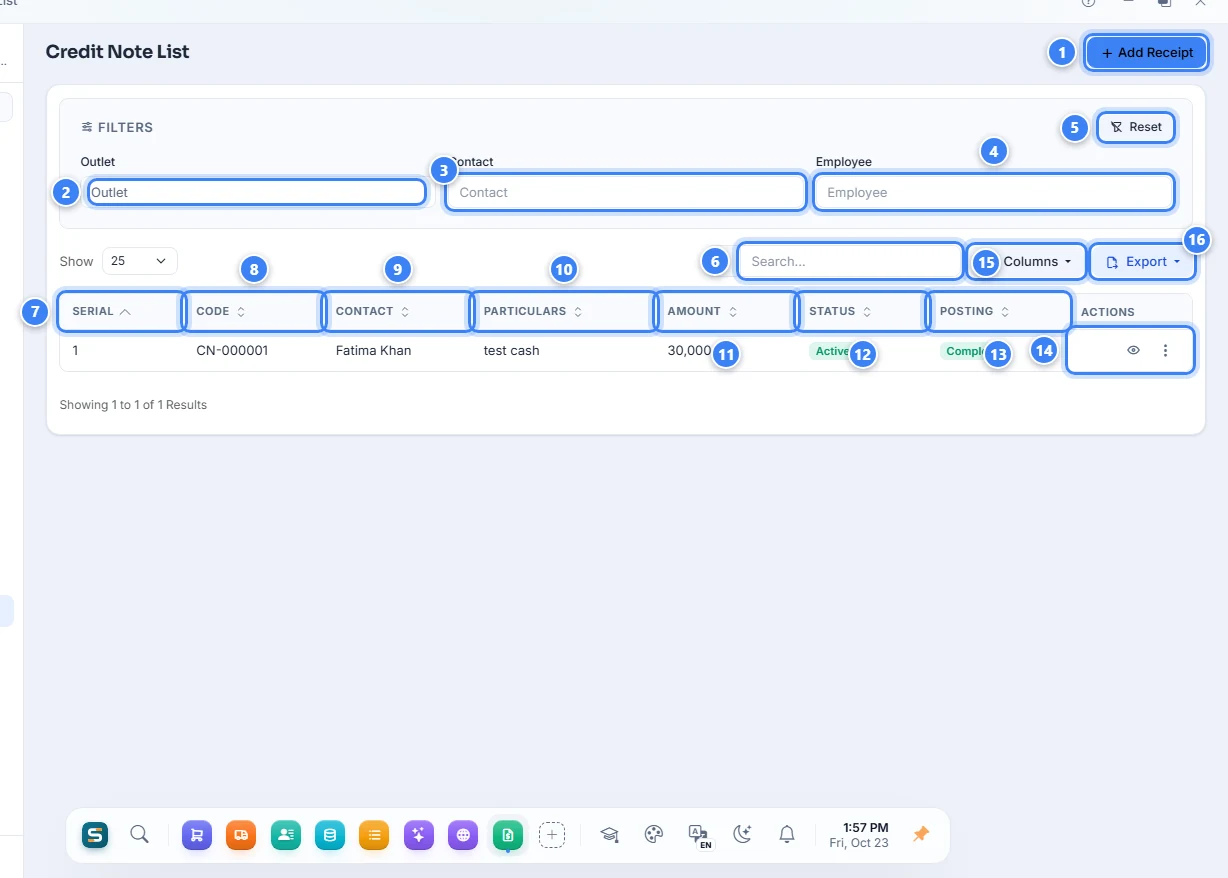 Note list
- Add Receipt button — opens the note entry form to record a new party adjustment or refund.
- Outlet filter — filters note transactions by originating store branch or outlet.
- Contact filter — filters note transactions by customer, supplier, or party contact.
- Employee filter — filters note transactions by the staff member who processed the adjustment.
- Reset filter button — clears all applied outlet, contact, and employee filters.
- Search field — live search across note particulars, codes, and serial numbers.
- Serial column — sequential numerical index assigned to the party note.
- Code column — system reference code identifying the party note.
- Contact column — name of the customer, vendor, or counterparty receiving the adjustment.
- Particulars column — summary explanation or reason for the party note adjustment.
- Amount column — total monetary value adjusted or refunded.
- Status column — operational status indicating whether active or inactive.
- Posting status column — shows whether the party note is draft, submitted, or posted.
- Row actions — view preview, print slip, submit for approval, edit draft, or cancel.
- Columns customization button — shows or hides table columns.
- Export table button — exports filtered party note records to Excel or CSV spreadsheet.
Step-by-step: Managing note records
Step 1: Filter and locate notes
- Open Accounting in the left sidebar and choose your Note list.
- Filter transactions by store branch using the Outlet search dropdown.
- Locate entries for a specific party by entering their name into the Contact filter.
- Search by the clerk who logged the transaction using the Employee filter.
- Reset all active filters anytime by clicking Reset.
- Use the Search box to find notes by reference code or description in real time.
Step 2: Create a new party note
- Click the green Add Receipt button above the datatable.
- Choose the affected customer or vendor in the counterparty field.
- Select the adjustment ledger account and specify the adjusted monetary amount.
- Review the transaction date, enter an external reference, and add notes in Particulars.
- Click Save & Close to record the adjustment and update the party balance.
Row actions and document screens
Click the action menu on any row to manage the record. Actions include:
-
View — Opens the read-only preview showing party details, adjustment lines, and audit history.
-
Print — Generates a formal printed note slip with signature blocks for both parties.
-
Approve or Reject — Available to managers when an adjustment note awaits authorization.
-
Withdraw — Recalls a submitted note back to draft status before managerial review.
-
Cancel entry — Voids a posted note and restores the original counterparty account balance.
Every field and control
Header toolbar and search
- Add Receipt — Action button (1). Available when you have creation permissions. Opens the note creation form.
- Search field — Search text box (6). Live text search that filters table records by code, contact, or memo.
- Columns — Customization dropdown button (15). Allows showing or hiding table columns, such as employee name.
- Export — Data export button (16). Exports the current view to Excel or CSV spreadsheet format.
Filter bar
- Outlet — Searchable dropdown (
outletId). Labeled Outlet filter (2) on screen. Filters notes by branch. - Contact — Text filter (
customerName). Labeled Contact filter (3) on screen. Filters notes by party name. - Employee — Text filter (
employeeName). Labeled Employee filter (4) on screen. Filters notes by staff member. - Reset — Button (5). Clears all filter fields and restores the default table list.
Table columns and row actions
- Serial — Data column (7). Sequential numerical index assigned automatically upon creation.
- Code — Data column (8). Formatted voucher reference code identifier.
- Contact — Data column (9). Name of the customer, vendor, or counterparty.
- Employee — Data column (
employee_name). Displays the staff member who logged the adjustment. - Particulars — Data column (10). Descriptive memo or notes explaining the reason for adjustment.
- Amount — Numerical currency column (11). Total monetary value adjusted or refunded.
- Status — Badge column (12). Displays the operational active or inactive status.
- Posting — Badge column (13). Indicates the ledger stage: Draft, Submitted, or Posted.
- View — Row action button (
view). Opens the document preview modal to inspect detailed lines. - Print — Row action menu option (
print). Generates a formatted printable adjustment voucher.
Examples
Example: Customer billing allowance
Suppose a wholesale customer receives a $120 price discount due to minor packaging damage:
- Click Add Receipt to create a note.
- Select the customer name and choose your sales allowances ledger account.
- Enter
120.00in Amount and typeAllowance for damaged packagingin Particulars. - Click Save & Close. The customer receivable balance decreases by $120.
Example: Supplier short-shipment claim
Suppose a vendor delivered $200 less goods than billed on their purchase invoice:
- Click Add Receipt.
- Select the vendor name and choose your purchase returns or allowances account.
- Enter
200.00in Amount and typeClaim for missing items on invoicein Particulars. - Click Save & Close. Your payable balance to the vendor decreases by $200.
Example: Bad debt customer write-off
Suppose a defunct customer balance of $450 is deemed uncollectible:
- Click Add Receipt.
- Select the customer name and pick
Bad Debt Expenseas the adjustment ledger account. - Enter
450.00in Amount and noteCustomer liquidation write-offin Particulars. - Click Save & Close. The uncollectible balance is cleared from receivables.
Example: Customer cash refund
Suppose you return a $100 deposit to a customer from your store cash register:
- Click Add Receipt.
- Select the customer name, choose your cash register account, and set payment method to
Cash. - Enter
100.00in Amount and noteSecurity deposit returnin Particulars. - Click Save & Close. Cash decreases by $100 and the customer deposit balance settles.
Common questions
How does a credit note differ from a payment voucher?
A credit note adjusts customer ledger balances without moving cash or bank funds. A payment voucher records physical cash or bank disbursements.
Can I allocate a party note against a specific invoice?
Yes. Use the reference fields in the note creation modal to link adjustments directly to an invoice or bill.
What happens when a posted party note is cancelled?
Cancelling a posted note creates reverse accounting entries that restore the counterparty balance to its previous state.
Related pages
- Add or edit note — Modal guide for creating party notes, write-offs, and refunds.
- Note list — Single-entry money collection and expense vouchers.
- Contacts list — Managing counterparty balances and statements.