
Getting help
How to open and use the built-in screen help, the Help panel, keyboard shortcuts, and the public Help Center.
Getting help
Learn how to get immediate help while working in Sylloo ERP, search the complete documentation, and open guides beside your screen or in a separate tab.
When you use this
- You are on a screen or modal window and need to know what a button, field, or setting does without losing your current progress.
- You want to search across all guides and manuals to learn how to complete a business task.
- You want to browse or share documentation pages on your phone or in another browser tab without signing in.
Before you start
- You do not need any special role or permission to view documentation.
- The Help Center is public and accessible on your business address at
/docswithout signing in. - In-app help is available across all screens: main windows, modal forms, sign-in pages, the customer portal, and the developer console.
Ways to open help
You can access help in three quick ways from any workspace screen:
- Click the Help (?) button: Click the question mark icon in any window title bar or modal header to slide open the Help panel right beside your work.
- Press F1 on your keyboard: Press
F1at any time to open the exact guide for the active screen or open modal dialog. The F1 shortcut opens the guide without clicking. - Open the Help menu: Click the title bar question mark icon to show the Help menu with quick links and shortcut keys.
- Press ? to search: Press
?(or click Search in the Help menu) to focus the help search box and search across all user manuals and developer guides.
Every field on this screen
The built-in Help panel and its toolbar let you read, search, navigate, and zoom documentation while keeping your active form open.
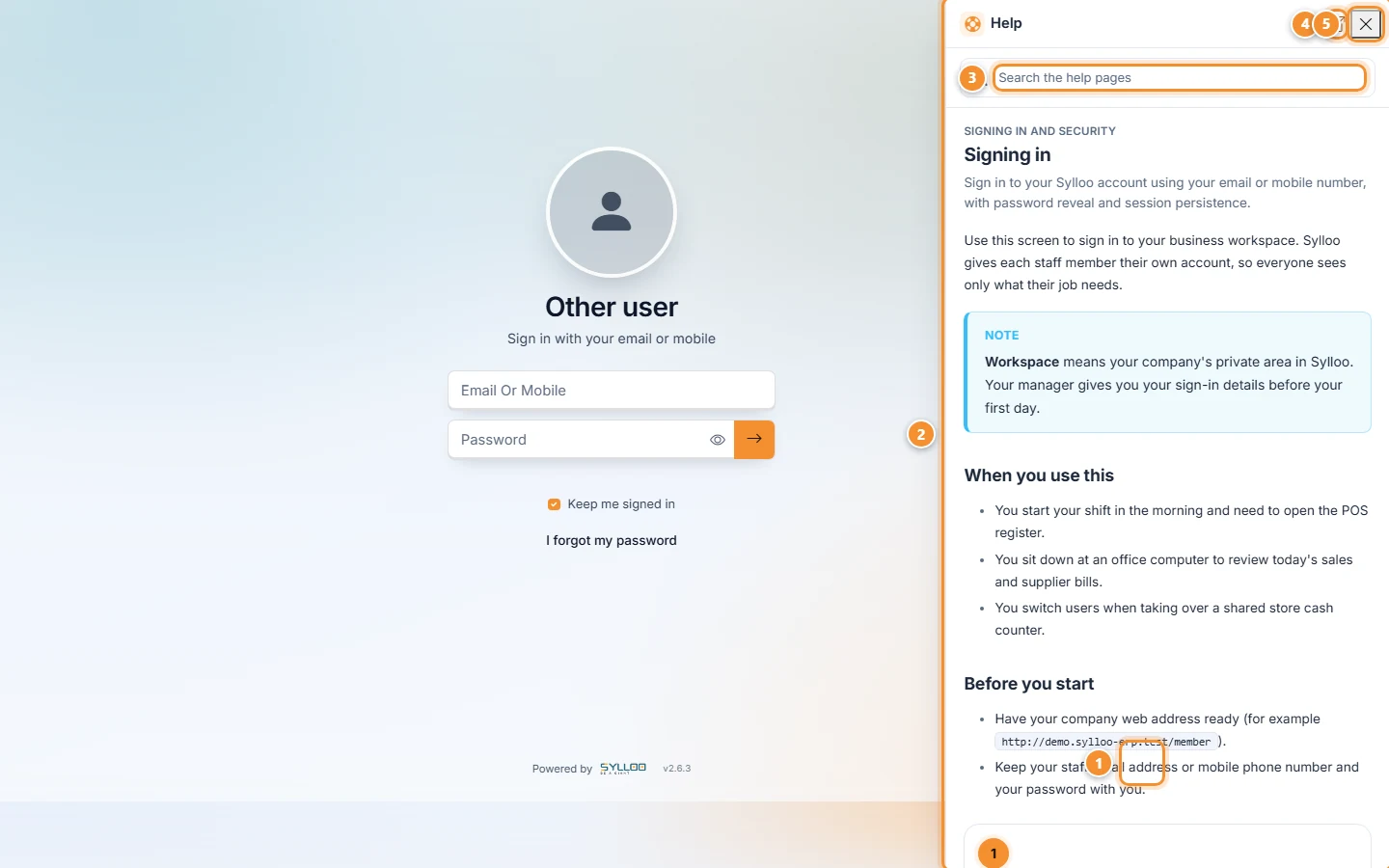 The in-app Help panel and controls
- Help (?) — opens this guide beside the screen. Click the question mark button in any window title bar, modal dialog header, or sign-in tray to view relevant help immediately.
- Help panel — a side panel that opens on the right side of your workspace. It displays the guide for your active screen so you can read steps and complete tasks side by side.
- Search help — finds topics across the entire documentation. Type any keyword (such as "invoice", "barcode", or "payment") to see matching topics and sections in real time.
- Open in a new tab — opens the current guide in the standalone Help Center in a new browser tab. Use this when you want to view screenshots at full width or keep reference material open on a second monitor.
- Close — closes the side help panel and returns full focus to your active workspace window.
Additional help features
- Help Center: The standalone documentation site is available at
/docson your business address. It needs no sign-in and matches your selected language and theme. Visitors see a Sign in button, while signed-in team members see Back to desktop. You can share any direct guide link with colleagues or customers. - Back: When you follow links inside the Help panel, click the Back arrow button in the header to return to your previous guide.
- Shown for: On type-aware guides, the Shown for selector lets you switch between your business types (such as custom product or order types) to tailor the steps.
- Zoom picture: Click any screenshot in the Help panel to open an enlarged view. Click anywhere or press
Escto close the zoom overlay. - Copy code: Click the Copy code button on any code example to copy the text to your clipboard.
Example
Imagine you are creating a new product and want to know how the barcode generator works:
- Press
F1while the product creation modal is open. - The Help panel opens on the right side showing the exact guide for that modal.
- Review the barcode section steps while your form remains open on the left.
- Click any screenshot in the guide to zoom in and verify which button to click.
- Press
Escto close the zoom preview and finish saving your product.
Common questions
Does opening help interrupt my work or clear my form inputs? No. The Help panel slides in beside your workspace without refreshing the page or clearing any form fields you have filled in.
Can staff or customers read the Help Center without signing in?
Yes. Anyone can visit /docs directly on your business domain to read all user manuals and guides without entering a username or password.
How do I close the Help panel?
Click the Close button (the ✕ icon) in the upper right corner of the Help panel or press Esc on your keyboard.