
Product list
Browse, search, filter, and manage your complete catalog of product records and catalog items.
Product list
Use this screen to view and organize every product sold in your business. You can search by code or barcode, filter by brand or category, view selling prices, and open individual product editing windows.
Product means any physical item, packaged goods, or service you sell to customers or purchase from suppliers.
When you use this
- You need to look up the current sale price or stock availability of a product while assisting a customer.
- You want to filter all product records belonging to a specific brand before running a seasonal promotional campaign.
- You need to add a brand-new product line or bulk-import incoming items from a spreadsheet.
- You want to export your active product catalog to Excel for an external accountant or stock auditor.
Before you start
- You need access to this screen. If you do not see it, ask your administrator.
- Know the product name, code, brand, or category you wish to find.
Open the product list
Click the Product icon on your Sylloo desktop dock or app menu. The full product list table opens.
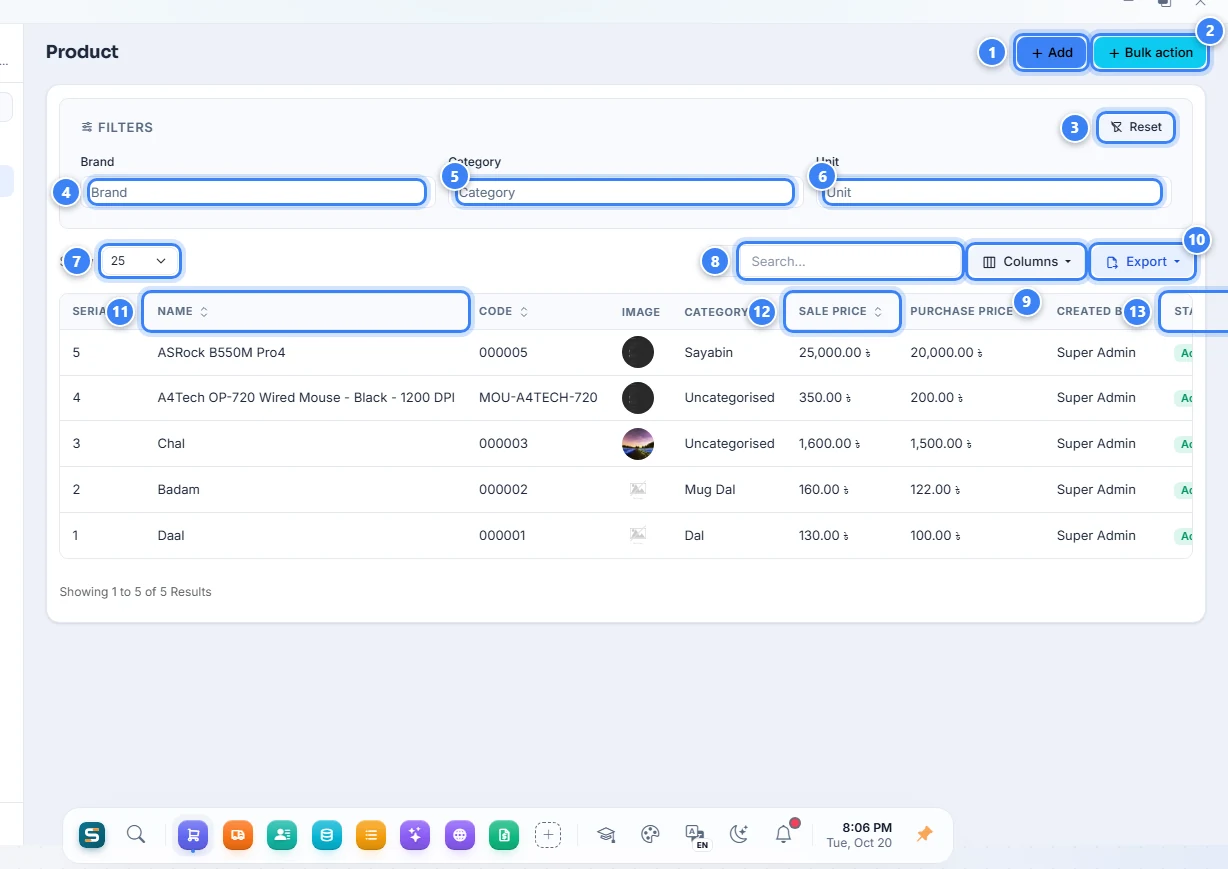 The product list
- Add — opens the product creation window to register a single new product.
- Bulk action — opens the import modal to upload multiple product records at once via CSV or Excel spreadsheets.
- Reset filters — resets all filter dropdowns and search inputs back to default view.
- Brand filter — filters the datatable to show product records for the selected brand.
- Category filter — filters the datatable to show items belonging to a specific department or category.
- Unit filter — filters product records measured in a chosen unit such as Pieces or Kilograms.
- Rows per page — selects how many table rows are displayed at once (10, 25, 50, or 100).
- Search — filters items instantly as you type any product name, SKU code, or barcode.
- Columns — opens the column visibility selector to hide or show specific table fields.
- Export — downloads the current table data to an Excel or PDF document.
- Name column — displays the official product title along with its code.
- Sale price column — shows the standard customer retail selling price.
- Status column — shows a color badge indicating whether an item is Active or Inactive.
Every field on the product list
| Control | What it is for | Example | Required? | Default | What happens when changed | What depends on it |
|---|---|---|---|---|---|---|
| Add | Button to open the product registration modal window. | Click button | Optional | — | Opens the Add Product modal. | Allows entering product details and pricing. |
| Bulk action | Button to import product catalogs from files. | Click button | Optional | — | Opens spreadsheet upload modal. | Loads bulk item records into the catalog. |
| Reset filters | Clears active search parameters and dropdowns. | Click button | Optional | — | Table restores all product rows. | Restores unfiltered view. |
| Brand filter | Dropdown to filter product records by brand. | Samsung |
Optional | All | Displays only items from the chosen brand. | Datatable query updates immediately. |
| Category filter | Dropdown to filter product records by department. | Electronics |
Optional | All | Displays only items from the selected category. | Datatable query updates immediately. |
| Unit filter | Dropdown to filter product records by unit. | Piece |
Optional | All | Displays items measured in the specified unit. | Datatable query updates immediately. |
| Rows per page | Dropdown to control number of records on screen. | 25 |
Optional | 10 |
Adjusts table page length. | Pagination buttons adjust accordingly. |
| Search | Real-time text search for names, codes, or barcodes. | B550M |
Optional | Blank | Filters table rows matching the search term. | Narrows visible product records. |
| Columns | Menu to toggle datatable column visibility. | Toggle checkbox | Optional | All visible | Shows or hides chosen table columns. | Table layout adapts to user preference. |
| Export | Generates export file of visible product records. | Click button | Optional | — | Downloads Excel or PDF spreadsheet. | Provides printable or shareable catalog. |
| Name column | Header showing product name and title. | Product Name | Display | — | Clicking sorts table alphabetically. | Table row sort order. |
| Sale price column | Header displaying customer price. | Price | Display | — | Clicking sorts table by sale price. | Table row sort order. |
| Status column | Header indicating active or suspended state. | Status | Display | — | Shows Active (green) or Inactive (grey) badge. | Determines POS item visibility. |
Example
Karim is a store supervisor at Dhaka Electronics:
- He opens Product list from his Sylloo desktop.
- He selects
Motherboardsin the Category filter andASRockin the Brand filter. - The table instantly filters down to 4 matching motherboards.
- He checks the Sale price column to confirm the current price for a customer at the counter.
Common questions
How do I edit an existing product? Click the blue Edit button on any product row. The product editing modal window opens where you can update prices, barcodes, and descriptions.
Can I export my filtered product records? Yes. Apply your brand or category filters, then click the Export button at the top right of the table to download an Excel or PDF file of only the matching rows.
What happens when I delete a product? Clicking Delete in the row action dropdown moves the product to the archive. Its sales history and financial ledger entries remain intact.