
Bank statements and reconciliation
Reconcile bank accounts with bank statements and ensure company accounting books match actual bank balances.
Bank statements and reconciliation
The Bank statements and reconciliation screen lets you match recorded ledger transactions against official bank statements. You can confirm cleared payments, identify uncleared deposits, verify bank fees, and eliminate accounting variances.
Bank reconciliation ensures that your financial reports reflect true cash balances. Regular reconciliation prevents unrecorded bank charges and errors from distorting your balance sheet.
When you use this
- Verifying ledger balances against monthly commercial bank statements.
- Confirming which customer deposits and supplier cheques have cleared through the bank.
- Spotting unexpected bank charges, wire fees, or interest payments that need adjustment entries.
- Preparing audit-ready reconciliation statements showing zero remaining difference.
Before you start
- Ensure you have permission to view and create bank reconciliations.
- Enter all receipts, vouchers, and vendor payments for the reconciliation period.
- Have your official bank statement ready with its ending cutoff date and closing balance.
Open the bank reconciliations list
- Go to Accounting in the left navigation menu.
- Select Bank reconciliations.
- The list of past and pending reconciliations opens.
Start and complete a reconciliation
- Click Reconcile or click one of the Accounts to reconcile buttons above the table.
- Select the target Bank account and specify the statement Reconcile up to cutoff date.
- Enter the ending Bank statement balance from your physical statement.
- Mark matching deposits and payments as cleared.
- Add any missing bank charges or interest lines until the Difference reaches zero.
- Complete the session to lock matched entries.
Every field on this screen
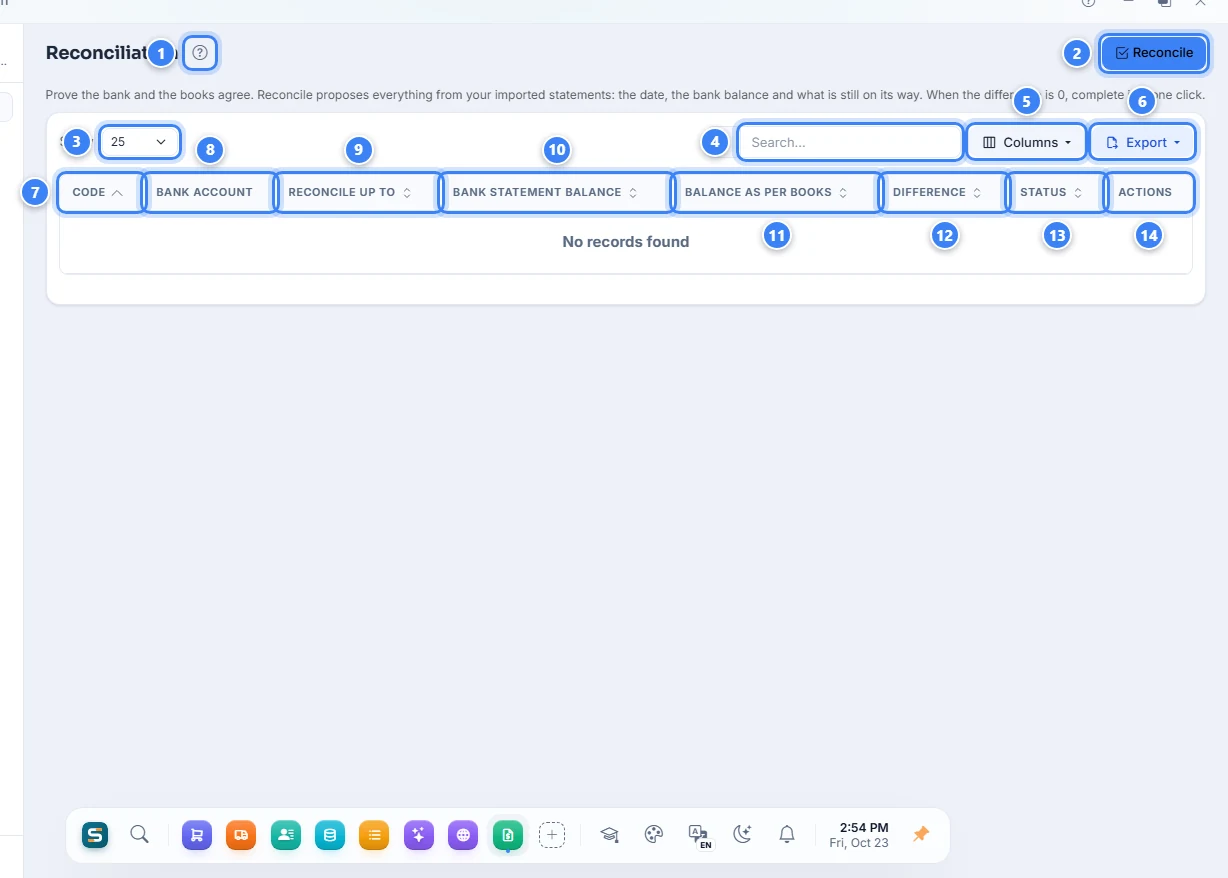 Bank reconciliations list
- Help (?) — Opens this Help Center guide in a slide-out side panel.
- Reconcile — Opens the window to start reconciling a bank account.
- Rows per page — Selects how many reconciliation records to display per page.
- Search — Searches reconciliations by code or bank account.
- Columns — Toggles datatable column visibility.
- Export — Exports reconciliation records to Excel or CSV.
- Code column — Displays the unique reconciliation record reference Code.
- Bank account column — Displays the Bank account being reconciled.
- Reconcile up to column — Displays the Reconcile up to cutoff date of the reconciliation.
- Bank statement balance column — Displays the ending Bank statement balance.
- Balance as per books column — Displays the Balance as per books ledger balance.
- Difference column — Displays the net Difference between the statement and books.
- Status column — Indicates reconciliation Status (Draft or Completed).
- Actions column — Provides row actions to View, Edit, Complete, Cancel, or Delete.
Accounts to reconcile
Buttons appear above the table for bank accounts needing attention.
- Account buttons: Click any bank account button to open the reconciliation modal directly with that account preselected.
- Unreconciled warning: Displays bank accounts that require periodic balancing to ensure books remain current.
Reconciliation list columns
The datatable displays previous and in-progress reconciliation sessions:
- Code: Sequential identification number assigned to the reconciliation event.
- Bank account: Commercial bank or petty cash ledger account under review.
- Reconcile up to: Statement cutoff date. Transactions posted after this date are excluded.
- Bank statement balance: Physical statement closing balance entered by the accountant.
- Balance as per books: Calculated ledger balance from recorded business transactions.
- Difference: Remaining variance between statement balance and book balance. Must equal zero to finalize.
- Status: Current lifecycle state (Draft or Completed).
Row actions
Manage each session using the Actions column:
- View: Opens the completed reconciliation summary displaying cleared lines and discrepancies.
- Edit: Reopens a draft reconciliation session to continue matching entries.
- Complete: Finalizes a balanced draft session and locks all cleared transactions.
- Cancel: Reopens a completed session for administrative corrections.
- Delete: Removes an uncompleted draft reconciliation without affecting ledger entries.
Common questions
What should I do if the Difference is not zero?
Check for unrecorded bank charges, interest credits, deposits in transit, or outstanding cheques. The difference must be zero before completing the reconciliation.
Can I reopen a completed bank reconciliation?
Yes. Authorized accountants can click Cancel reconciliation on completed sessions to reopen drafts and correct discrepancies.
Related pages
- Voucher list — Record single-entry payments, receipts, and bank fee adjustments.
- Cheques — Track cheque clearance and unpresented cheques.
- Financial reports — Review bank books, general ledgers, and trial balances.