
Order delivery history
Track, inspect, and manage partial shipments and warehouse dispatches associated with an order.
Order delivery history
Use this window to monitor and manage all partial deliveries fulfilled for a completed order document. When you enable partial deliveries on an order, you can split fulfillment across multiple shipments. Each delivery acts as its own shipment document with its own workflow stages (draft, submitted, and completed). Warehouse inventory deducts automatically as each delivery reaches completion. You can review dispatch dates, shipped product quantities, and inventory posting states, or open individual consignments to adjust shipment notes.
When you use this
- You fulfill an order in partial consignments because you manufacture or stock products in batches.
- A customer requests delivery to multiple job sites or across staggered delivery dates.
- You want to verify which partial shipments are completed and which consignments remain in draft status.
Before you start
- The order must have completed status and the partial delivery option enabled.
- You need permission to view orders and manage deliveries. If the deliveries button is missing, ask your administrator.
Open the delivery history window
In the Order list, click the Deliveries action button on any completed order row. The delivery tracking window opens.
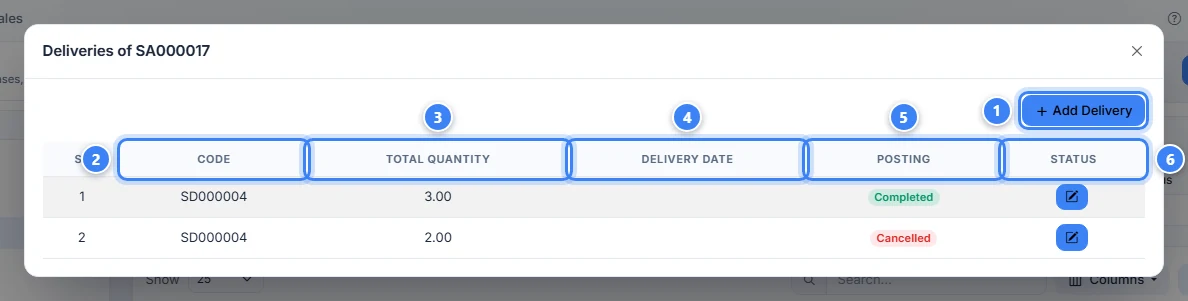 Order delivery history window
- Add Delivery — opens the delivery creation window to record a new shipment.
- Delivery Code column — shows the unique delivery reference code.
- Total Quantity column — displays total quantity of items dispatched in this delivery.
- Delivery Date column — shows the date when goods were dispatched.
- Posting Status column — indicates whether the delivery has updated warehouse inventory stock.
- Status column — shows action buttons to edit or delete the delivery record.
Track deliveries and create shipments.
Monitor existing consignments and register new dispatches from the table.
- Check delivery progress: inspect the table to review how many products you dispatched in previous batches.
- Record a new delivery: click Add Delivery in the top right corner to open the shipment form. Select the dispatch outlet, specify quantities, and record courier tracking information.
- Modify draft shipments: click the edit button (pencil icon) on any delivery row to update dispatch quantities or change dates.
- Remove unwanted drafts: click the delete button (red cross icon) to cancel an unposted draft delivery without affecting inventory.
Every field, column, and action explained.
Header actions.
| Action | Type | Description |
|---|---|---|
| Add Delivery | Action button | Opens the shipment window to prepare a new partial or final consignment. |
Table columns
| Column | Type | Description |
|---|---|---|
| SL | Number | Sequence number of the delivery consignment for this order. |
| Code | Text | Unique reference code generated for the delivery document. |
| Total Quantity | Number | Total count of product units dispatched in this specific consignment. |
| Delivery Date | Date | Official date when goods left the warehouse or reached the destination. |
| Posting Status | Badge | Shows whether warehouse inventory balances have been deducted. |
| Status / Actions | Action buttons | Buttons to edit or delete the consignment document. |
Row actions
| Action | Type | Description |
|---|---|---|
| Edit delivery | Button (pencil) | Opens the delivery editing window to modify quantities, dates, or notes. |
| Delete delivery | Button (cross) | Deletes a draft delivery document. Only available on unposted draft shipments. |
Common questions
When does warehouse inventory deduct for partial deliveries?
Warehouse inventory deducts only when a delivery document reaches Completed status. Shipments saved as draft or pending approval do not alter stock levels.
Why is the Add Delivery button disabled or hidden?
The order must be in Completed status before you can dispatch shipments. Orders still in draft or pending authorization cannot record deliveries.
Related pages
- Orders — Browse, search, and manage all orders.
- Add or change an order — Configure orders with partial delivery options.
- View order details — Inspect complete invoice and customer summaries.
- Record payment on order — Collect customer deposits or record payments.