
Record payment
How to view and record payment installments, charges, and payment cancellations on an order.
Record payment
Use this window to collect payments, record partial installments, deduct payment processing charges, or apply customer credit against an outstanding order.
When you use this
Open this window when:
- A customer or supplier makes a partial or full payment on an existing order.
- You want to verify all installment transactions and payment dates recorded against an order.
- You need to print an official money receipt for a specific payment installment.
- You need to cancel an incorrect payment transaction.
How to open
- Open the Order list from the main navigation menu.
- Find the order row you wish to update.
- Click the Payments button in the row actions column.
Window layout and controls
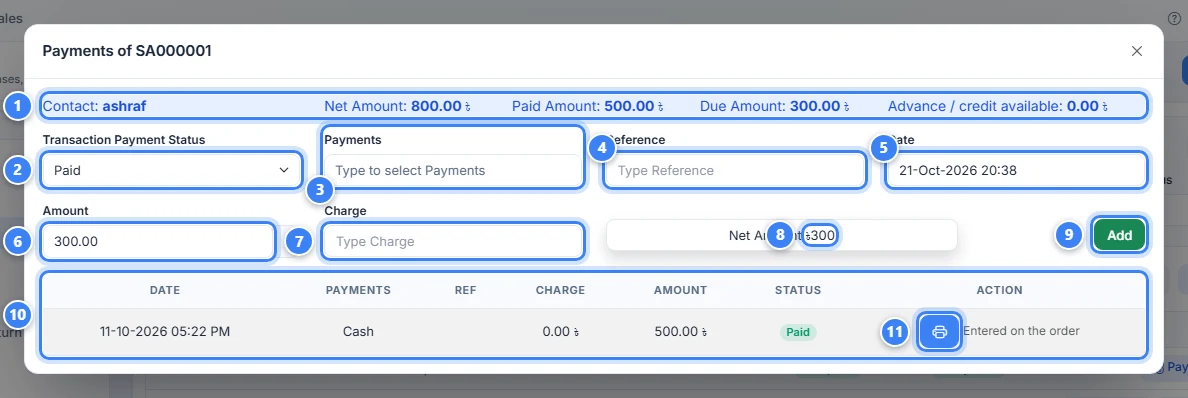 Order payments window
- Order balance summary — Contact name, net total order value, total amount paid to date, and remaining outstanding due balance.
- Transaction Payment Status — Current processing state of the installment (
Paid,Pending,Hold, orCancel). - Payment Method — Cash or bank account receiving or delivering the payment funds.
- Reference — Bank check number, deposit slip number, or electronic transaction ID.
- Date — Calendar date when the payment transaction occurred.
- Amount — Payment amount being collected towards this installment.
- Charge — Processing charge or gateway transaction fee deducted or added.
- Net Amount — Total net settlement amount calculated automatically.
- Add — Saves and allocates the payment installment to this order.
- Payment history table — Chronological log of all transactions recorded against this order.
- Print receipt — Opens the printable money receipt for the payment row.
Recording an installment
- Verify the Order balance summary to confirm the remaining due amount.
- Select the Transaction Payment Status (typically
Paid). - Choose the target Payment Method from the dropdown.
- Enter any deposit or check number into Reference.
- Pick the payment Date.
- Type the collected sum into Amount.
- If your payment provider charges a transaction fee, specify the amount in Charge.
- Click Add to record the payment. The transaction appears immediately in the history table below, and the order balance updates.
Every field and option explained
Payment details
| Field / Control | Type | Description |
|---|---|---|
| Transaction Payment Status | Dropdown | Status of this payment installment. Choices: Paid (cleared funds), Pending (awaiting clearing), Hold (temporarily withheld), or Cancel (voided). |
| Pay from | Dropdown | Displayed when customer has credit: choose between standard payment methods or customer store credit. |
| Payment Method | Searchable select | Account or gateway through which funds are received or paid (e.g., Cash, bKash, Bank Transfer). |
| Reference | Text | Bank slip number, transaction ID, check number, or transfer reference. |
| Date | Date picker | Date when the funds were collected or deposited. |
| Amount | Currency | Nominal installment amount applied toward the order balance. |
| Charge | Text / Currency | Payment processing fee or transaction surcharge charged by the gateway or bank. |
| Add | Button | Submits and records the payment item against this order. |
| Print receipt | Action button | Generates a printable money receipt voucher for this specific payment transaction. |
| Cancel payment | Action button | Cancels this transaction and reverses all allocated balance changes across related records. |
Common questions
What happens when an order is completely paid?
Once the paid amount equals or exceeds the net order amount, the due balance becomes zero. The entry input row hides automatically and displays an Order fully paid notification.
Can I cancel a payment recorded by mistake?
Yes. If you have appropriate permissions, clicking the red cancel button on the payment row opens a confirmation dialog. Cancelling a payment reverses the transaction and updates the order due balance immediately.
Related pages
- Order list — View and filter all order entries.
- Order form — Create or modify order line items and pricing.
- Duplicate order — Duplicate or convert an order into another type.