
Website themes and templates grid
Explore installed storefront themes, preview layout thumbnails, launch the visual template builder, and set your live website template.
Website themes and templates grid
The Website themes and templates grid screen gives you a visual gallery of all storefront themes installed in your system. You can inspect theme design previews, verify which theme powers your active storefront, launch the visual customizer, install a theme from a repository, and switch your live storefront design.
When you use this
- Browse visual previews of available storefront themes installed for your business.
- Launch the visual website builder to customize header banners, sliders, and page sections.
- Set a chosen theme as the live storefront template serving your public customers.
- Install a theme built elsewhere from a repository (needs a developer account).
Screen layout
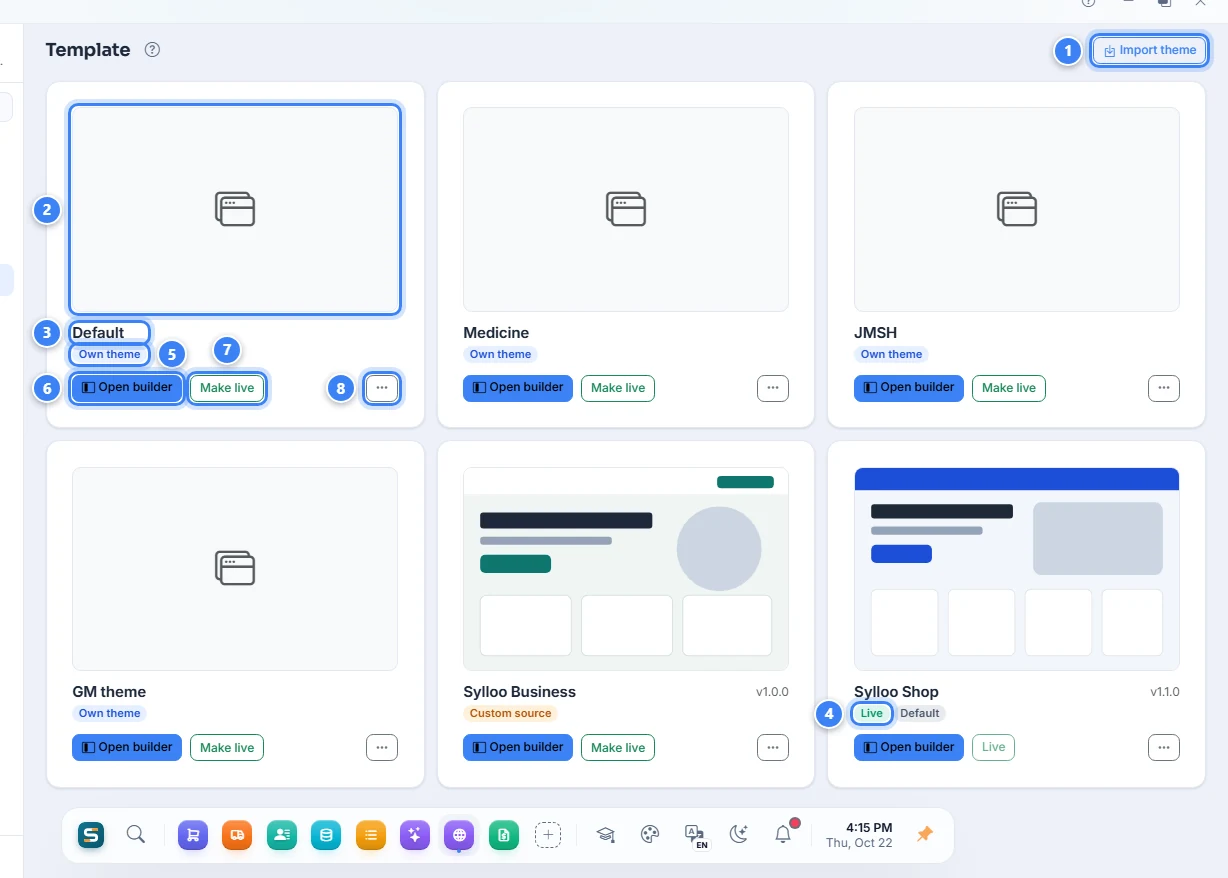 Website themes and templates grid showing installed themes live status builder button and actions
- Install from GitHub — opens the window to install a theme from a repository. Only a developer account sees it. This picture still shows the older import button in its place until it is retaken.
- Theme preview thumbnail — visual screenshot preview of the website theme design.
- Theme name title — display title and directory identifier of the installed theme.
- Live theme badge — indicates the active default theme powering the public storefront.
- Theme customization state badge — shows whether the theme is unmodified source default options or tenant owned.
- Open builder button — launches the interactive visual page and section customizer.
- Set as live theme button — activates the theme as the primary default storefront template.
- Theme actions menu — dropdown menu offering preview template pages settings and export.
Step-by-step: Managing your website themes
- Navigate to Website in the main desktop navigation bar and select Themes.
- Review the installed theme cards displayed across the gallery grid.
- Check the active theme highlighted by the Live theme badge (4).
- To customize a theme's layout and content, click Open builder button (6) to enter the visual customizer.
- To activate an alternative theme for your storefront, locate its card and click Set as live theme button (7), then confirm your choice.
- To inspect other theme options, click Theme actions menu (8) to open page templates or theme settings.
- To install a theme from a repository, click Install from GitHub (1) in the header.
Every field and control
Header action controls
- Install from GitHub — Opens the window to install a theme from a repository. Uploading a
.zipfile is no longer possible.
Theme card layout and indicators
- Theme preview thumbnail — Graphical preview image showcasing the storefront styling, colors, and layout.
- Theme name title — Official name and directory location identifier of the installed theme package.
- Live theme badge — Green indicator badge confirming that this theme is the active storefront visible to public visitors.
- Theme customization state badge — Badge indicating whether the theme files are default, modified via settings, or fully customized for your business.
- Open builder button — Primary action button opening the visual page builder to edit sections, hero blocks, and widgets.
- Set as live theme button — Activation button that sets the chosen theme as your active default storefront.
- Theme actions menu — Dropdown menu providing quick links to preview pages, inspect template files, configure settings, or delete custom themes.
Common questions
What happens when I switch the live theme?
Switching your live theme immediately changes the visual presentation of your public storefront. All products, prices, categories, and customer accounts remain intact; only the design templates and theme settings switch to the newly selected theme.
Can I customize a theme before making it live?
Yes. Click Open builder button (6) on any inactive theme card. You can customize hero sections, banners, colors, and page layouts safely in draft mode without affecting your live website visitors.
How do I bring in a custom theme designed by my agency?
Ask your agency to keep the theme in a repository. Someone with a developer account then clicks Install from GitHub (1) in the top header and picks the repository. The theme appears in your gallery, ready for customization and not live. See Install a theme from a repository.
Related pages
- Website template list — View and manage individual template files within a theme.
- Visual website builder — Customize sections, hero banners, and storefront layouts interactively.
- Install a theme from a repository — Bring in a theme built elsewhere.
- Theme settings — Configure brand colors, logos, fonts, and theme-specific options.