
Order checkout
Provide recipient delivery details, select payment options, verify order line items, and submit purchase orders in the customer portal.
Order checkout
The Order checkout screen is the final step in placing purchases through the customer portal. Buyers confirm recipient contact names, delivery street addresses, choose an eligible payment method, review itemized line charges, and submit their order for fulfillment.
When you use this
- Confirm the destination delivery address and recipient telephone number for shipment.
- Choose a preferred payment method such as bank transfer, mobile money, or cash on delivery.
- Review final product quantities, subtotals, VAT, and discounts before binding commitment.
- Submit a completed purchase order to generate an official sales invoice.
Screen layout
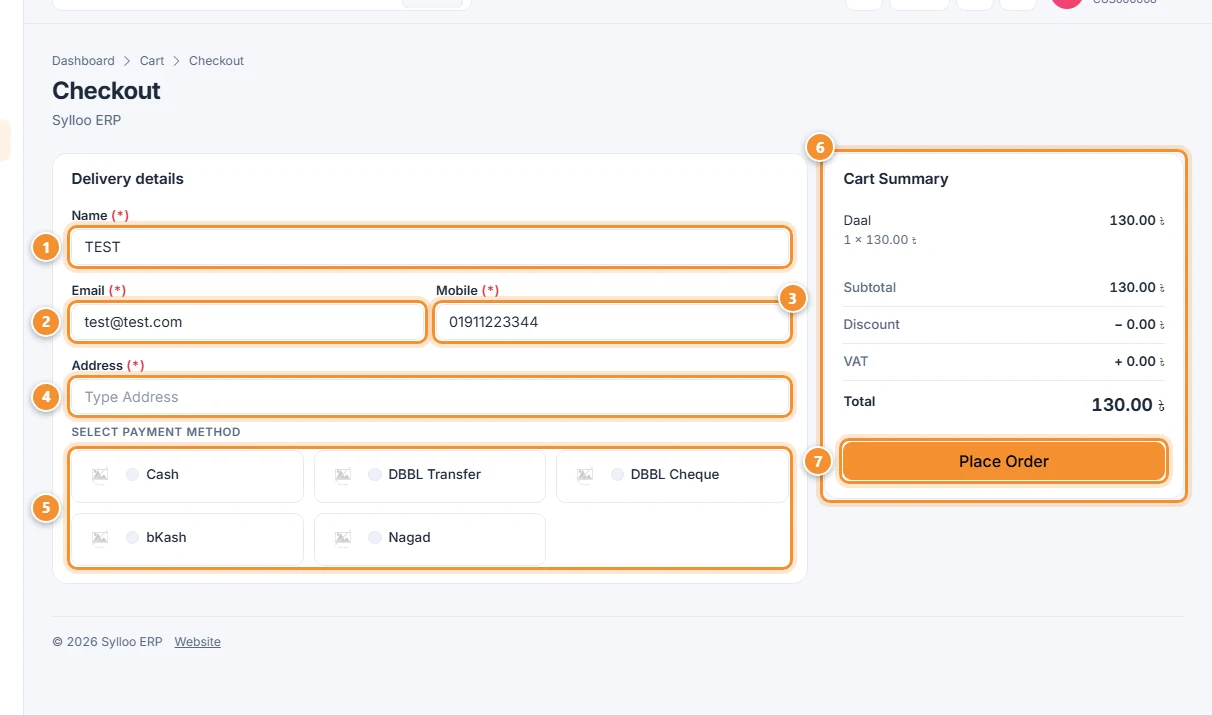 Customer order checkout with delivery details and payment selection
- Recipient name field — full legal or contact name receiving the shipment.
- Notification email field — address receiving order receipt and tracking updates.
- Delivery mobile field — telephone number for courier dispatch contact.
- Shipping address field — street address and delivery location.
- Payment method selection — radio choices for bank transfer, mobile money, cash on delivery, or card gateway.
- Checkout order summary card — breakdown of order line items, subtotal, discounts, and total payable.
- Place order button — submits the purchase order and generates the sales invoice.
Step-by-step: Completing your order checkout
- From Shopping cart, click Checkout to open the order checkout screen.
- Under Delivery details, enter the recipient name in Recipient name field (1).
- Verify your correspondence email in Notification email field (2) and contact telephone in Delivery mobile field (3).
- Enter the complete delivery street address, building number, or loading dock in Shipping address field (4).
- In Payment method selection (5), select your preferred payment option by clicking its radio button.
- Check the itemized lines and overall payable balance in Checkout order summary card (6).
- Click Place order button (7). Once processed, the portal displays an order confirmation screen with your new sales invoice number.
Every field and control
Delivery details
- Name (1): The full legal individual or business name of the person authorized to accept delivery.
- Email (2): Contact email address where automated order acknowledgments and delivery tracking notices are sent.
- Mobile (3): Contact telephone number used by freight couriers for dispatch confirmation and delivery calls.
- Address (4): Destination delivery street address, including unit, suite, floor, or postal code.
- payment_method_id (5): Available payment methods configured by the merchant, such as cash on delivery, bank transfer, or electronic gateway.
Order summary
- Checkout order summary card (6): Itemized overview showing product titles, purchased quantities, unit prices, subtotal, promotional discount, VAT, and total balance.
- Place Order (7): Final submission button that validates the form, reserves inventory, creates the order record, and redirects to payment or confirmation.
Common questions
Can I change my delivery address after submitting the order?
Once submitted, the order is locked for warehouse processing. To modify delivery details on a submitted order, contact customer support or view your order in Customer orders to message staff.
How do electronic payment gateways work on checkout?
If you select an online card or mobile money gateway, clicking Place Order forwards you securely to the payment gateway provider to authenticate and settle the charge.