
Build your shop homepage in 10 minutes
Follow a step-by-step walkthrough to choose a theme, arrange homepage sections, customize banners, preview responsiveness, and publish your live storefront.
Build your shop homepage in 10 minutes
Welcome to the Website Template Builder! This guide takes you through creating a professional, mobile-friendly storefront homepage in ten minutes. You will learn how to choose your active theme, open the visual builder, arrange layout sections, customize headings, and publish your changes to live customers.
When you use this
- Setting up your online storefront for the first time.
- Redesigning your existing homepage with fresh banner graphics and promotions.
- Learning how sections, blocks, drafts, and live publishing fit together.
- Adding product showcases, customer reviews, or contact forms to your home layout.
Every field on this screen
The following screenshot shows the visual website theme builder with numbered callouts.
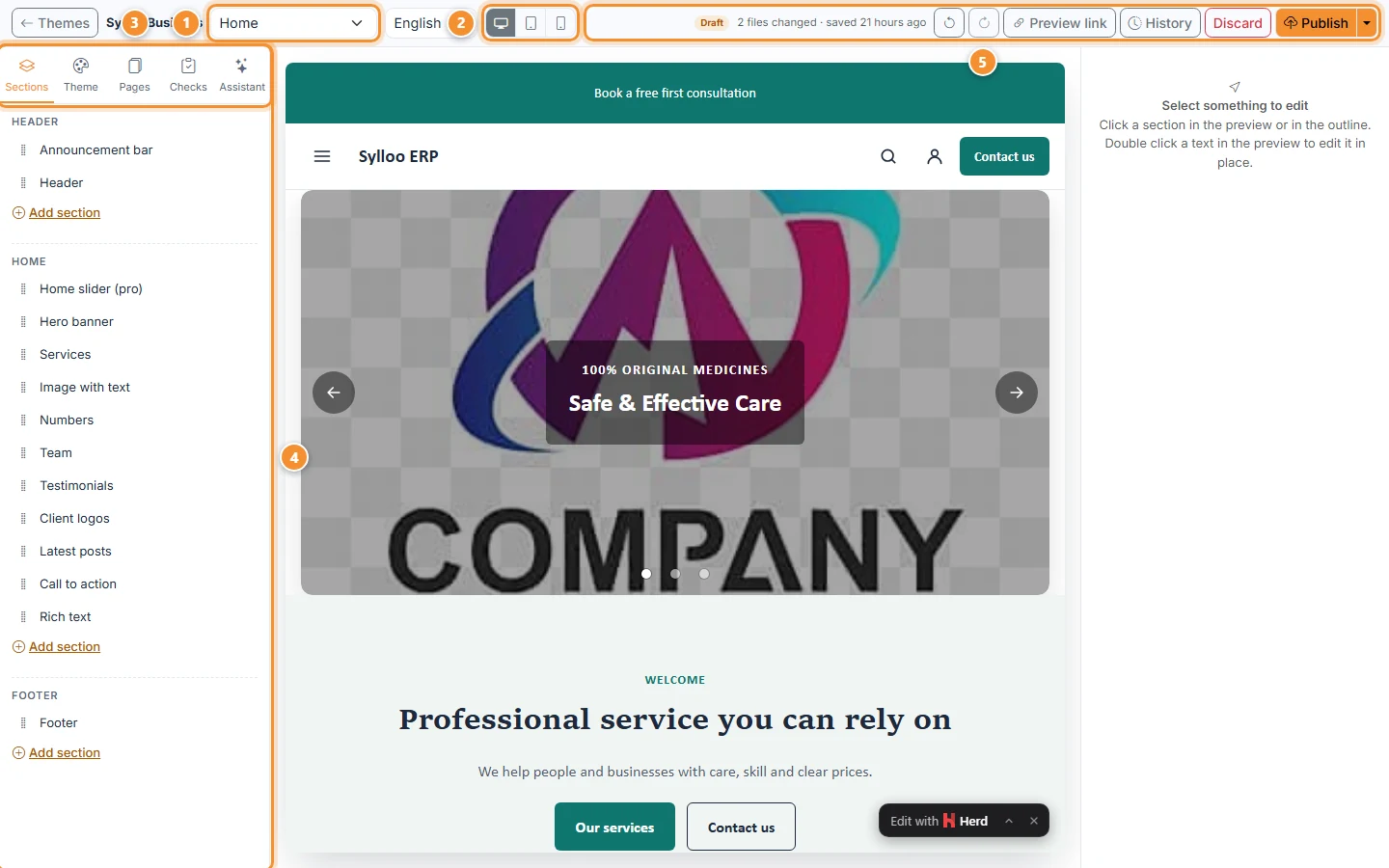 Website theme builder overview illustrating homepage section customization and publishing workflow
- Page template selector — selects the homepage layout template to edit.
- Responsive viewport switcher — previews storefront styling on mobile, tablet, and desktop.
- Sections navigation tab — opens the block outline to view and add homepage sections.
- Sections outline panel — shows header, body sections, and footer blocks in order.
- Publish draft button and history — saves draft changes and deploys them live to visitors.
Select your active theme and open the builder
Every storefront design starts with an active theme.
- Go to Website in the main desktop navigation bar and choose Themes.
- Locate your current storefront theme card (such as
Sylloo Business). - Click the theme action menu and select Builder.
- The Visual builder opens, showing the design canvas on the right and sidebar tools on the left.
Choose the homepage template
The visual builder supports editing multiple pages across your website.
- Locate the Page template selector (1) in the top header toolbar.
- Ensure the dropdown displays Home (or select it from the list).
- The builder loads the sections assigned to your homepage layout.
Add and arrange page sections
Your homepage is composed of modular layout blocks.
- Click the Sections navigation tab (3) in the left sidebar.
- The Sections outline panel (4) lists all active blocks in top-to-bottom sequence.
- To add a new block, click the Add section button at the bottom of the section list.
- Choose a layout block from the catalog catalog list, such as a hero banner or feature grid.
- Drag any section up or down in the outline list to reposition it on the canvas.
Configure section text and banner media
Now customize the content of your homepage blocks.
- Click on any section in the outline list, or click directly on the canvas element.
- Click the gear icon to open the Configure section settings window.
- Update the section title in the heading input.
- Choose your promotional photos, button links, or background colors.
- Click Save to save the values to your theme draft.
Test responsive views on mobile and tablet
Before publishing, verify that your storefront looks sharp on smartphones and tablets.
- Locate the Responsive viewport switcher (2) in the top toolbar.
- Click the mobile phone icon to inspect the vertical smartphone layout.
- Check the tablet icon to review medium-screen layouts.
- Use the Live preview button if you want to test scrolling and navigation in a full browser tab.
Publish your draft to the live storefront
All edits made inside the builder remain in a protected working draft.
- Review your completed homepage design in the main viewport.
- Locate the Publish draft button and history (5) in the top-right toolbar.
- Click the green Publish draft button to deploy your homepage.
- The storefront updates immediately for all online shoppers.
- If you ever need to inspect past revisions, click the history clock icon.
Common questions
Will shoppers see half-finished changes while I am editing?
No. All modifications are safely isolated inside your theme draft. Storefront visitors only see your published version until you click Publish draft.
Can I restore my previous design if I make a mistake?
Yes. Every time you publish a new version, the system creates a permanent snapshot. You can open publish history at any time and restore an earlier snapshot with one click.
How do I change the store logo or primary colors?
Global brand colors, fonts, and store logos are managed in the theme settings tab (palette icon in the left sidebar). Changing settings there updates all pages across the website automatically.