
Add or change a product
Create, edit, and configure product details across basic info, barcodes, discounts, variants, pricing, media, SEO, inventory, and advance settings.
Add or change a product
Use this modal window to enter or modify every detail of a product. The window is organized into dedicated tabs for basic identifiers, multiple barcodes, promotional discounts, variant combinations, customer tier pricing, media pictures, online store SEO, inventory balances, and advanced stock tracking.
Product window opens when you click Add on the product list or click Edit on an existing item row.
When you use this
- You receive a brand new retail item and need to register its name, SKU, sale price, and tax settings.
- You want to generate or scan additional packaging barcodes for an existing product.
- You schedule a temporary promotional discount with start and end dates.
- You upload high-resolution product photos and fill in search engine descriptions for your online catalog.
Before you start
- Have the manufacturer name, model name, supplier invoice price, and customer selling price ready.
- If assigning categories, brands, or units, make sure they are created beforehand.
Open the product window
On the Product list, click Add in the top action bar to create a new item, or click Edit on any table row to modify an existing item.
Basic
The Basic tab contains essential product identification, categorization, and pricing.
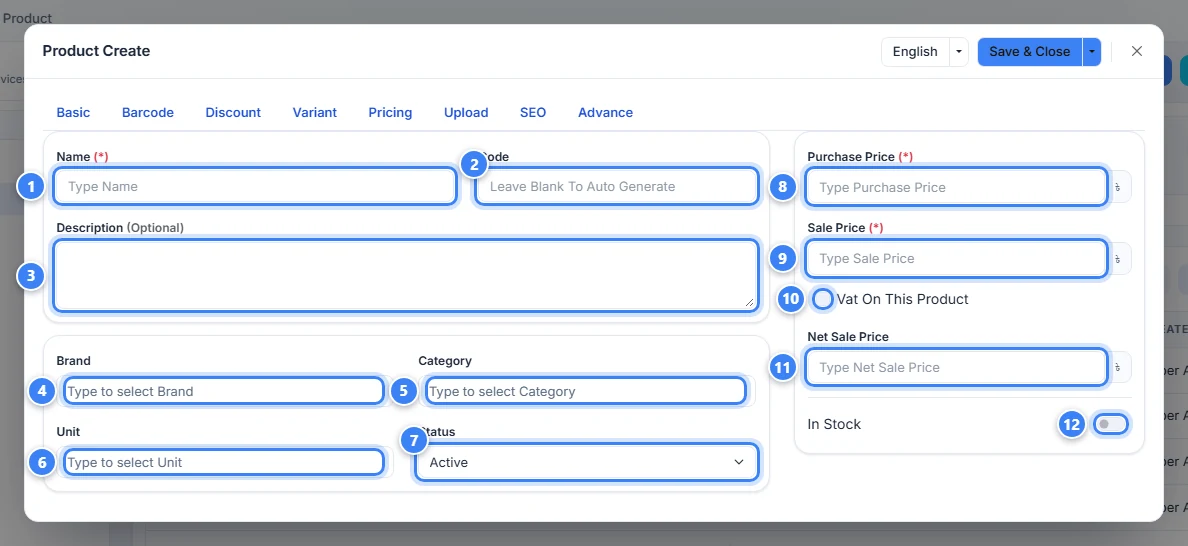 Product creation window - Basic tab
- Name (required) — the full product title customers and staff see on screens, invoices, and receipts.
- Code — unique SKU or item number. Leave blank to let Sylloo automatically generate a sequential code.
- Description — optional detailed specifications, dimensions, materials, or internal store notes.
- Brand — searchable dropdown to assign the manufacturer brand.
- Category — searchable multi-select dropdown to assign one or more sales categories.
- Unit — unit of measurement (such as Piece, Box, or Kilogram).
- Status — Active allows sales on POS and online store; Inactive suspends the item.
- Purchase price (required) — wholesale cost price paid to supplier per unit.
- Sale price (required) — regular retail selling price charged to customers.
- Vat On This Product — toggle switch to enable VAT calculations on purchase and sales.
- Net sale price — automatically calculated retail price including applicable sales VAT.
- In stock — toggle switch indicating whether item is physically available for immediate dispatch.
Barcode
Configure multiple barcodes for the same item, such as individual retail barcodes, inner packs, and shipping cartons.
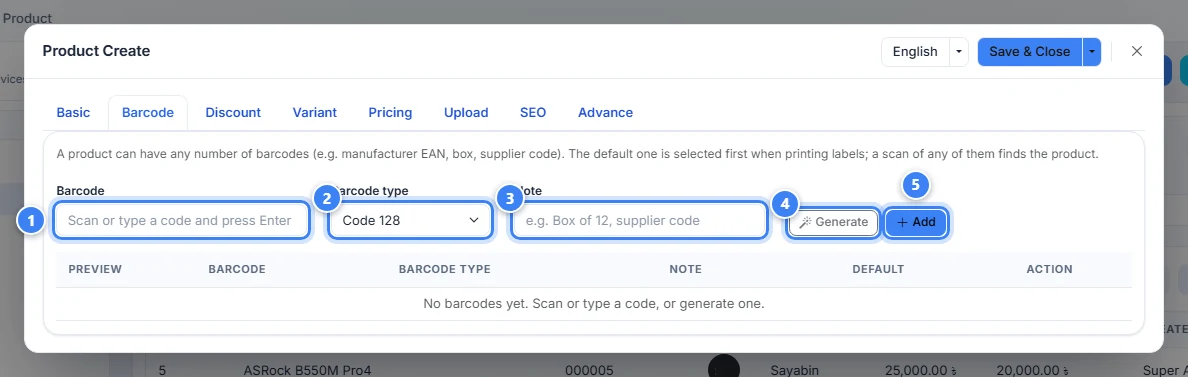 Product creation window - Barcode tab
- Scan or type code — scan with a handheld barcode scanner or type manually.
- Barcode type — symbology format (Code 128, EAN-13, EAN-8, or QR Code).
- Note — optional packaging note such as "Outer carton" or "Multipack".
- Generate barcode — generates a unique in-store EAN-13 barcode starting with digit 2.
- Add barcode — adds the barcode entry to the table below.
Discount
Set flat or percentage discounts for promotional campaigns.
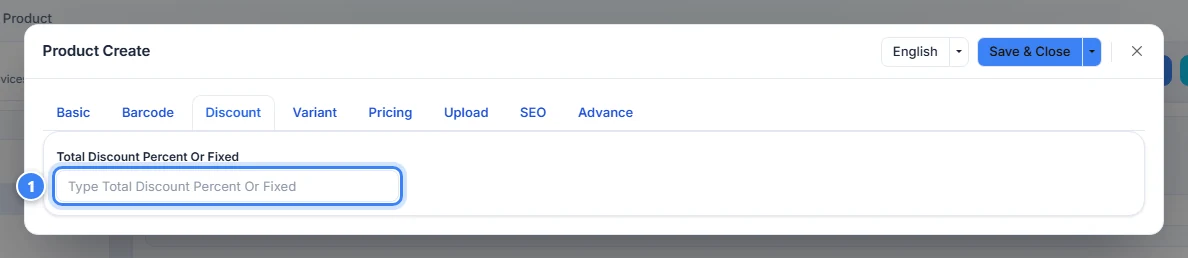 Product creation window - Discount tab
- Total Discount Percent Or Fixed — discount value followed by
%for percentage (e.g.10%) or a plain number for fixed discount amount (e.g.50).
Variant
Attach variant attributes like Size, Color, or Material to generate multi-option matrix items.
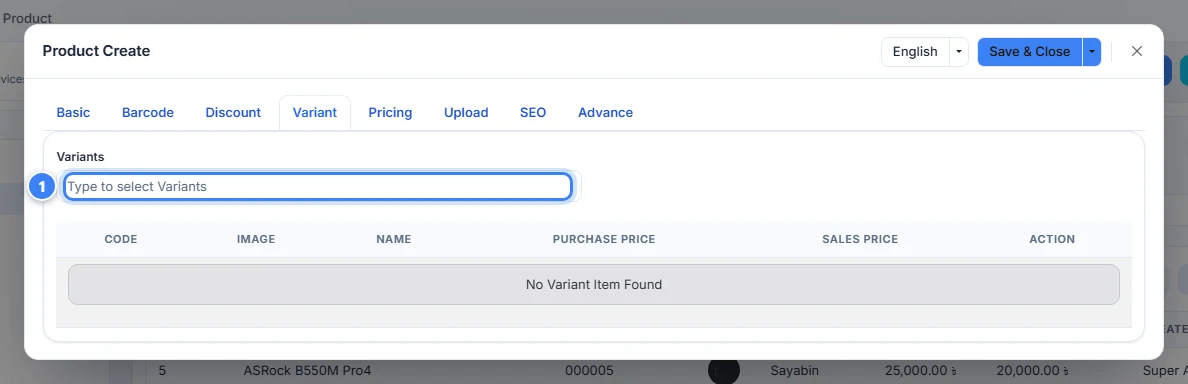 Product creation window - Variant tab
- Variants — search and select variant attribute templates to generate child SKU items.
Pricing
Configure custom tiered pricing rules for customer groups (such as Wholesale or VIP members).
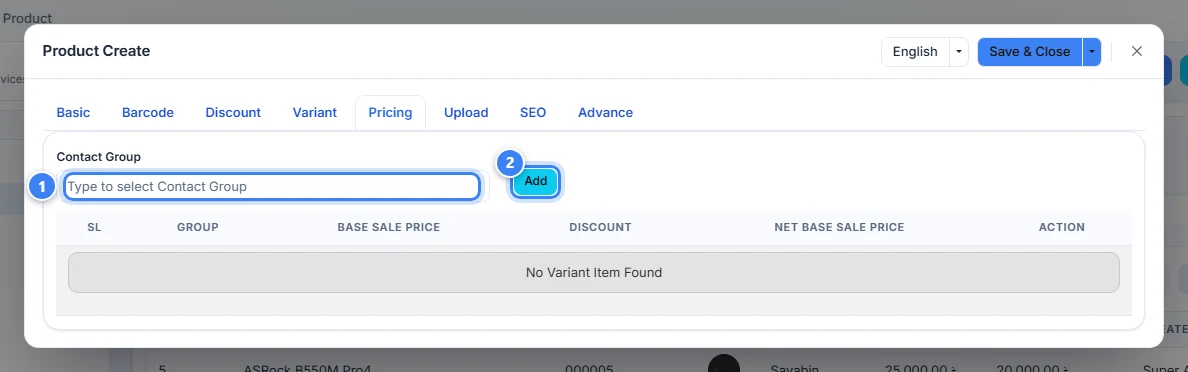 Product creation window - Pricing tab
- Contact group — choose a customer contact group eligible for special pricing.
- Add pricing — adds a dedicated price row for the selected group.
Upload
Upload primary and secondary product photos for POS display and web shop pages.
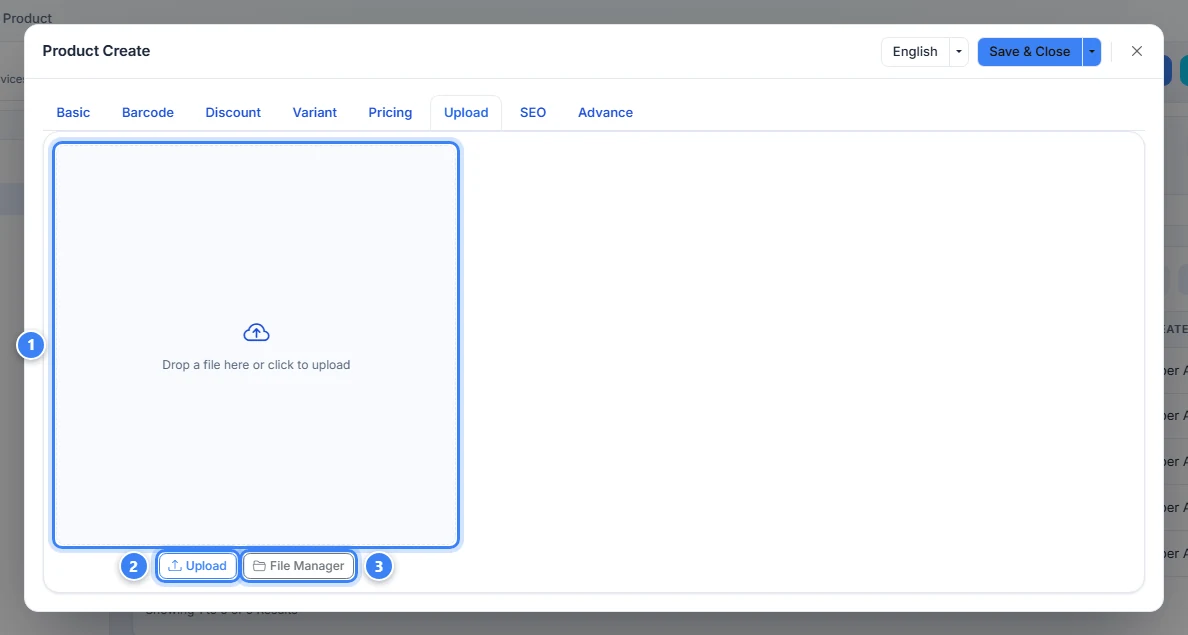 Product creation window - Upload tab
- Dropzone — drag and drop an image file directly from your computer onto this area.
- Upload — click to browse and select a photo file from your hard drive.
- File Manager — opens Sylloo Media Library to pick an existing image.
SEO
Search engine optimization settings for the online website storefront.
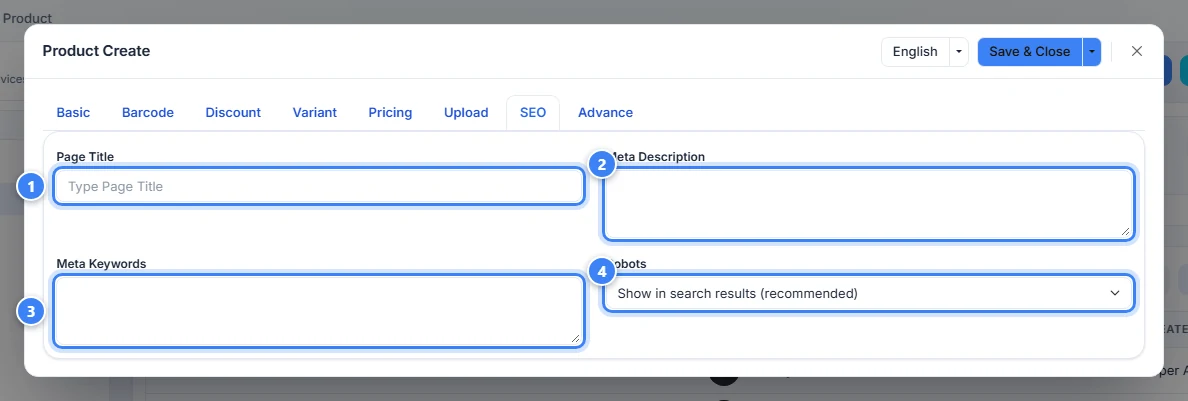 Product creation window - SEO tab
- Page title — search engine title appearing on browser tabs and Google search results.
- Meta description — 1-2 sentence description summarizing the product in web search snippets.
- Meta keywords — comma-separated search terms and tags.
- Robots — web crawler indexing instructions (Index/Follow or NoIndex/NoFollow).
Inventory
The Inventory tab is accessible when editing an existing product. It shows stock balances across all company outlets, allows configuring low stock reorder alerts, and provides a shortcut to adjust opening balances.
Advance
Advanced inventory parameters and tracking behavior.
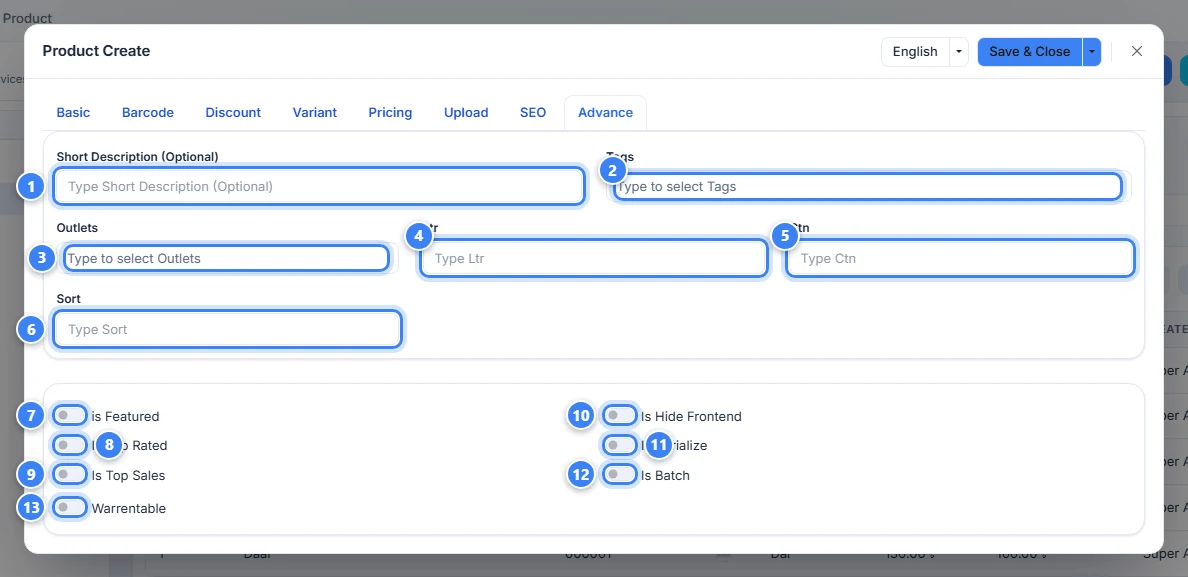 Product creation window - Advance tab
- Short Description (Optional) — brief 1-line summary displayed on quick popups.
- Tags — multi-select tags used for custom filtering.
- Outlets — select specific company outlets where this item is stocked.
- Ltr — liquid volume capacity in litres if applicable.
- Ctn — number of individual retail units contained in a wholesale carton.
- Sort — numeric display sequence ordering items on POS quick grids.
- is Featured — toggle to spotlight item on web store homepage.
- Is Top Rated — badge indicating customer-favorite item.
- Is Top Sales — badge marking best-selling items.
- Is Hide Frontend — hides item from public website storefront while keeping active on POS.
- Is Serialize — enables individual serial number tracking during purchase and sales.
- Is Batch — enables batch or lot number tracking with manufacturing and expiry dates.
- Warrentable — enables warranty tracking and claims for electronic appliances.
Additional Fields
This tab appears dynamically when your Sylloo workspace has custom schema fields registered by platform extensions. If no custom parameters exist, this tab remains hidden.
Every field across all tabs
| Tab | Control | What it is for | Example | Required? | Default | What happens when changed | What depends on it |
|---|---|---|---|---|---|---|---|
| Basic | Name | Product name for invoices and receipts. | Logitech MX Master 3 |
Yes | Blank | Updates product title. | Used everywhere in ERP. |
| Basic | Code | SKU or stock code. | LOG-MX3 |
Optional | Auto | Sets barcode and search identifier. | Stock movements and searches. |
| Basic | Description | Technical details and specs. | Ergonomic wireless mouse |
Optional | Blank | Provides item context. | Displayed on product view. |
| Basic | Brand | Manufacturer brand. | Logitech |
Optional | Blank | Assigns brand affiliation. | Filter by brand on catalog. |
| Basic | Category | Sales category. | Computer Accessories |
Optional | Blank | Assigns departments. | Catalog browsing and reports. |
| Basic | Unit | Measurement unit. | Piece |
Optional | Blank | Defines counting unit. | Invoicing and stock levels. |
| Basic | Status | Sales status. | Active |
Yes | Active | Active items are sellable. | POS catalog visibility. |
| Basic | Purchase price | Cost price paid to vendor. | 85.00 |
Yes | 0 |
Updates inventory valuation. | Profit margin calculations. |
| Basic | Sale price | Base selling price to customers. | 119.00 |
Yes | 0 |
Base price charged on POS. | Net sale price calculation. |
| Basic | Vat On This Product | Enables sales/purchase tax. | Checked | Optional | Unchecked | Reveals Purchase & Sale VAT dropdowns. | Calculates net price with tax. |
| Basic | Net sale price | Selling price inclusive of VAT. | 119.00 |
Optional | Auto | Automatically calculates total price. | Read-only guidance field. |
| Basic | In stock | Physical availability toggle. | Checked | Optional | Checked | Marks immediate availability. | Stock availability alerts. |
| Barcode | Scan or type code | Manual code input. | 097855149367 |
Optional | Blank | Input for barcode table. | Added on clicking Add. |
| Barcode | Barcode type | Symbology format. | Code 128 |
Optional | Code 128 | Formats scanner encoding. | Scanner recognition. |
| Barcode | Note | Package note. | Outer retail box |
Optional | Blank | Notes purpose of barcode. | Barcode list guidance. |
| Barcode | Generate barcode | Generates EAN-13 code. | Click button | Optional | — | Fills code with unique sequence. | Auto-generated barcodes. |
| Barcode | Add barcode | Saves barcode to list. | Click button | Optional | — | Appends row to barcode list. | Multiple barcode scanning. |
| Discount | Total Discount Percent Or Fixed | Percentage or flat discount. | 10% |
Optional | Blank | Applies automatic discount. | Reduces selling price at POS. |
| Variant | Variants | Variant template selector. | Color |
Optional | Blank | Generates attribute combinations. | Multi-variant child SKUs. |
| Pricing | Contact group | Customer price tier. | Wholesale |
Optional | Blank | Sets customer group price. | POS customer group pricing. |
| Pricing | Add pricing | Adds tier pricing row. | Click button | Optional | — | Creates group price record. | Custom contract pricing. |
| Upload | Dropzone | File drag and drop target. | Drop image | Optional | — | Prepares photo upload. | Product thumbnail preview. |
| Upload | Upload | Local file browser button. | Click button | Optional | — | Opens OS file dialog. | Uploads selected picture. |
| Upload | File Manager | Media library button. | Click button | Optional | — | Opens media browser. | Selects existing asset. |
| SEO | Page title | Google search title. | Buy Logitech MX Master 3 |
Optional | Blank | Sets HTML <title> tag. |
Search engine ranking. |
| SEO | Meta description | Web search snippet summary. | Premium wireless mouse... |
Optional | Blank | Sets HTML meta description. | Search result snippets. |
| SEO | Meta keywords | SEO search keywords. | mouse, wireless, logitech |
Optional | Blank | Sets search tags. | Search indexing. |
| SEO | Robots | Web crawler directive. | Index/Follow |
Optional | Default | Controls web indexing. | Search engine visibility. |
| Advance | Short Description (Optional) | Concise summary line. | Wireless ergonomic mouse |
Optional | Blank | Brief item description. | Quick preview popups. |
| Advance | Tags | Custom organizational labels. | Accessories, Wireless |
Optional | Blank | Categorizes items with tags. | Custom tag filter. |
| Advance | Outlets | Designated stocking outlets. | Main Branch |
Optional | All | Restricts item to outlets. | Stock location scoping. |
| Advance | Ltr | Volume in litres. | 0.5 |
Optional | Blank | Specifies liquid quantity. | Beverage/chemical volume. |
| Advance | Ctn | Units per carton. | 12 |
Optional | Blank | Wholesale packing multiplier. | Carton packaging. |
| Advance | Sort | POS display sequence order. | 1 |
Optional | 0 |
Orders items on screen. | Grid display order. |
| Advance | is Featured | Web store spotlight toggle. | Checked | Optional | Unchecked | Highlights on home page. | Homepage showcase. |
| Advance | Is Top Rated | Top rating badge toggle. | Checked | Optional | Unchecked | Displays rating badge. | Online catalog badge. |
| Advance | Is Top Sales | Best seller badge toggle. | Checked | Optional | Unchecked | Displays best seller badge. | Online catalog badge. |
| Advance | Is Hide Frontend | Hides from website shop. | Unchecked | Optional | Unchecked | Prevents online display. | In-store POS only items. |
| Advance | Is Serialize | Enables serial tracking. | Checked | Optional | Unchecked | Prompts serials on purchase/sale. | Warranty and serial history. |
| Advance | Is Batch | Enables batch/lot tracking. | Unchecked | Optional | Unchecked | Requires lot and expiry dates. | Expiry date management. |
| Advance | Warrentable | Enables warranty claims. | Checked | Optional | Unchecked | Records warranty periods. | Service center tracking. |
Example
Tanvir is setting up a new gaming laptop in the catalog:
- He opens Product list and clicks Add.
- On the Basic tab, he enters Name
Asus ROG Zephyrus G14, Purchase Price1200, and Sale Price1450. - On the Barcode tab, he scans the serial barcode on the retail box.
- On the Upload tab, he clicks Upload and attaches the official promotional picture.
- On the Advance tab, he ticks Is Serialize and Warrentable to track individual motherboard serial numbers and provide a 2-year warranty.
- He clicks Save in the modal header. The laptop is instantly ready for sales.
Common questions
Can a product have more than one barcode? Yes. Use the Barcode tab to add as many barcodes as needed (for example, manufacturer EAN, distributor sticker, and carton barcode). Scanning any of them on POS will ring up this item.
What is the difference between Inactive and Hide Frontend? Marking an item Inactive completely stops sales across both physical store POS and website. Marking an item Is Hide Frontend keeps it fully sellable at your store counters while hiding it from the public web shop catalog.
Why is the Inventory tab not visible when creating a new product? Stock balances belong to physical inventory movements (opening stock, purchase receipts, or transfers). Once the product is saved, editing it reveals the Inventory tab displaying current stock across all outlets.
Affiliate tab
When your business runs the affiliate program, the window has the tab Affiliate. Set the commission affiliates earn on this product. Empty fields use the category or default rate.
- Commission for all affiliates (%) — the product's rate for every affiliate, from 0 to 100. Leave it empty to use the category rate or the default.
- One field per affiliate group — overrides the rate for that group.
- A fixed amount per unit set on Commission rates shows here as read-only, for example 5.00 per unit (fixed amount), with the help A fixed amount per unit. Change it on the Commission rates page. and the link Change fixed amounts on the Commission rates page. Saving the tab keeps that fixed amount.
- Save commission — saves only the rates of this tab.
See Affiliate on products, contacts and orders for more.