
Order payment invoice summary
Review outstanding invoice balance due and choose an electronic payment method or bank channel to clear your order.
Order payment invoice summary
The Order payment invoice summary screen allows customers to view the remaining balance due on a specific order invoice and select a preferred payment method to initiate checkout settlement.
When you use this
- Select an electronic payment channel to pay an unpaid or partially settled order invoice.
- Verify the exact invoice code and outstanding balance due before transferring funds.
- Switch between online gateway methods such as mobile banking or direct bank transfer.
- Return to your order history if you need to review line items before submitting payment.
Screen layout
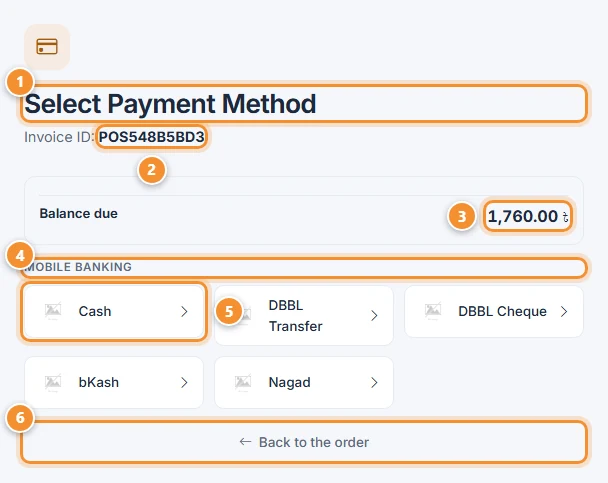 Order payment invoice selection screen showing balance due and available payment methods
- Payment method selection heading — title indicating payment option selection for the order invoice.
- Invoice reference code — unique identifier of the sales order invoice being settled.
- Outstanding balance due — net monetary amount required to settle the order.
- Payment channel category — heading grouping mobile banking and digital payment options.
- Payment method option — clickable channel to proceed to checkout gateway.
- Return to order list link — navigation link to return back to customer orders.
Step-by-step: Selecting a payment method
- From Customer orders, click the Pay now action on any order with an outstanding balance.
- Verify the order identifier shown beside Invoice reference code (2).
- Confirm the total amount owed under Outstanding balance due (3).
- Review available providers grouped under Payment channel category (4).
- Click your desired Payment method option (5) to navigate to the secure payment checkout page.
- If you decide to delay settlement, click Return to order list link (6) to return safely to your order overview.
Every field and control
Order invoice details
- Payment method selection heading — Top header informing the customer to pick a settlement method.
- Invoice reference code — Bold order serial tracking the specific sales purchase being paid.
- Outstanding balance due — Financial card displaying the remaining unpaid amount required to clear the invoice.
Payment options and navigation
- Payment channel category — Subheading distinguishing mobile banking wallets, electronic card gateways, and direct bank options.
- Payment method option — Interactive tile displaying the provider logo and channel name. Clicking this option directs to the gateway payment processor.
- Return to order list link — Navigation shortcut returning directly to the customer orders list.
Common questions
Can I pay a partial amount of the outstanding balance?
By default, the payment gateway requests the full outstanding balance due. If partial payments or milestone installments are permitted by the business, you can adjust the payment figure on the subsequent payment gateway checkout step.
What happens if I click back instead of selecting a payment method?
Your order remains securely saved in its current payment status. No charges are incurred, and you can return to pay at any time from your orders list.
Are transaction fees added to the balance due?
Depending on the selected payment method, processing fees may apply. Any applicable surcharge will be calculated and clearly displayed on the payment gateway page before you authorize the transfer.
Related pages
- Customer orders — View order statuses and invoice fulfillment history.
- Online order payment gateway checkout — Complete your payment using selected payment providers.
- Customer payments and transactions — Inspect historical payment receipts and gateway transaction logs.