
Customer Ledger Statement
Review chronological account debits, credits, invoices, payments, and running balances across custom accounting periods.
Customer Ledger Statement
The Customer Ledger Statement screen gives customers a complete chronological accounting record of all financial activity. It presents opening balances, invoiced sales charges, payment settlements, and running net balances across any selected date range.
When you use this
- Reconcile invoiced sales orders against submitted payments over custom fiscal dates.
- Audit progressive account balances after each purchase or settlement.
- Export itemized accounting statements to spreadsheet files for tax and bookkeeping.
- Verify that bank wire transfers or cash receipts have posted to your account.
Screen layout
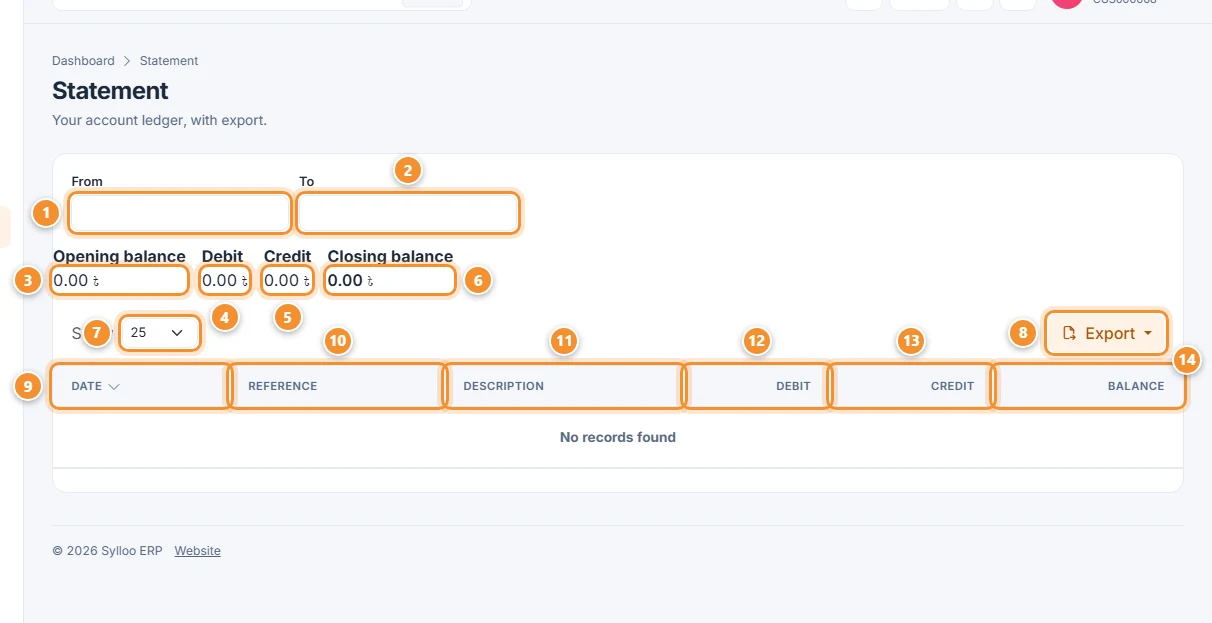 Customer account ledger statement with date filters debits credits and running balance
- Statement start date — calendar input to specify the beginning date of the financial period.
- Statement end date — calendar input to specify the ending date of the financial period.
- Opening balance figure — unsettled account balance brought forward prior to the selected period.
- Total debit charges — aggregate sum of invoiced sales and debit adjustments in the period.
- Total credit settlements — aggregate sum of payments received and credit notes issued in the period.
- Closing balance figure — net outstanding account balance at the end of the period.
- Page size selector — dropdown to configure visible ledger rows per page.
- Export statement button — exports ledger statement entries to Excel or CSV.
- Posting date column — chronological accounting entry date.
- Document reference column — voucher, transaction, or invoice identifier.
- Transaction description column — nature of document such as Invoice, Payment, or Return.
- Debit column — amount charged to the customer receivable.
- Credit column — amount paid or credited to reduce the balance.
- Running balance column — progressive cumulative balance following each line item.
Step-by-step: Reviewing your statement
- Sign in to your portal account and select Ledger Statement from the navigation menu.
- Choose your accounting start date using Statement start date (1).
- Set your closing review date with Statement end date (2).
- Inspect the summary metric cards:
- Check the balance brought forward in Opening balance figure (3).
- Review new billings in Total debit charges (4).
- Verify submitted payments in Total credit settlements (5).
- Note the resulting balance in Closing balance figure (6).
- Review the chronological rows in the statement table:
- Verify each transaction entry under Posting date column (9) and Document reference column (10).
- Check the transaction type under Transaction description column (11).
- Inspect charges under Debit column (12) and payments under Credit column (13).
- Track progressive debt or credit under Running balance column (14).
- Click Export statement button (8) if you need a spreadsheet copy for your accounting files.
Every field and control
Period filters and summary totals
- Statement start date — Calendar picker specifying the earliest accounting date included in the statement.
- Statement end date — Calendar picker setting the cutoff date for the statement calculation.
- Opening balance figure — Unsettled net amount carried over before the statement start date.
- Total debit charges — Sum of all sales orders and charges invoiced within the selected date range.
- Total credit settlements — Cumulative total of all payments and credits received within the date range.
- Closing balance figure — Final net balance remaining at the conclusion of the date range.
Table controls and ledger columns
- Page size selector — Sets the maximum number of ledger rows displayed per page.
- Export statement button — Generates a downloadable file of the current ledger statement in Excel or CSV format.
- Posting date column — The official accounting date when the transaction record took effect.
- Document reference column — Unique transaction serial, order identifier, or payment voucher code.
- Transaction description column — Descriptive label indicating order invoice, card settlement, or credit memo.
- Debit column — Amount added to the customer balance for purchases made.
- Credit column — Amount deducted from the customer balance when payment is received.
- Running balance column — Real-time account balance remaining after applying each line item.
Common questions
Why is my recent payment not showing on the ledger statement?
Payments appear immediately when settled through online gateways. Bank wire transfers or manual checks appear once confirmed and posted by the accounting staff.
What does a negative closing balance represent?
A negative balance indicates an advance credit. Your payments and returned product credits exceed total invoiced charges, leaving prepaid credit for future orders.
Can I export data for a full financial year?
Yes. Adjust the start and end dates to cover your entire fiscal year and click the export button to download the complete record.
Related pages
- Customer Dashboard — View account overview and recent order summaries.
- Customer payments and transactions — Inspect transaction receipts and gateway reference numbers.
- Customer orders — Track sales orders, fulfillment stages, and shipping updates.