
Customer orders list
Track customer orders, inspect payment and delivery statuses, filter by date ranges, print invoices, and reorder products.
Customer orders list
The Customer orders list screen provides buyers with complete visibility over their purchasing history. Customers can track active shipment deliveries, monitor payment settlements, search orders by code or product name, export order summaries, and reorder past purchases with a single click.
When you use this
- Track active parcel delivery stages from warehouse fulfillment to final drop-off.
- Check payment settlement status across open, partially paid, or completed invoices.
- Download or print official sales invoices and delivery notes for commercial accounting.
- Repeat previous purchases instantly using the reorder shortcut.
Screen layout
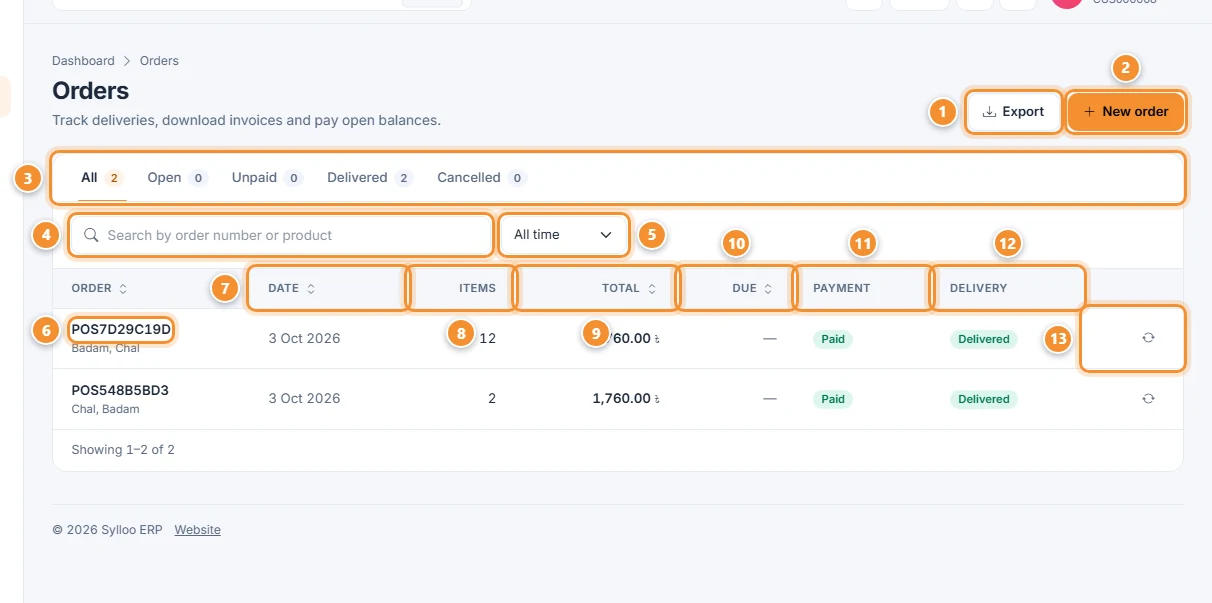 Customer orders management with status filters date ranges and tracking
- Export orders button — downloads current order records in CSV format.
- New order button — opens the customer catalog to select products.
- Order status tabs — filter orders by All, Open, Unpaid, Delivered, and Cancelled with counts.
- Search orders input — live search by order code or included product names.
- Date period selector — dropdown to filter by All, Last 30 days, Last 90 days, or Year.
- Order code and drawer link — order identifier opening the slide-out order details panel.
- Placement date column — chronological date when the order was submitted.
- Item count column — total quantity of units included in the order.
- Order total column — net invoice value of the order.
- Outstanding balance column — unpaid amount remaining on the invoice.
- Payment status column — badge indicating Paid, Partial, or Unpaid.
- Fulfillment status column — badge indicating Pending, Processing, Shipped, or Delivered.
- Row action buttons — quick actions including invoice print, payment, and reorder.
Step-by-step: Tracking and managing orders
- Sign in to your portal account and navigate to Orders in the sidebar.
- Use Order status tabs (3) to switch between All, Open, Unpaid, Delivered, or Cancelled orders.
- To find a specific transaction, type the order identifier or product title into Search orders input (4).
- Filter historical purchases by selecting a timeframe in Date period selector (5).
- Click Order code and drawer link (6) to slide out the Customer order details panel.
- To print an official receipt, click the printer icon in Row action buttons (13).
- If an invoice shows an outstanding balance under Outstanding balance column (10), click Pay Now to settle the balance.
- To purchase the exact same products again, click Reorder in Row action buttons (13) to load the items into your Shopping cart.
Every field and control
Header toolbar and filters
- Export (1): Downloads the currently visible orders table as a CSV spreadsheet.
- New Order (2): Direct navigation link taking you to Customer products catalog to start a new purchase.
- Status tabs (3): Five segmented filters displaying live counts for All, Open, Unpaid, Delivered, and Cancelled orders.
- Search orders (4): Keyword search filter matching against order numbers, product lines, and item descriptions.
- Period (5): Date filter restricting records to All time, Last 30 days, Last 90 days, or Current year.
Orders table
- Order (6): The unique sales order code alongside a summary of purchased product names. Click the code to open the side panel.
- Date (7): Calendar date and timestamp when the customer submitted the order.
- Items (8): Aggregate count of individual units ordered across all line items.
- Total (9): Grand total invoice value including sales taxes and shipping freight.
- Due (10): Outstanding unpaid balance remaining on the transaction.
- Payment (11): Color-coded status badge showing Paid (green), Partial (orange), or Unpaid (red).
- Delivery (12): Courier fulfillment tag showing Pending, Shipped, or Delivered.
- Row actions (13): Action shortcuts providing Print Invoice, Settle Payment, and One-Click Reorder.
Common questions
How do I view tracking notes for my shipment?
Click on any order code button to open the side panel. The panel presents live dispatch events, courier references, and line-item fulfillment statuses.
What happens when I click Reorder?
Clicking Reorder copies the products and quantities from the past order directly into your active shopping cart, allowing you to review and checkout immediately.