
Add or edit note
Create or edit a note adjusting customer or supplier ledger balances, invoice allocations, or refunds.
Add or edit note
Use this window to record or modify a note transaction. Party notes adjust balances for customers or suppliers and link credits against unpaid orders or bills.
When you use this
- Granting customer price allowances, sales rebates, or post-delivery goodwill credits.
- Recording supplier purchase discounts, return claims, or short-delivery price reductions.
- Writing off uncollectible customer balances or expired supplier credit accounts.
- Returning customer deposits or recording incoming cash refunds from vendors.
Before you start
- You need an active user account with permission to create or edit this party note type.
- Verify that the target customer or vendor profile exists and is active.
- Ensure that the adjustment transaction date falls within an open accounting period.
Open the note window
- Go to Accounting in the left sidebar and select your Note list.
- Click the green Add Receipt button above the table.
- The Add or edit note window opens with a new blank form.
Fill header and adjustment lines
- Select the affected counterparty contact (labeled Customer or Supplier based on note flow).
- Review the transaction Date and enter an optional external memo code in Reference.
- In the lines table, choose an adjustment ledger account, enter a description, and specify the price.
- If this note settles open bills, click Add invoice or click Fill automatically to spread credit.
- Review total allocations and add any internal audit notes in Note.
- Click Save & Close to record the adjustment and update the party account balance.
Every field on this screen
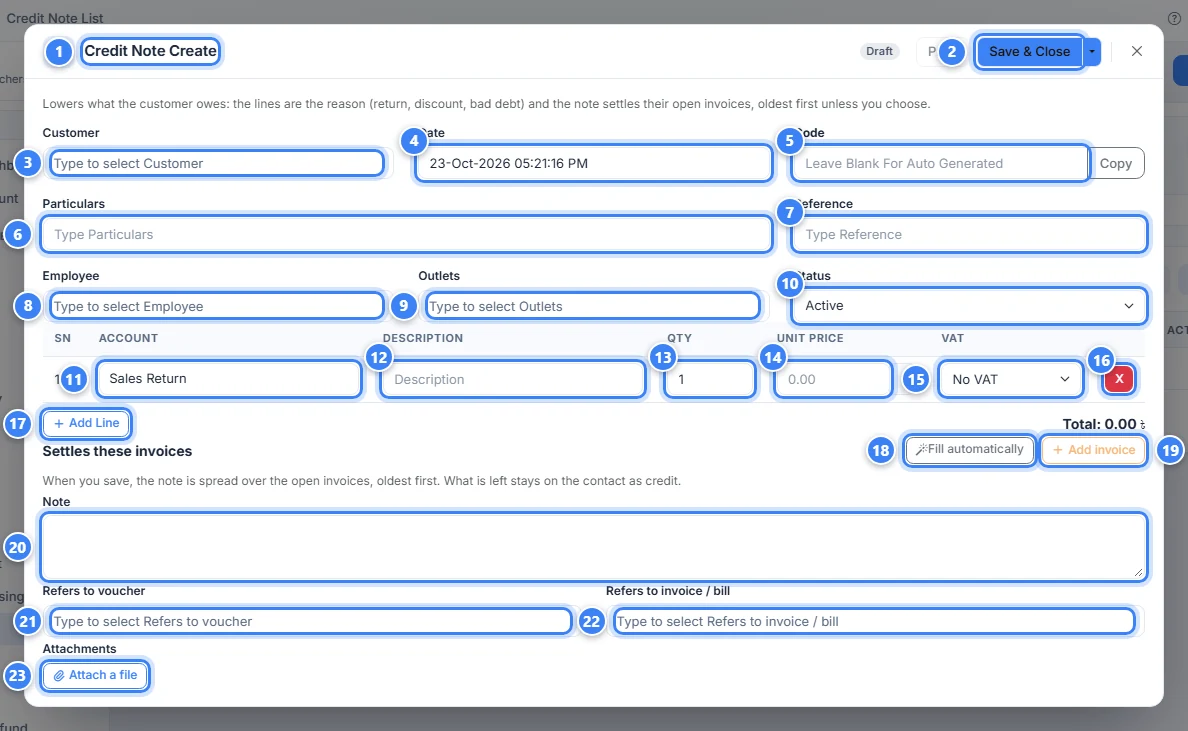 Add or edit note window
- Modal title — Shows the note type and indicates whether you are creating or updating a record.
- Save & Close button — Validates lines and allocations, saves changes, and posts ledger entries. Labeled Save in draft mode.
- Contact field — Search dropdown to choose the counterparty. Labeled Customer for sales and Supplier for purchases.
- Receipt date field — Effective accounting posting Date within an open period.
- Voucher code field — Unique sequential Code. Leave blank to let the system generate the next sequential number.
- Particulars field — Summary note describing the business reason for this adjustment.
- Reference field — Optional external tracking reference, such as a dispute ticket or debit memo number.
- Employee field — Staff member responsible for logging or authorizing the adjustment.
- Outlet field — Store branch or warehouse Outlets where the transaction originated.
- Status field — Operational status dropdown. Choose Active to process normally or Inactive to suspend.
- Line Ledger Account — Ledger account for this line. Click Search Ledger Account to pick revenue, expense, or allowance accounts.
- Line description — Explanatory memo describing this specific line row.
- Line quantity — Numerical units for this line. Defaults to 1 for flat monetary amounts.
- Line unit price — Monetary value of this adjustment line before tax calculations.
- Line VAT rate — Applicable sales tax or VAT rate, or choose No VAT if exempt.
- Remove line button — Red X button at the end of each row. Deletes that line from the table.
- Add Line button — Appends a new blank row to split adjustments across multiple ledger accounts.
- Fill automatically button — Automatically distributes note credit across open unpaid invoices, oldest first.
- Add invoice button — Appends a new allocation row to assign credit against a specific invoice.
- Note field — Internal remarks, audit notes, or explanations recorded alongside the note.
- Reference voucher field — Search dropdown linking this note to an earlier voucher. Shown as Refers to voucher.
- Reference invoice field — Search dropdown linking this note to an existing order. Shown as Refers to invoice / bill.
- Add Attachment button — Click Attach a file to upload dispute letters, claim forms, or credit slips.
Settling open invoices and automatic allocations
The Settles invoices section links credit to open orders or purchase bills:
- Fill automatically — Automatically scans open unpaid invoices for this contact and allocates credit, oldest first.
- Add invoice — Adds a manual allocation line.
- Invoice dropdown — Searchable selector displaying open orders with outstanding balances. Labeled Invoice on screen.
- Allocation Amount — Specific monetary Amount deducted from this bill.
- Remove allocation — Click the red X button to remove an invoice allocation row.
Customer and supplier refunds
When recording a party refund, the form displays cash and bank settlement inputs:
- Refund of note — Searchable dropdown linking the refund to an existing credit note or advance payment.
- Amount — Total monetary sum returned to the customer or received back from the supplier.
- Deposit To / Paid From — Cash register or bank ledger account receiving or disbursing the refund money. Labeled Deposit To on collections and Paid From on payments.
- Payment Method — Commercial payment instrument, such as Cash, Bank Transfer, or Cheque.
Document workflow and actions
The following actions are available on saved party notes:
-
Print — Generates a printable note slip with your company header and signature lines.
-
Duplicate — Creates a new draft note copying all lines, accounts, and contact details.
-
Make recurring — Configures this note as a recurring template on a schedule.
-
Submit — Submits a draft note into the approval list for managerial review.
-
Approve — Managerial action to approve a submitted note and post entries to the ledger.
-
Reject — Rejects a submitted note back to draft status for correction.
-
Withdraw — Recalls a submitted note back to draft state before review.
-
Cancel entry — Voids a posted note and restores previous ledger balances.
-
Reason — Explanatory note entered by a manager when deciding on a pending note.
-
Reason for cancelling — Mandatory note recording why a posted note was cancelled.
-
Attachments — View and open uploaded media files and images linked to the note.
-
Remove — Deletes an uploaded attachment before saving changes.
Examples
Example: Customer damaged goods allowance
Suppose a wholesale customer claims a $150 discount for damaged boxes on order #1042:
- In Customer, select
City Supermarket. - In line 1, select
4120 - Sales Returns & Allowancesin Search Ledger Account. - Set Line quantity to
1and enter150.00in Line unit price. - In Settles invoices, click Add invoice, select
Order #1042, and enter150.00. - Click Save & Close. Customer receivable balance decreases by $150 and order #1042 balance updates.
Example: Vendor pricing correction
Suppose a supplier overcharged $300 on a raw materials bill:
- In Supplier, select
Apex Packaging Ltd. - In line 1, select
5120 - Purchase Returns & Allowances. - Set Line quantity to
1and enter300.00in Line unit price. - Click Fill automatically to allocate credit to the oldest pending supplier bill.
- Click Save & Close to deduct $300 from supplier payables.
Common questions
Can a party note exceed the outstanding invoice balance?
Yes. Any unallocated balance remains on the customer or supplier account as an unapplied credit. It can be settled against future purchases or refunded later.
How does Fill automatically choose which invoices to settle?
The system allocates credits against open invoices sorted by due date, settling the oldest unpaid invoices first.
Can I create a refund without linking an earlier note?
Yes. If an advance was recorded directly without a credit note, select the customer or supplier and enter the refund amount and bank account directly.
Related pages
- Note list — Main table showing recorded party notes, filters, and export options.
- Note list — Single-entry money collection and expense vouchers.
- Contacts list — Customer and vendor master directories with balance histories.