
Sliders
Create, organize, and manage homepage hero carousels and promotional banner sliders.
Sliders
Use the Sliders screen to create and manage dynamic image carousels and promotional hero banners across your public website. You can configure multiple slide graphics, customize call-to-action buttons, control transition speeds, and select where each carousel displays on your live storefront.
When you use this
- Create interactive homepage hero carousels showcasing seasonal discounts, new arrivals, or featured product collections.
- Configure promotional banners on dedicated category landing pages.
- Set transition speeds, autoplay behavior, and slide navigation dots.
- Manage individual slide graphics, title overlays, and destination links.
Screen layout
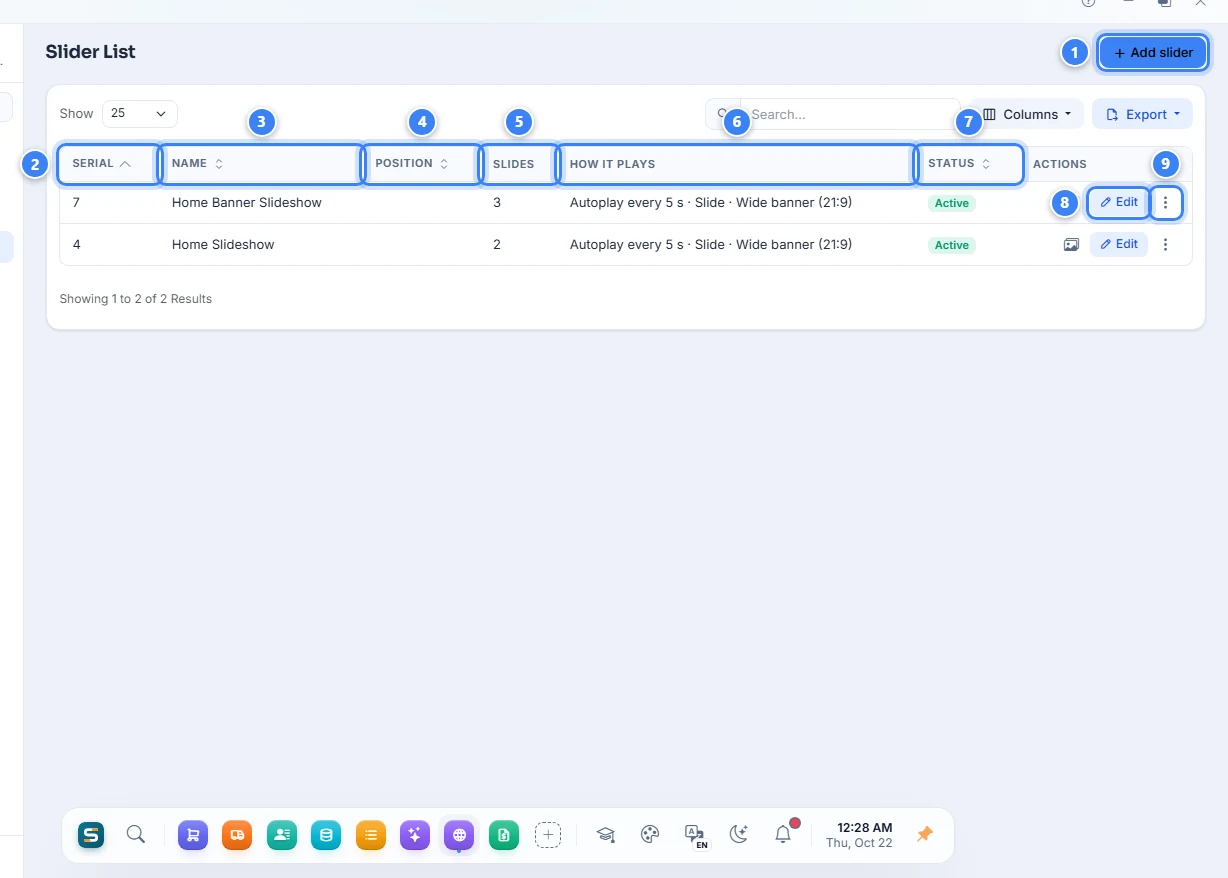 Website sliders and banners
- Add slider — opens the form to create a new slider container.
- Serial column — sequential index of the slider record.
- Name column — internal name and title of the slider.
- Position column — slot in the theme where the slider appears.
- Slides column — number of slide banners inside this slider.
- How it plays column — playback behaviour such as autoplay interval.
- Status column — indicates whether the slider is active on the website.
- Edit slider — modifies slider settings, speed, and slide images.
- Slider actions menu — opens menu options including slide items management and deletion.
Step-by-step: Creating a new banner slider
- Go to Website > Sliders in the main navigation menu.
- Click Add slider (1) in the header.
- Enter a descriptive internal name (such as Homepage Hero Banner).
- Choose the theme position slot where the carousel should render (for example
Home Top). - Configure transition effects, autoplay speed, and navigation arrow visibility.
- Set the status to Active and save the form.
- Click the action menu next to the new slider and choose Manage slides to upload banner images, headlines, and call-to-action button links.
Every field and control
Header actions
- Add slider (1): Opens the creation dialog to set up a new slider container.
Sliders table
- Serial column (2): Number indicating the sequential order of the slider row.
- Name column (3): Descriptive internal title of the carousel container.
- Position column (4): Design placement slot defined by the active theme layout.
- Slides column (5): Total count of slide images and graphics currently assigned to this slider.
- How it plays column (6): Autoplay settings, display durations, and transition styles.
- Status column (7): Toggle showing whether the slider is currently visible on the live storefront (
Active) or disabled (Inactive). - Edit slider (8): Opens the settings modal to modify title, display position, slide timings, and visual effects.
- Slider actions menu (9):
- Edit: Updates the slider configuration.
- Delete: Permanently removes the slider and its assigned slide banners from your store.
Common questions
How many slides should I add to a hero carousel?
For optimal mobile speed and customer engagement, we recommend including between 3 and 5 slides in a main homepage carousel.
Can each slide link to a different product or category?
Yes. When adding or editing individual slides within a slider, you can specify a unique target URL, button label, and headline for each slide graphic.
Related pages
- Website themes and builder: Customize theme layouts and banner placement sections.
- Pages, blog and menus: Build navigation menus and link to promotional landing pages.
- Forms: Create contact forms for promotional campaigns.