
Practice and Live
Understand how to use the Practice sandbox for safe staff training and testing alongside your real Live business operations.
Practice and Live
Every Sylloo account comes with two separate environments: Live and Practice. Live is your real production workspace. In Live, you record actual customer orders, manage real warehouse stock, handle daily cash flow, and print genuine invoices. Practice is an isolated training sandbox with sample items and orders. In Practice, your team can learn the software, test new settings, and try features safely without risking real records or sending messages to clients.
When you use this
- Training new staff members: let cashiers and inventory clerks practice entering orders and receiving stock without changing actual store inventory.
- Testing new pricing or tax settings: test discounts and new VAT settings on sample items before using them in your real store.
- Exploring new business features: try new modules such as Bookings, Manufacturing, or Point of Sale in Practice first.
- Resetting your training area: clear out months of test transactions before onboarding a new department.
Before you start
- You need an active user account for your business address.
- To access Practice Tools, you must be signed in as the business owner or have the practice tools permission.
- Moving to Live requires an active subscription plan.
The Practice and Live environments
The system keeps training work strictly separate from your real operations:
- Separate web addresses: Live runs on your main address (
yourshop.sylloo.com). Practice runs on its own training address (yourshop.sylloo.dev). - Visual training banner: every screen in Practice displays a top banner reading
PRACTICE · This is practice mode. Nothing here is real. - Watermarks on paperwork: receipts, quotes, and invoices in Practice show a clear
PRACTICEwatermark so mock papers cannot be confused with tax invoices. - Message safety: text messages and customer emails created in Practice never leave the server. They stay in an internal outbox for inspection.
- Customer privacy protection: real customer balances and supplier numbers never copy into Practice. Practice staff accounts show display names only.
The Practice Gate
When your business signs up or when a plan renewal is needed, signing in opens the Practice Gate screen. This screen confirms your identity and lets you enter Practice or choose a plan.
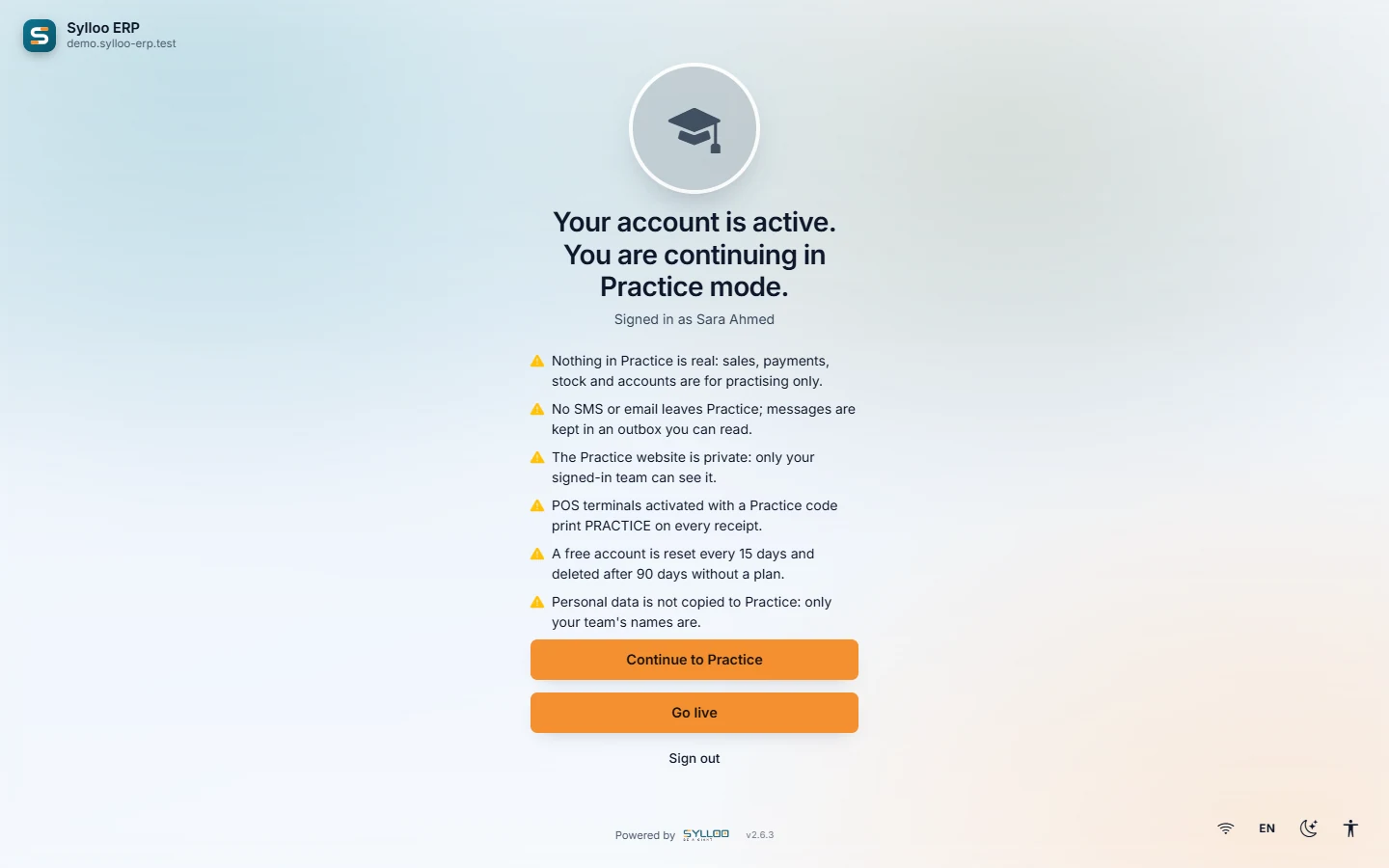 The Practice gate page
- Continue to Practice — opens your Practice sandbox desktop with a secure one-time pass so you can start right away.
- Activate Live — opens the billing page where the business owner selects a plan to launch real operations.
- Sign out — closes your session and returns you to the login screen.
Switching between Live and Practice
You can switch between Live and Practice at any time from the dock at the bottom of the screen. You do not need to sign in again.
 The environment switch in the desktop dock
- Switch to Live (only shown when: signed in to Practice and Live is active) — moves your session to the Live workspace on the same page.
- Start menu — opens the full application drawer to launch sales, inventory, and system modules.
- Search — launches the quick search window to find records, shortcuts, and settings across your system.
On the Live workspace, the environment button displays Switch to Practice (with a graduation cap icon). Clicking it brings you into Practice immediately.
Every field on this screen
The Practice Tools screen (Settings → Organization → Practice Tools) gives the business owner controls to reset training data, clean sample items, and re-sync staff accounts.
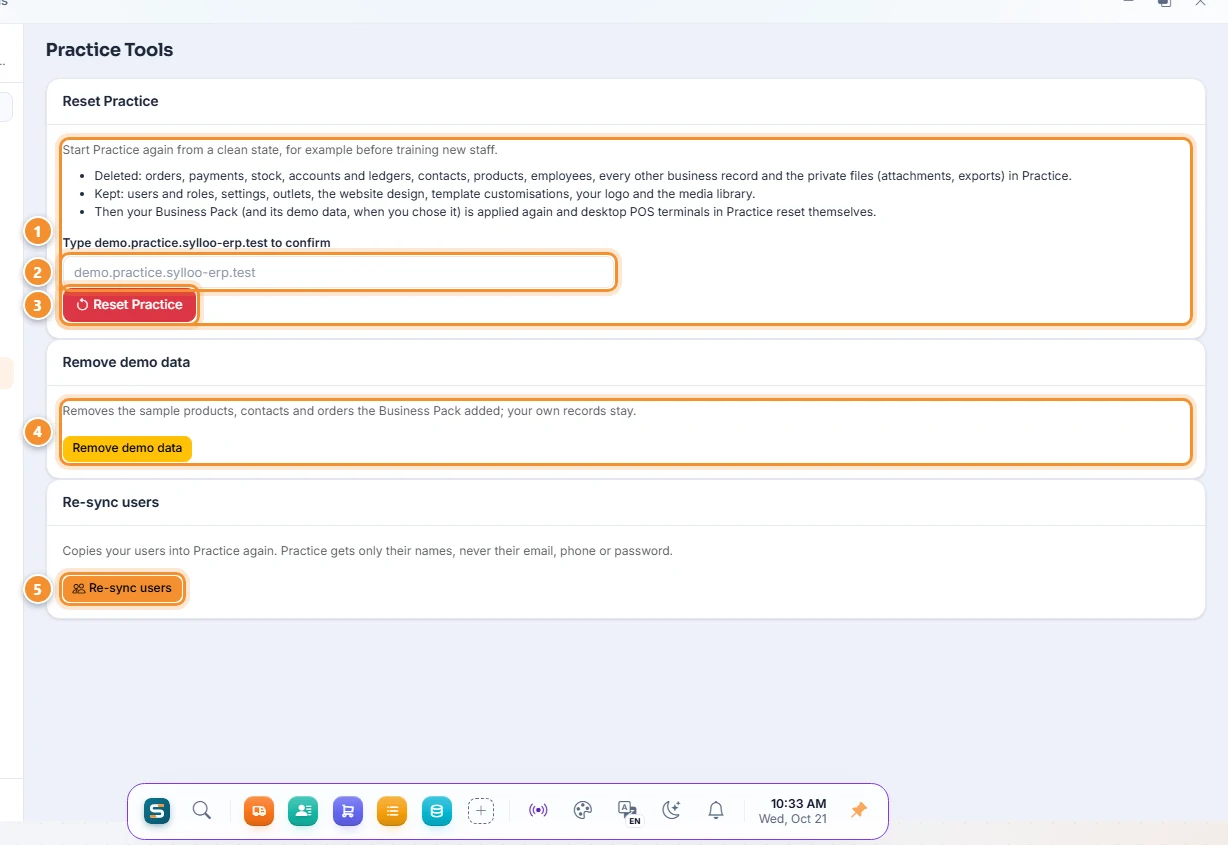 The Practice tools screen
- Reset Practice — deletes all mock sales orders, payments, stock movements, and ledger entries while keeping user accounts, outlets, and website designs.
- Confirm address (only shown when: signed in as business owner and no reset is running) — type the exact practice address shown in the placeholder (such as
demo.practice.sylloo-erp.test) to confirm. The code label isType :address to confirm. - Reset Practice (button) (only shown when: signed in as business owner and confirmation address matches) — starts the automatic reset job and shows a live progress list.
- Remove demo data — removes the initial preloaded sample catalog records and mock contacts while keeping any products you entered yourself. If you are confirming removal, click Yes, remove it to proceed or click Cancel to keep the demo records.
- Re-sync users (only shown when: signed in as business owner) — copies staff user accounts from Live into Practice with private phone numbers, emails, and passwords excluded.
Step-by-step: Resetting your Practice sandbox
Follow these steps when you want clean data before a staff training session:
- Sign in to your workspace and click Switch to Practice in the desktop dock if you are on Live.
- Click Start and select Settings.
- In the sidebar under Organization, click Practice Tools.
- Read the summary of records that will be deleted and kept.
- In the Confirm address field under Reset Practice, type your exact Practice address as shown in the box.
- Click Reset Practice.
- Watch the progress checklist as old test records are cleared and fresh sample items are loaded.
- When the green message appears stating
Practice was reset. Reload the pages you have open, reload your browser tabs to start fresh.
Step-by-step: Switching from Practice to Live
- Find the desktop dock at the bottom of the screen while working in Practice.
- Click the Live icon showing a broadcast tower.
- The system creates a single-use token and redirects your browser to your Live address (
yourshop.sylloo.com). - Your Live desktop opens and the orange training banner disappears. You are now working with real business data.
Example: A training afternoon at Northwind Boutique
Northwind Boutique hired two weekend cashiers. The store owner, Sarah, wants them to practice barcode scanning and cash register handling before the grand opening.
- Preparation: Sarah signs in to
northwind.sylloo.comand clicks Switch to Practice in the dock. - Clean slate: she opens
Settings → Practice Tools, entersnorthwind.sylloo.devinto the confirmation field, and clicks Reset Practice. The system wipes last week's test receipts and reloads 20 fresh sample items. - Training: the new staff open the Point of Sale screen and process 15 practice sales. They test discounts, customer lookups, and cash payments. Every receipt prints with
PRACTICEprinted across the middle. - Back to real work: at the end of the shift, Sarah clicks Switch to Live in the dock. She returns to her live workspace where actual inventory numbers and sales remain untouched.
Common questions
Can mistakes in Practice change my real accounting or inventory?
No. Practice is completely isolated from Live. Every order, inventory count, invoice, and ledger entry created in Practice exists only within the Practice sandbox.
Will test customers receive emails or SMS messages when I create orders in Practice?
No. Outgoing messages from Practice are blocked from public delivery and stay safely in an internal outbox.
How often does Practice reset on a free evaluation account?
On free evaluation mode without a paid plan, Practice resets automatically every 15 days to keep storage clean. Once you activate a paid plan, Practice resets only when the owner manually triggers it in Practice Tools.
Why does my printed receipt say "PRACTICE" in the middle?
All receipts, PDF orders, and invoices printed in Practice display a required PRACTICE watermark to prevent test papers from being used as legal tax documents.
Can staff members created inside Practice log in to Live?
No. Accounts created directly inside Practice can only access Practice mode. To grant access to Live, the owner or administrator must add the user while working in the Live workspace.
Related pages
- Signing in and authentication — how team members sign in to their workspace.
- Going live — completing the launch checklist and starting your real business.
- Set up Sylloo POS on a computer — the Practice code and the Live code, and how a till signs in.
- Sylloo POS terminals — watching and controlling your tills in Practice and Live.