
Chart of accounts
Build, view, and organize the hierarchical general ledger account tree.
Chart of accounts
The Chart of accounts screen provides a structured, hierarchical tree of all financial ledger accounts used across your organization. Every commercial transaction, sales invoice, vendor bill, payroll record, and journal entry posts into accounts defined within this structure.
When you use this
- Establish a new root asset, liability, equity, income, or expense category.
- Add sub-accounts or child categories under an existing parent account.
- Review account hierarchy levels, numerical coding systems, and reporting sections.
- Deactivate obsolete ledger accounts while preserving historical ledger postings.
Screen layout
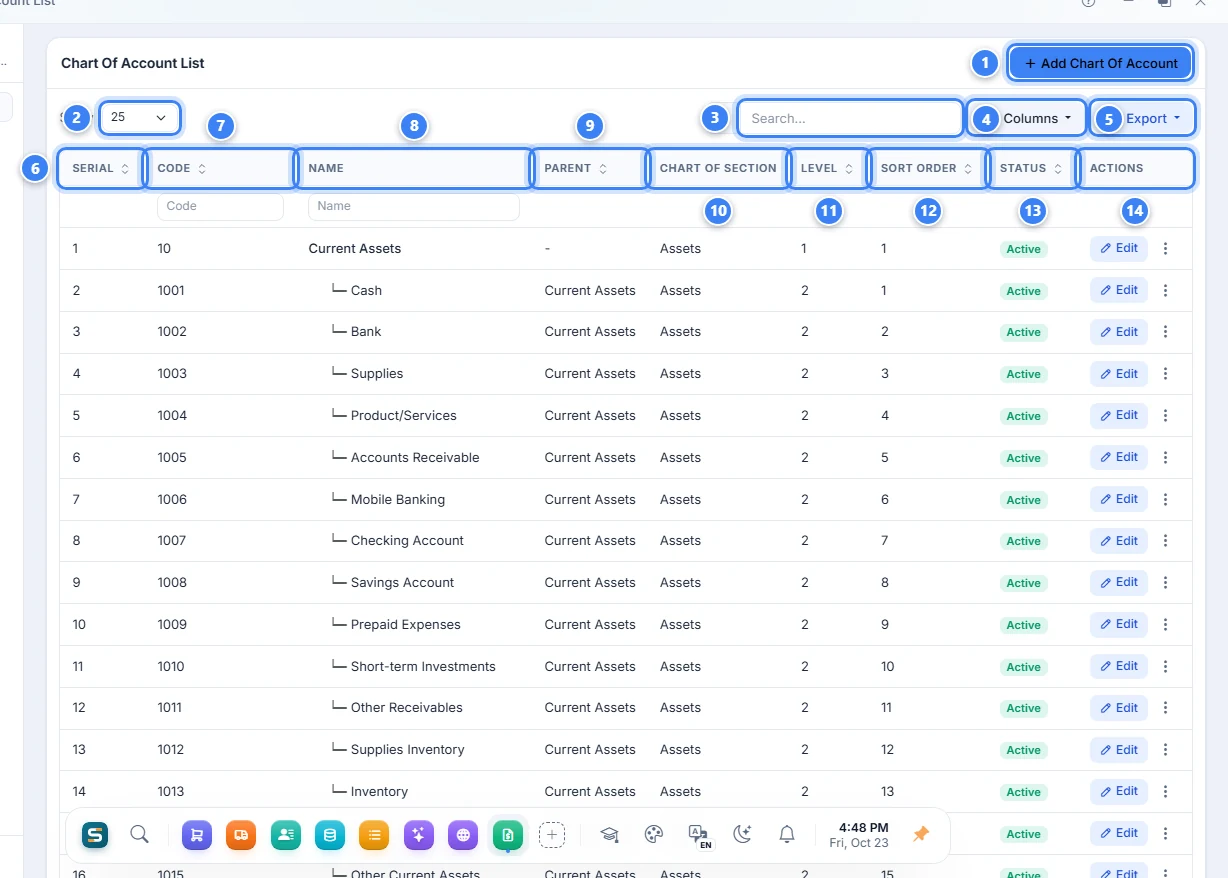 Chart of accounts list
- Add Chart Of Account — opens the modal window to create a new chart of account ledger group or head.
- Rows per page — selects how many account rows appear on each page.
- Search filter — filters accounts by code, name, or parent group keyword.
- Columns toggle — customizes which account columns are visible in the table.
- Export button — downloads the full chart of accounts as an Excel spreadsheet or CSV.
- Serial column — system sequential indexing number.
- Code column — accounting classification code assigned to the account.
- Name column — account title indented according to its tree level.
- Parent column — parent account group or heading under which this account sits.
- Chart Of Section column — primary financial category (Asset, Liability, Equity, Income, or Expense).
- Level column — depth of the account in the accounting hierarchy tree.
- Sort Order column — display order sequence among sibling accounts.
- Status column — active or inactive operational availability indicator.
- Actions column — row action buttons to modify account details or delete.
Step-by-step: Creating an account
- Navigate to Settings and select Chart of accounts.
- Click Add Chart Of Account (1) in the header toolbar.
- Choose the primary financial category in Chart of section.
- Set the Account type to inherit parent behavior or specify a dedicated type.
- In the Type selector, pick Root for a top-level category or Parent to nest it under an existing group.
- If creating a child account, select its parent group in the Parent lookup field.
- Enter a unique numerical or alphanumeric identifier in Code (7).
- Enter a clear, descriptive title in Name (8).
- Optionally set an explicit numerical ranking in Sort order (12) to position the record among sibling accounts.
- Confirm the Status (13) is set to Active, then click Save.
Every field and control
Header toolbar and search filters
- Add Chart Of Account (1): Launches the creation window to add a root account or sub-account.
- Rows per page (2): Selects whether to show 10, 25, 50, or 100 accounts per page.
- Search filter (3): Rapid text filter querying account codes, titles, and parent names.
- Columns toggle (4): Customizes column visibility in the datatable.
- Export button (5): Downloads the complete account structure into an Excel spreadsheet or CSV file.
- Name filter: Dedicated filter querying accounts by title (
tree_name). - Code filter: Dedicated filter querying accounts by classification code (
code).
Datatable columns and row actions
- Serial (6): Chronological record order assigned automatically upon account creation.
- Code (7): Standardized reference number assigned to identify the account in financial reports.
- Name (8): Account title indented visually according to its depth in the chart hierarchy (
tree_name). The unindentednameattribute is preserved for data exports. - Parent (9): Parent ledger group under which this account is nested (
parent_name). Top-level root accounts display no parent. - Chart Of Section (10): Primary accounting section (
chart_of_section_name), including Assets, Liabilities, Equity, Income, and Expenses. - Level (11): Numerical depth in the tree structure (level 1 for root accounts, level 2 for sub-accounts, and deeper levels for granular headings).
- Sort Order (12): Numerical display sequence determining where the account appears relative to its siblings (
sort). - Hierarchy (13): Internal hierarchical lineage path used by the system to sort the tree view properly.
- Status (14): Green active badge indicates the account is available for journal entries and vouchers (
status_badge). Inactive accounts cannot receive new postings. - Actions (15): Row controls including Edit (ti ti-pencil) to modify properties and Delete (ti ti-trash) to remove an account with no existing journal lines.
Creating and editing account modal
- Chart of section: The master accounting section (Assets, Liabilities, Equity, Income, or Expenses) that determines report placement.
- Account type: Optional classification specifying whether this account behaves as a bank account, cash account, receivable, payable, or standard ledger head.
- Type: Select Root to position this account at the top level of its section, or Parent to position it under an existing account.
- Parent: Appears when Parent is chosen above; specifies the parent group in the hierarchy.
- Chart of account code: Unique identifier code according to your business numbering scheme.
- Chart of account name: Clear operational name that staff and accountants will recognize.
- Sort order: Numerical sequence value; leave blank for automatic ordering.
- Status: Mark Active to allow transactions or Inactive to retire the account.
- Save: Saves the account and refreshes the tree datatable immediately.
Common questions
Can I delete an account that has transactions posted to it?
No. An account with posted vouchers, bills, or journal entries cannot be deleted. Deleting it would create imbalanced ledger histories. Set the status to Inactive instead to prevent future postings.
What is the difference between a root account and a child account?
A root account sits at top-level level 1 directly under a section (such as Current Assets). A child account sits under a root account (such as Cash in Hand under Current Assets) to categorize transactions more precisely.
How does sorting work in the tree view?
The table automatically sorts accounts by their hierarchy line so every child account appears immediately beneath its respective parent. Sibling accounts within the same level sort by their Sort Order value.
Related pages
- Journal entries — record double-entry transactions across chart accounts.
- Vouchers — manage single-entry cash and bank receipts or payments.
- Financial reports — view trial balance, balance sheet, and profit and loss statements.