
Transfer list
Browse, filter, view, print, and audit internal contra transfer transactions between cash registers and bank accounts.
Transfer list
The Transfer list tracks all internal fund transfers between your business bank accounts and cash registers. A contra transfer moves money between two internal liquid accounts without creating income or expense.
When you use this
- Depositing daily cash register receipts into a commercial bank checking account.
- Withdrawing funds from a bank account to replenish branch petty cash reserves.
- Moving liquid capital between different company bank accounts, such as checking to savings.
- Auditing internal cash transit or printing formal transfer slips for bank reconciliation.
Screen layout
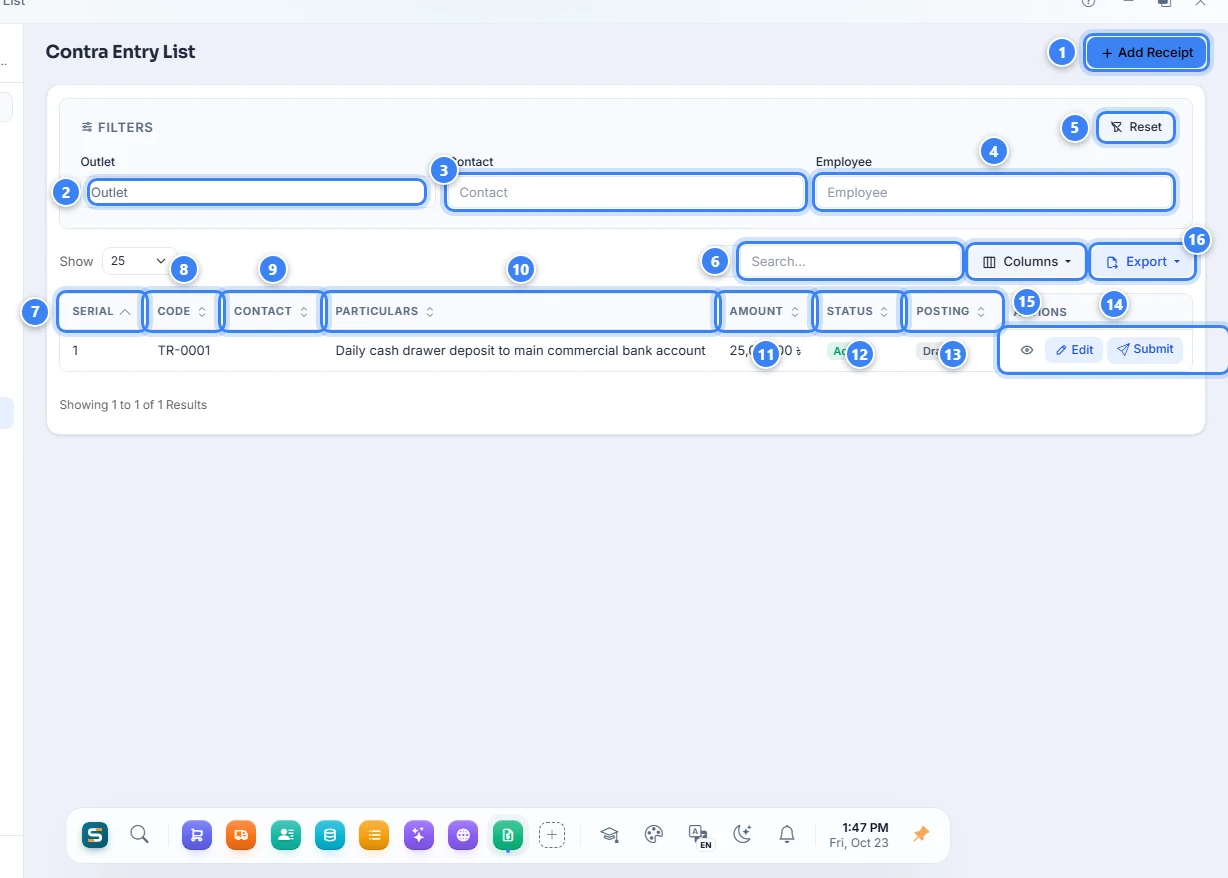 Transfer list
- Add Receipt button — opens the transfer form to record funds moved between accounts.
- Outlet filter — filters transfer records by originating store branch or outlet.
- Contact filter — filters transfer records by associated party or counterparty.
- Employee filter — filters transfer records by the staff member who logged the transfer.
- Reset filter button — clears all applied outlet, contact, and employee filters.
- Search field — live search across transfer particulars, codes, and serial numbers.
- Serial column — sequential numerical index assigned to the transfer.
- Code column — system reference code identifying the contra transfer.
- Contact column — counterparty contact or partner associated with the transfer.
- Particulars column — summary memo or explanation of why funds were moved.
- Amount column — total monetary value transferred between cash and bank accounts.
- Status column — operational status indicating whether active or inactive.
- Posting status column — shows whether the transfer is draft, submitted, or posted.
- Row actions — view preview, print slip, submit for approval, edit draft, or cancel.
- Columns customization button — shows or hides table columns.
- Export table button — exports filtered transfer records to Excel or CSV spreadsheet.
Step-by-step: Managing transfer records
Step 1: Filter and locate transfers
- Open Accounting in the left sidebar and select your Transfer list.
- Narrow records by branch by choosing a branch from the Outlet search dropdown.
- Search transfers involving a specific counterparty using the Contact filter.
- Filter by the user who initiated the transfer using the Employee filter.
- Restore the full default list anytime by clicking Reset.
- Use the Search box to find entries by transfer code or description in real time.
Step 2: Record a new transfer
- Click the green Add Receipt button above the datatable.
- Select the source paying account in Paid From and destination account in Deposit To.
- Choose the corresponding payment method for each account.
- Enter the monetary transfer amount and add an optional explanation in Particulars.
- Click Save & Close to record the transfer and update both account balances.
Row actions and document screens
Click the action menu on any row to manage the record. Choose from:
-
View — Opens the read-only preview showing source and destination accounts, amounts, and audit timestamps.
-
Print — Generates a formatted transfer voucher with signature blocks for the teller and accountant.
-
Approve or Reject — Available to managers when a transfer awaits approval before clearing.
-
Withdraw — Recalls a submitted transfer back to draft status before managerial decision.
-
Cancel entry — Voids a posted transfer and creates reversal entries in both ledger accounts.
Every field and control
Header toolbar and search
- Add Receipt — Action button (1). Available when you have creation permissions. Opens the transfer entry form.
- Search field — Search text box (6). Live text search that filters table records by code or memo.
- Columns — Customization dropdown button (15). Allows showing or hiding table columns, such as employee name.
- Export — Data export button (16). Exports the current view to Excel or CSV spreadsheet format.
Filter bar
- Outlet — Searchable dropdown (
outletId). Labeled Outlet filter (2) on screen. Filters transfers by branch. - Contact — Text filter (
customerName). Labeled Contact filter (3) on screen. Filters by counterparty. - Employee — Text filter (
employeeName). Labeled Employee filter (4) on screen. Filters by staff member. - Reset — Button (5). Clears all filter fields and restores the default table list.
Table columns and row actions
- Serial — Data column (7). Sequential numerical index assigned automatically upon creation.
- Code — Data column (8). Formatted voucher reference code identifier.
- Contact — Data column (9). Counterparty contact or banking partner.
- Employee — Data column (
employee_name). Displays the staff member who logged the transfer. - Particulars — Data column (10). Descriptive memo or notes explaining why funds were moved.
- Amount — Numerical currency column (11). Total monetary value moved between accounts.
- Status — Badge column (12). Displays the operational active or inactive status.
- Posting — Badge column (13). Indicates the ledger stage: Draft, Submitted, or Posted.
- View — Row action button (
view). Opens the document preview modal to inspect detailed lines. - Print — Row action menu option (
print). Generates a formatted printable transfer slip.
Examples
Example: Cash deposit into checking account
Suppose your store manager deposits $2,000 cash from the register into the primary checking account:
- Click Add Receipt to open the transfer form.
- Set Paid From to
Main Cash Accountand selectCashas payment method. - Set Deposit To to
Commercial Checking Accountand selectBank Transfer. - Enter
2000.00in Amount and typeDaily store revenue depositin Particulars. - Click Save & Close. Cash decreases by $2,000 and bank balance increases by $2,000.
Example: Petty cash replenishment
Suppose you withdraw $300 from the company bank account to replenish the front desk petty cash fund:
- Click Add Receipt.
- Set Paid From to
Commercial Checking Accountand payment method toCheque. - Set Deposit To to
Front Desk Petty Cashand payment method toCash. - Enter
300.00in Amount and enter the cheque leaf serial number in cheque details. - Click Save & Close to record the cash withdrawal.
Common questions
Does a contra transfer affect profit or loss?
No. Contra transfers only move funds between asset accounts. Total business equity, revenue, and expense remain unchanged.
Can I transfer between accounts in different currencies?
Yes. If multi-currency is enabled, enter the exchange rate to balance the source and destination ledger amounts.
Why does saving fail with an account mismatch message?
The payment method assigned to the paying or receiving account must link to that exact ledger account in settings.
Related pages
- Add or edit transfer — Modal guide for recording internal cash and bank transfers.
- Transfer list — Single-entry money collection and expense vouchers.
- Bank statements and reconciliation — Reconciling cleared transfers against bank statements.
- Financial reports — Inspect cash flow and trial balances reflecting internal fund movements.