
Import contact records
Upload hundreds of customer or supplier records in bulk from an Excel spreadsheet or CSV file.
Import contact records
Use this window to import large lists of contacts into Sylloo at once instead of typing them one by one. You download a sample spreadsheet, fill in contact details, and upload the file to create hundreds of records in seconds.
Import contact window opens when you click Bulk action on the contact list.
When you use this
- You migrate to Sylloo from an older software system or accounting spreadsheet.
- You acquire a new directory of trade vendors or retail customers from a marketing campaign.
- You want to add multiple branch contacts or corporate accounts in a single batch.
Before you start
- You need access to import contacts. If you do not see the Bulk action button, ask your administrator.
- Ensure your contact spreadsheet includes a name and phone number for each record.
Download the sample template
Click the download link in the import window to save the sample Excel workbook to your computer. Open the file in Excel or Google Sheets.
Fill in your contact rows
Enter your contact data under each column header:
- Name (required) — full individual person or business name.
- Mobile — primary telephone or mobile phone number.
- Email — primary email address.
- Address — physical street or billing address.
- Code — optional custom account code (or leave blank for automatic sequential codes).
Save the file as an Excel (.xlsx, .xls) or CSV file.
Every field in the Import contact window
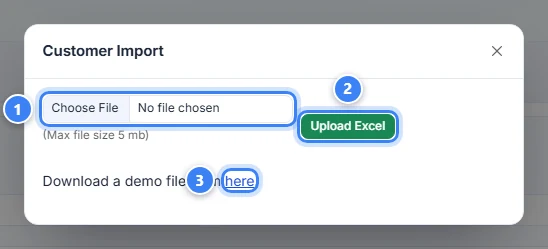 Contact bulk import window
- Choose file — click to browse your computer and select your prepared spreadsheet.
- Upload Excel — reads the spreadsheet rows, validates each record, and imports all contacts into Sylloo.
- Sample template link — downloads the official demo template file with required column titles.
Example
You migrate 150 wholesale customers from an Excel address book into Sylloo:
- Click Bulk action on the customer list.
- Click the link to download the sample file and verify your column headers match Name, Mobile, and Address.
- Click Choose file and select your saved
wholesale_customers.xlsxfile. - Click Upload Excel. Sylloo processes the file and displays a success message confirming all 150 contacts were created.
Common questions
What happens if a spreadsheet row has an invalid email? Sylloo flags the row, displays an error message detailing which line failed, and imports the valid rows.
Can I upload CSV files as well as Excel files?
Yes. You can upload standard comma-separated .csv files as well as Microsoft Excel .xlsx and .xls files up to 2 MB.