
System and business settings
Configure your organization's legal name, contact details, currency, language, logo, and core business parameters.
System and business settings
Use the System and business settings screen to establish your company profile, default transactional currency, regional language, official contact channels, and printed branding assets. Changes made here apply across all sales invoices, point of sale terminals, receipts, and system notifications.
When you use this
- Set up your organization's legal name, trade identity, and contact channels during onboarding.
- Update your official business address, customer support phone number, or billing email address.
- Upload refreshed company logos for printed thermal receipts and PDF sales invoices.
- Select your default transactional currency symbol and primary application display language.
Screen layout
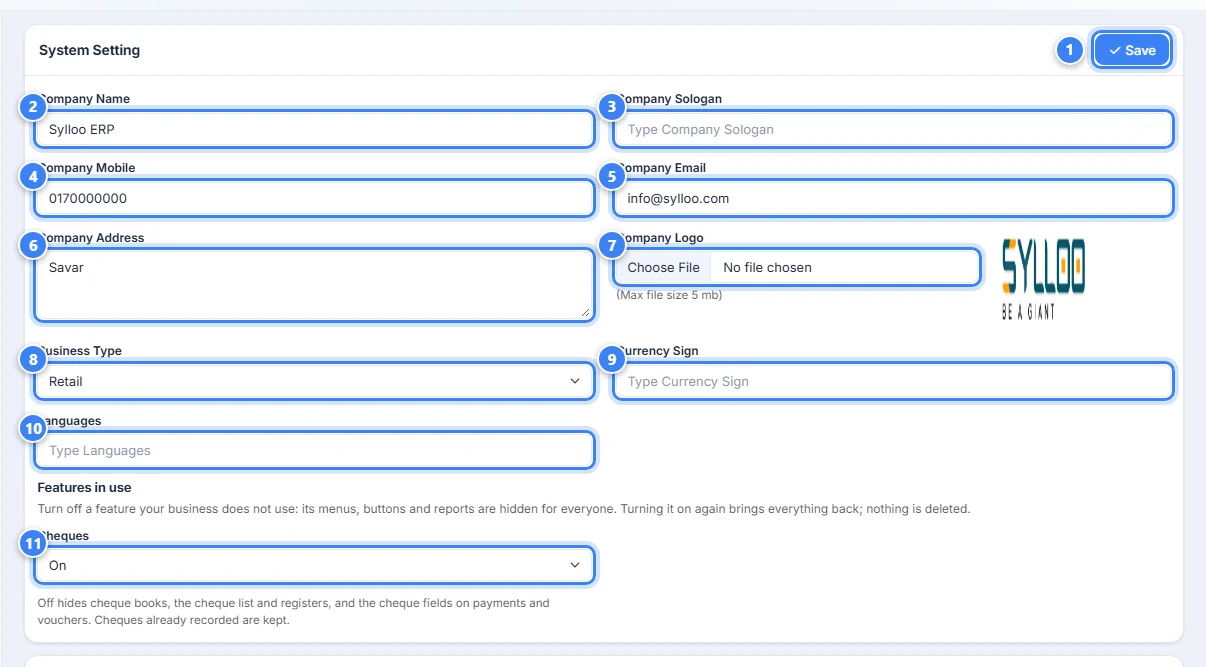 System and business configuration
- Save button — saves updated system parameters and company settings.
- Company Name — official legal or trade name printed on customer invoices and receipts.
- Company Sologan — marketing slogan or motto appearing beneath company branding.
- Company Mobile — primary customer contact telephone number.
- Company Email — official correspondence and billing email address.
- Company Address — physical headquarters and primary mailing address.
- Company Logo — upload business logo image for printed headers and storefronts.
- Business Type — primary industry category or commercial trade classification.
- Currency Sign — default accounting currency symbol for transactions.
- Languages — default application language and document locale.
- Cheques — configure cheque processing and banking deposit settings.
Step-by-step: Updating company and system settings
- Open Settings from your main navigation menu and select System settings.
- Review the Company Name (2) and update your registered business identity.
- Enter your customer service phone number into Company Mobile (4) and your primary billing inbox into Company Email (5).
- Type your registered street and postal details in Company Address (6).
- Click Company Logo (7) to select and upload your company emblem from your local device.
- Choose your commercial sector from Business Type (8) and verify your Currency Sign (9).
- Click the Save button (1) in the card header to save and apply your configuration.
Every field and control
Company identity and contact details
- Save button (1): Commits all field entries across the active configuration card to the company profile.
- Company Name (2): Your formal trading name. Displayed on top of all invoices, delivery challans, and customer account statements.
- Company Sologan (3): A brief promotional slogan or tagline that appears directly under your business name on printed receipts.
- Company Mobile (4): Primary telephone contact displayed on customer documents for support queries.
- Company Email (5): Official email address used as the reply-to address for billing correspondence and automated notifications.
- Company Address (6): Full postal and office address printed on formal tax documents and receipts.
- Company Logo (7): File selector allowing you to upload PNG, JPG, or SVG images. Automatically scales for standard letter and thermal receipts.
Localization and operational settings
- Business Type (8): Categorizes your commercial activity (such as Retail, Wholesale, Manufacturing, or Services) to optimize default workflows.
- Currency Sign (9): Standard symbol (such as $, €, £, or ৳) prefixed or suffixed to monetary balances across the software.
- Languages (10): Primary interface language used across navigation menus, button labels, and system tooltips.
- Cheques (11): Enables or disables post-dated cheque tracking, clearing reminders, and banking deposit registers.
Common questions
Do changes to the company name affect already issued invoices?
No. Previously finalized sales invoices maintain historical fidelity and retain the company name and tax numbers that were active at their time of issuance.
What is the recommended size and format for the company logo?
Use high-resolution PNG or SVG images with transparent backgrounds. Images with an aspect ratio of approximately 3:1 (such as 300x100 pixels) fit standard invoice banners best.
Can different branch outlets use different company logos?
Yes. You can override central branding on individual branch profiles in Outlets when operating distinct trading subsidiaries.
Related pages
- Store and SEO settings — customize storefront meta titles, descriptions, and web parameters.
- Outlets — manage branch addresses, local contact numbers, and store hours.
- Invoice and receipt templates — choose document layouts and thermal receipt typography.