
Live template preview
Preview your website theme in real time, toggle interactive section edit mode, and monitor publishing status.
Live template preview
The Live template preview page displays an accurate representation of your storefront theme within the admin workspace. Store owners can preview layout adjustments, toggle interactive section editing mode, inspect draft status, or open the visual builder.
When you use this
- Previewing your active theme draft before publishing changes to live customers.
- Verifying responsive layout styling and content placement across website sections.
- Enabling interactive section edit mode to launch section settings by clicking directly on page elements.
- Checking unpublished draft changes using the integrated publish status bar.
Before you start
- You need an active user account with website management permissions.
- Make sure an active theme is configured for your store.
- Access this screen from the Website menu by navigating to Themes and selecting Preview from your theme card.
Open the live preview screen
- Go to Website in the main navigation menu and select Themes.
- Locate your active storefront theme card.
- Click the theme action menu and select Preview.
- The Template preview workspace loads with your storefront content rendered inside the canvas.
Toggle interactive section edit mode
- Locate the top toolbar above the preview canvas.
- Click the Template edit mode button to toggle interactive editing.
- When edit mode is active, hovering over storefront blocks highlights section boundaries.
- Click any highlighted section inside the preview frame to open the Configure section settings window directly.
- Click Template edit mode off to return to standard browsing mode.
Monitor publishing status or launch builder
- Check the Publish bar at the top of the canvas to see whether your theme has pending draft modifications.
- If you need full drag-and-drop structural editing, click the Open builder button in the header.
- The visual theme builder opens, allowing deep customization of page templates.
Every field on this screen
The following screenshot shows the template preview page with numbered callouts.
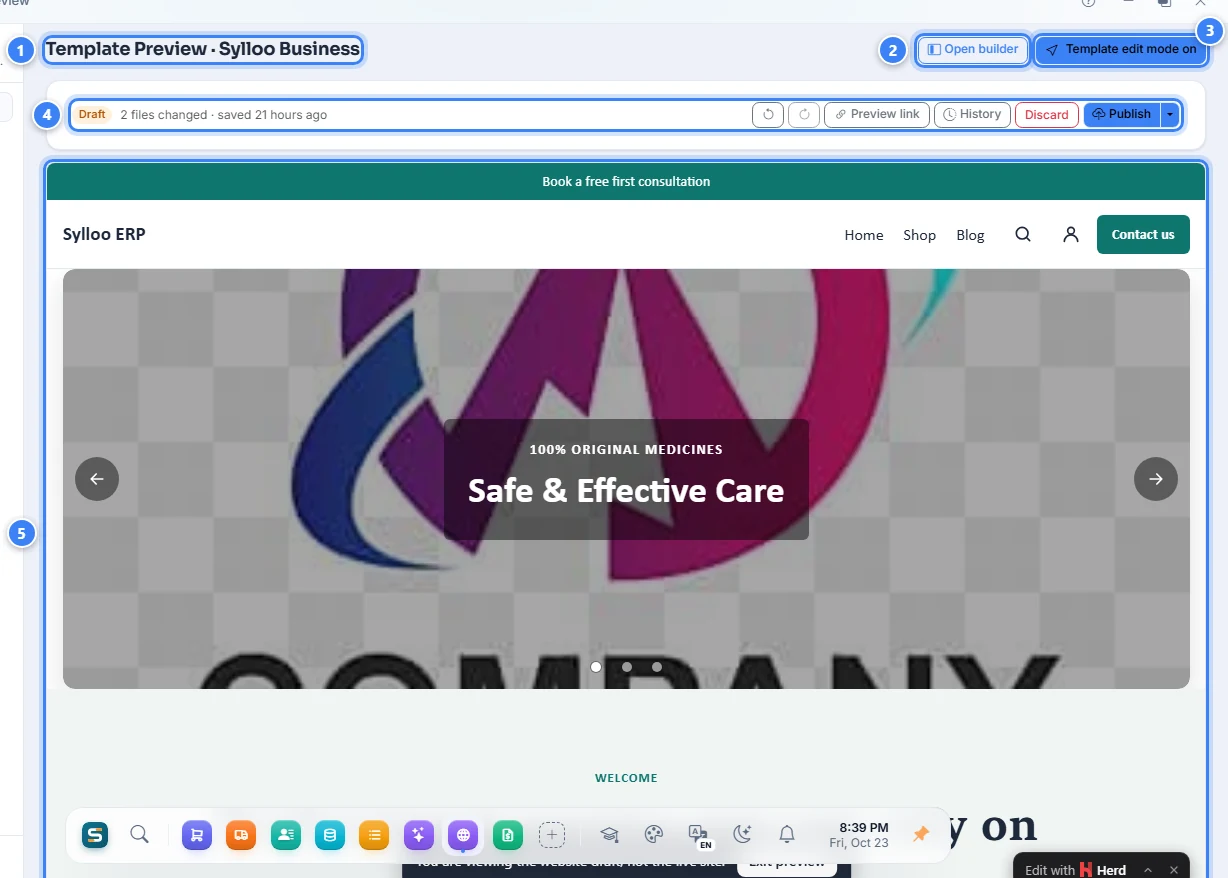 Website template preview page showing storefront frame edit mode toggle and actions
- Template preview page title — identifies live storefront preview window and active theme name.
- Open builder navigation button — switches to visual theme builder editor canvas.
- Template edit mode toggle button — activates click-to-edit section highlighting overlays inside the preview frame.
- Theme draft and publish status bar — displays current draft revision state with publish and history controls.
- Live storefront preview canvas — renders real-time theme template output as seen by visitors.
Screen controls and features
Header controls
- Template preview page title — Shows the current page title and theme name (such as
Template preview · Sylloo Business). - Open builder navigation button — Navigates directly to the visual website theme builder interface.
- Template edit mode toggle button — Toggles between interactive section editing mode and standard preview browsing mode.
Publish bar and preview frame
- Theme draft and publish status bar — Displays draft status badges, unsaved change counters, and quick buttons to publish or view history.
- Live storefront preview canvas — The embedded viewport showing live theme templates, images, and navigation menus.
Common questions
Does the preview show unpublished draft changes?
Yes. The live preview frame renders your theme working draft. It allows you to test content and layout adjustments safely before making them public.
How do I edit a section directly from the preview?
Turn on the Template edit mode toggle. Then click directly on any section within the preview window. The configuration modal for that section opens automatically.
What is the difference between preview mode and the visual builder?
Preview mode provides a realistic browsing experience that mimics customer navigation. The visual builder provides a design canvas with full sidebar controls for adding, rearranging, and configuring page sections.