
View contact details
Review contact profile details, contact information, lifetime order counts, total spending, and recent transaction history.
View contact details
Use this window to inspect a contact's complete account profile without entering edit mode. You can check phone numbers and billing addresses, see their total number of orders and money spent, and review their latest sales or purchase transactions.
View contact window opens when you click the View icon (the eye icon) on any row in the contact list.
When you use this
- A customer calls with a question about their recent orders and you need a quick overview of their purchases.
- You want to verify a supplier's delivery address or mobile phone number before dispatching payment.
- You review high-value corporate clients to see their cumulative spending and order frequency.
Before you start
- You need access to view contacts. If you do not see the eye icon on table rows, ask your administrator.
- The contact must already be saved in Sylloo.
Open the contact preview
On the Contact list, locate the person or company and click View (eye icon) on the right side of their table row.
Every field in the View contact window
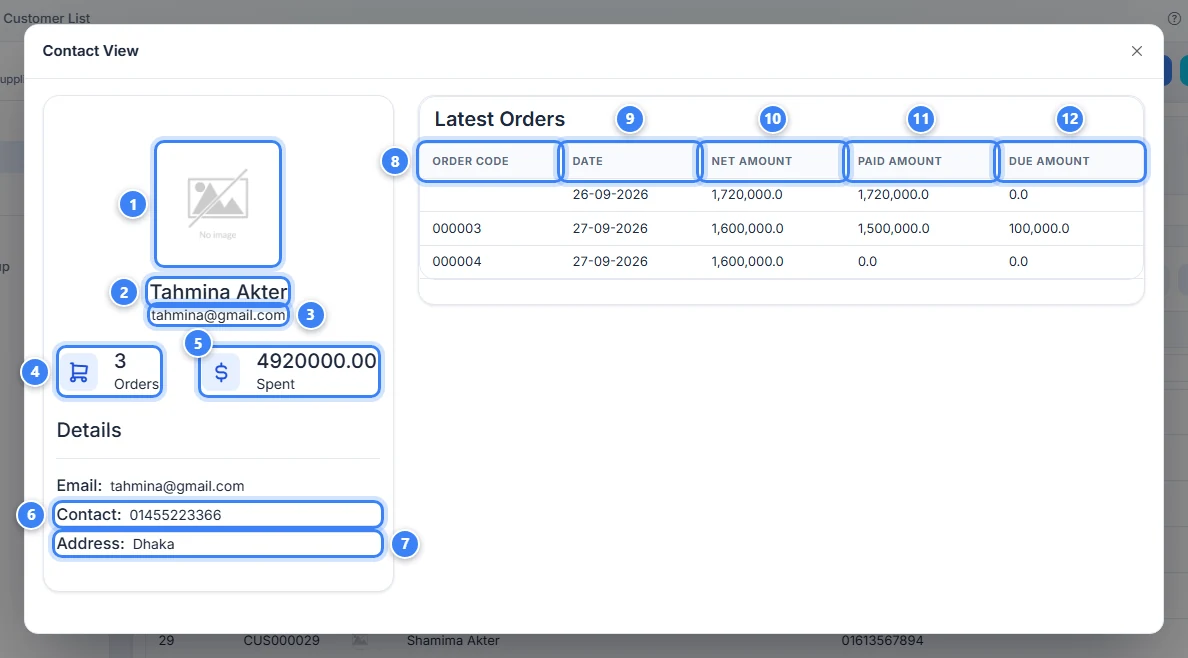 Contact view modal
- Avatar — shows the contact's profile photo or company logo.
- Name — displays the full name of the contact person or business.
- Email — displays the primary registered email address.
- Total Orders — shows the total count of all orders recorded for this contact.
- Total Spent — shows the cumulative monetary amount of all completed orders.
- Phone — displays the primary telephone or mobile phone number.
- Address — displays the registered billing or physical street address.
- Order Code column — displays the unique invoice or purchase order reference code. Click any code to open the full document.
- Date column — shows the date when the order was created.
- Net Amount column — shows the total grand net value of each order.
- Paid Amount column — shows the total amount collected or disbursed against each order.
- Due Amount column — shows any remaining unpaid balance for that specific order.
Example
A long-time wholesale customer named Green Supermarket inquires about their recent orders:
- Go to Contacts and search for
Green Supermarket. - Click View (eye icon).
- The preview window opens showing their total lifetime spend, phone number, and their five most recent orders.
- You see that their last invoice has an outstanding due amount of
15000and give them the payment reference code over the phone.
Common questions
Can I modify contact information from this window? No. This window is a read-only preview. To change phone numbers or addresses, close this window and click Edit (pencil icon) on the table row.
Why does a new contact show zero orders? If you just created the contact and have not finalized any sales invoices or purchase orders yet, the order count and total spent remain zero until transactions are posted.
Affiliate tab
When your business runs the affiliate program and you have access to affiliates, the window has the tab Affiliate. It shows the contact's affiliate Code with its status, the Affiliate link with a copy button, the money Pending, Approved and Paid, and the Payout method. Edit affiliate opens the affiliate window.
When the contact is not an affiliate: This contact is not an affiliate. Click Add as affiliate to make them one.
See Affiliate on products, contacts and orders for every field.