
My account and devices
Manage your personal profile details, contact information, display language, avatar photo, and signature.
My account and devices
Use this screen to view and update your staff profile, change your contact details, set your preferred language, and upload your profile photo and official document signature.
Every staff member can update their own personal details at any time without needing administrator assistance.
When you use this
- You need to update your contact phone number or staff email address.
- You want to switch the software interface to your preferred language.
- You need to upload your digital signature so it automatically prints on receipts, delivery notes, and sales quotes.
- You want to choose whether your real name and contact details appear in the Practice training environment.
Before you start
- You only need to be signed in to your account.
- If you want to change your password or manage two-factor authentication, visit the Two-factor sign-in page instead.
Open your account profile
Click your avatar icon or name in the desktop dock or top navigation bar, then select Profile.
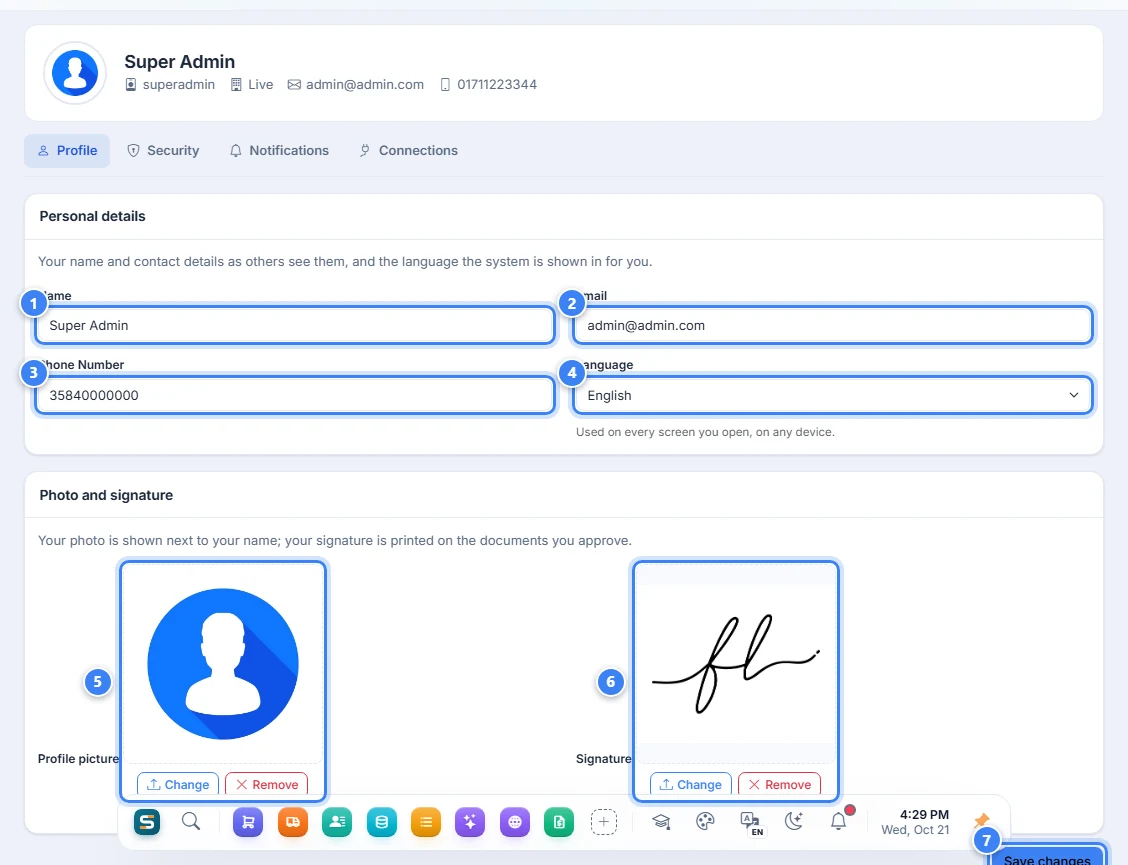 Personal details and account profile
- Name — your full display name.
- email — your staff account email address.
- Phone Number — your mobile or office contact number.
- Language — interface language preference.
- Profile picture — upload your staff avatar photo.
- Signature — upload your official signature for invoices and documents.
- Save changes — saves your updated personal details.
Update your information and save
- Edit your Name, email, or Phone Number in the Personal details section.
- Choose your preferred display language from the Language dropdown.
- In the Photo and signature section, click Profile picture to select an image from your computer.
- Click Signature to upload an image of your handwritten signature with a clean background.
- Click Save changes at the bottom right. A success confirmation appears immediately.
Every field on this screen
| Field | What it is for | Example | Required? | Default | What happens when changed | What depends on it |
|---|---|---|---|---|---|---|
| Name | Your full name as shown across orders, audit logs, and reports. | Rahim Ahmed |
Yes | Current name | Updates your name on newly generated records. | Printed on sales invoices and receipts. |
| The email address used for sign-in and system notifications. | [email protected] |
Yes | Sign-in email | Changes your login username and delivery address for password resets. | Login verification and alert notices. | |
| Phone Number | Your direct telephone or mobile number. | +880 1712 345678 |
Optional | Current phone | Keeps your team and manager informed of contact numbers. | SMS alerts and staff directory lookups. |
| Language | Your preferred interface language across the ERP. | English |
Yes | Business default | Switches buttons, menus, and help labels to the selected locale. | Workspace interface translation. |
| Profile picture | Your staff photograph or avatar. | Image upload | Optional | Default initials | Displays on your desktop dock, user menu, and internal messages. | Avatar badge across all screens. |
| Signature | Digital image of your handwritten signature. | PNG or JPEG file | Optional | Empty | Automatically embeds your signature on printed business paperwork. | Delivery challans, purchase approvals, and receipts. |
| Save changes | Submits and saves all updated profile values. | Click button | Required | — | Persists new details to your user account immediately. | Refreshes active user display. |
My details in Practice
When the Practice training environment is enabled on your business account:
- Use my details in Practice: Turn this checkbox on if you want your real name and email address to appear inside Practice mode. When turned off, Practice displays anonymous demo placeholders to safeguard your personal contact details during training sessions.
Example
Karim joins the sales team and wants to set up his profile:
- He opens Profile from the account menu.
- He updates his Phone Number with his store mobile.
- He selects English from the Language list.
- He uploads a clear PNG of his signature for quotation documents.
- He clicks Save changes. All quotes he prepares now automatically display his name and signature.
Common questions
Does changing my email address log me out? No. Your current session remains active, but you must use the new email address next time you sign in.
What image formats are supported for signatures? You can upload PNG, JPEG, or WebP image files. Use a transparent PNG for the cleanest look on printed documents.
Why does my Practice account show a placeholder name? Sylloo safeguards personal data by anonymizing staff records in Practice mode by default. Turn on Use my details in Practice if you prefer seeing your real name while practicing.