
Stock adjustment list
Review, search, and manage stock adjustment records to adjust inventory counts, document damaged goods, and transfer stock between outlets.
Stock adjustment list
Use this screen to manage and track every stock adjustment record across your business locations. Physical counts may differ from recorded quantities due to damaged goods or transfers between stores. Recording a stock adjustment transaction ensures warehouse quantities and financial valuation stay synchronized. You can filter records by outlet, review unit counts and monetary values, and open action windows to record new adjustments or inspect transaction details.
When you use this
- You perform a physical inventory audit and need to reconcile shelf counts with system stock.
- Products expire, break, or sustain damage during transit and you must write them off.
- You transfer products between retail branches and need to track sender and recipient outlets.
- You need an audit trail of stock adjustments for financial reporting and tax verification.
Before you start
- Make sure the relevant Outlets exist so you can adjust stock in the correct location.
- Add products and variants in Products with their buying costs so inventory valuations calculate accurately.
- Verify that your user role has permission to create and view stock receipts and adjustments.
Quick actions from the list.
You can perform several important tasks directly from the stock adjustment list.
- Add stock adjustment: Click Add to open the creation window. Select the outlet, choose the products to adjust or transfer, enter the adjusted quantities, and save the transaction.
- View details: Click View on any row to open the transaction overview modal and inspect individual product lines, quantities, and audit timestamps.
- Export records: Click Export to download your filtered transaction records to Excel or CSV for accounting reconciliation or inventory audits.
Browse and filter stock adjustment records
Filter and search your stock adjustment transactions to find specific warehouse adjustments:
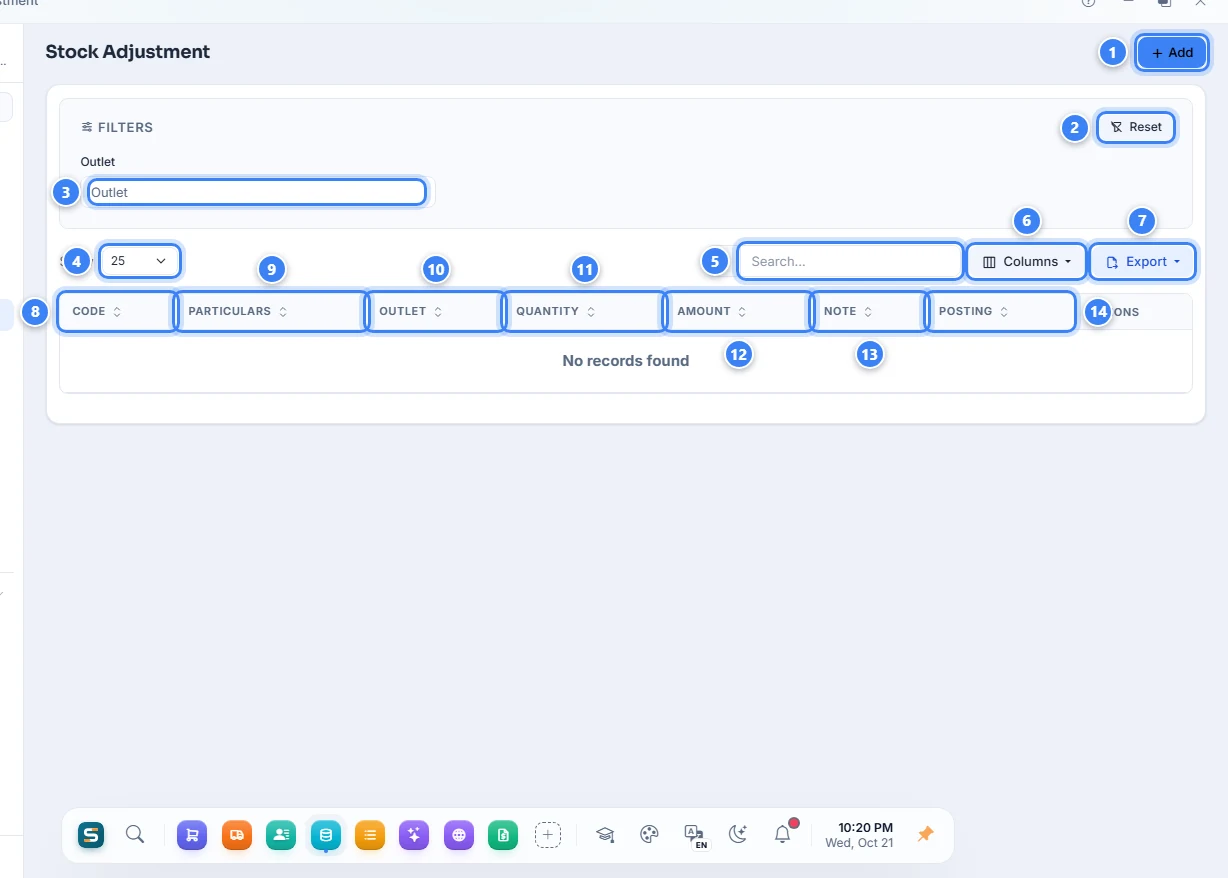 Stock receipts list
- Add — opens the window to record a new stock adjustment or receipt.
- Reset — clears active filter and search options.
- Outlet filter — filter transactions by outlet or warehouse location.
- Rows per page — choose how many rows to display on one page.
- Search — search transactions by code, particulars, or notes.
- Columns — toggle visibility of table columns.
- Export — export stock receipt records to Excel or CSV.
- Code column — displays unique transaction reference number.
- Particulars column — displays transaction details and reference products.
- Outlet column — displays the warehouse or branch location.
- Quantity column — shows total unit count adjusted or moved.
- Amount column — shows total monetary cost of inventory products.
- Note column — shows operational remarks or reasons for the adjustment.
- Posting status column — indicates whether ledger entries have been synchronized.
Record a new stock adjustment
Follow these steps to record a transaction:
- Click Add in the top action bar to open the entry modal.
- Select the location in the Outlet field where the adjustment occurs.
- Search and select the products you are adjusting or transferring.
- Enter the adjustment quantity. Enter positive quantities for stock increases or negative quantities for write-offs and damages.
- Enter an explanatory memo in the Note field describing the reason for the discrepancy (such as "Annual audit variance" or "Water damage").
- Click Save to confirm the entry. The system updates warehouse inventory counts immediately.
Verify and post inventory changes
After recording your transaction:
- Review the table row to confirm the updated Quantity and Amount values.
- Inspect the Posting badge. A green badge indicates that financial ledger entries have posted to your balance sheet.
- If your business requires manager approval, the status will show pending until approved.
Every field and filter explained
| Field or action | Type | Description |
|---|---|---|
| Add | Primary button | Opens the transaction window to record a new stock adjustment entry. |
| Reset | Secondary button | Resets all active filters and search inputs to default values. |
| Outlet filter | Search dropdown | Filters the table to display only transactions recorded at a specific outlet. |
| Rows per page | Dropdown select | Sets the number of transaction rows displayed per page. |
| Search | Search input | Searches transactions in real time by reference code, particulars, or notes. |
| Columns | Dropdown menu | Opens a checklist to show or hide table columns according to your preferences. |
| Export | Dropdown menu | Downloads your filtered transaction list as an Excel spreadsheet or CSV file. |
| Code column | Table column | Displays the unique sequential transaction code. |
| Particulars column | Table column | Displays summary details or the first product in the adjustment. |
| Outlet column | Table column | Displays the branch or warehouse where stock quantities were changed. |
| Quantity column | Table column | Shows the cumulative number of units adjusted in the transaction. |
| Amount column | Table column | Shows the total cost valuation of the adjusted products. |
| Note column | Table column | Displays operational notes or reasons recorded for the transaction. |
| Posting status column | Table column | Displays a badge indicating whether financial ledger entries have synchronized. |
Real-life example
During a monthly physical stock count, a warehouse supervisor finds that a case of 6 glass olive oil bottles broke during warehouse restocking. The supervisor opens the Stock adjustment list and clicks Add. The supervisor selects "Central Distribution Center" as the outlet and searches for "Extra Virgin Olive Oil 1L". The supervisor enters a quantity deduction of 6 units and adds the note "Broken in aisle 4 during forklift unloading".
After saving, the system creates transaction SD-00018 with a total valuation deduction of $48. The warehouse stock count drops by 6 units, and the financial posting badge confirms that the cost was written off to the inventory shrinkage ledger account.
Common questions
How do positive and negative adjustments affect warehouse stock?
Positive adjustments increase warehouse stock quantities and inventory asset valuation. Negative adjustments reduce quantities and record an inventory loss or damage expense.
Can I cancel or edit a stock adjustment after saving?
If the transaction has not posted to the financial ledger, you can open the row menu and edit the product quantities. Once posted, you should create an offsetting stock adjustment entry to preserve an accurate audit trail.
What is the difference between stock adjustment and stock damage?
Stock adjustment reconciles routine counting variances discovered during inventory audits. Stock damage records unsellable or destroyed goods, routing the financial expense specifically to damage or write-off accounts.
Can I export the list for accounting review?
Yes. Click Export above the table and select Excel or CSV. The downloaded file includes reference codes, dates, quantities, and monetary values.
Related pages
- Purchases and supplier bills: manage incoming supplier orders and goods deliveries.
- Transfers and adjustments: transfer stock between branches and warehouses.
- Products: view product catalog records and current stock balances.
- Financial reports: review inventory valuation and profit and loss summaries.