
Barcodes
Design, customize, and print barcode labels on sticker sheets or continuous thermal rolls with live layout preview.
Barcodes
Use this screen to generate and print barcode labels for your inventory products. You can print individual label rolls on thermal printers or full sheets on standard laser and inkjet printers.
Sheet mode arranges labels in columns and rows on standard paper sheets. Roll mode prints continuously onto thermal sticker rolls.
When you use this
- New products arrive from a supplier without barcodes and require tagging before shelving.
- You repackage bulk items into smaller packets needing fresh barcode stickers.
- Existing barcode tags become worn or damaged and need replacement.
- You print shelf edge pricing labels showing item names, barcodes, and retail prices.
Before you start
- Have label sticker sheets or thermal rolls loaded in your printer.
- Know the dimensions of your labels in millimeters.
Open the barcode printing screen
Click the Barcode menu item from the Product dock or navigation menu.
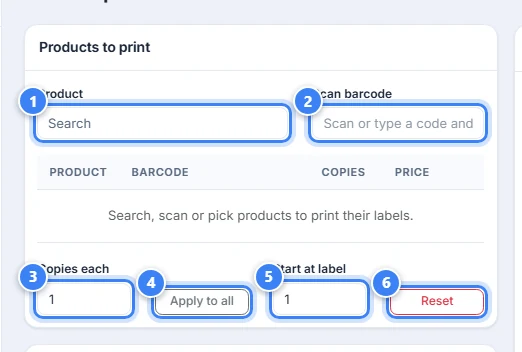 The barcode printing screen - Products queue
- Product search — search and select catalog items to print labels for.
- Barcode scan — scan or type a barcode to add it to the print list.
- Copies each — set quantity of labels to print per item.
- Apply to all — updates label count on all queued products.
- Start at label — start position number on partially used sticker sheets.
- Reset — clears all products from the print queue.
Page tab
The Page tab configures paper size, print orientation, margins, and label grid arrangement.
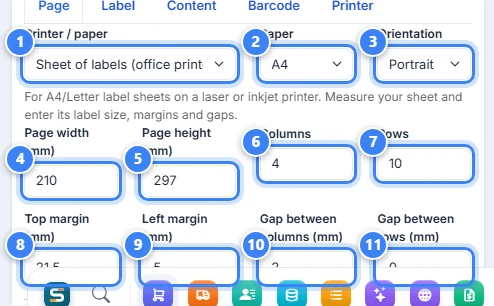 Barcode layout - Page tab
- Printer / paper — Sheet of labels (office printer) or Label roll (thermal / label printer).
- Paper — standard paper size (A4, A5, Letter, Legal, or Custom size).
- Orientation — Portrait or Landscape print direction.
- Page width — page width in millimeters.
- Page height — page height in millimeters.
- Columns — number of label columns across the page.
- Rows — number of label rows down the page.
- Top margin — top edge margin in millimeters.
- Left margin — left edge margin in millimeters.
- Gap between columns — horizontal space between label columns in millimeters.
- Gap between rows — vertical space between label rows in millimeters.
Label tab
The Label tab sets the dimensions, inner padding, borders, and scale of individual stickers.
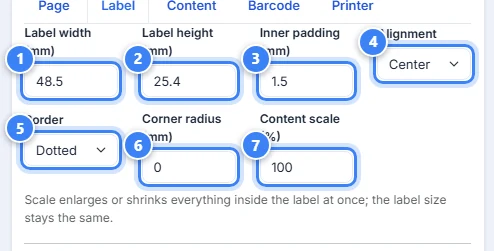 Barcode layout - Label tab
- Label width — individual label sticker width in millimeters.
- Label height — individual label sticker height in millimeters.
- Inner padding — internal label border margin padding in millimeters.
- Alignment — label content text alignment (Center or Left).
- Border — outer border style (No border, Solid, Dashed, or Dotted).
- Corner radius — rounded corner radius in millimeters.
- Content scale — overall content scaling percentage.
Content tab
The Content tab controls text elements including business headers, item titles, prices, currency, and footer lines.
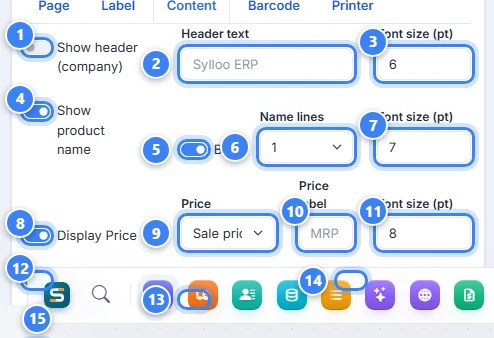 Barcode layout - Content tab
- Show header — toggle to display company name header on sticker.
- Header text — custom company name or brand line text.
- Header font size — header text font size in points.
- Show product name — toggle to display product name on label.
- Bold — toggle bold styling for product name.
- Name lines — maximum line wrap for product name (1, 2, or 3).
- Name font size — product name font size in points.
- Display Price — toggle retail price display on sticker.
- Price source — selects whether price includes or excludes VAT.
- Price label — prefix text shown before price, such as MRP.
- Price font size — retail price font size in points.
- Show currency — toggle currency symbol display beside price.
- Show unit — toggle measurement unit display beside price.
- Show product code — toggle SKU or item code display.
- Show barcode note — toggle custom note text display.
- Footer text — custom footer message shown at bottom of sticker.
Barcode tab
The Barcode tab configures the symbology format, bar height, bar width, and digit visibility.
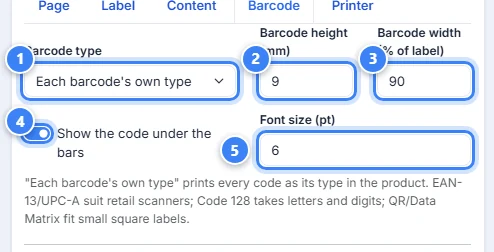 Barcode layout - Barcode tab
- Barcode type — barcode format (Code 128, EAN-13, UPC-A, QR code, etc.).
- Barcode height — barcode image height in millimeters.
- Barcode width — barcode width percentage relative to label.
- Show code text — toggle human-readable digits under barcode bars.
- Code font size — barcode digits font size in points.
Printer tab
The Printer tab provides fine-tuning offsets to calibrate hardware margins.
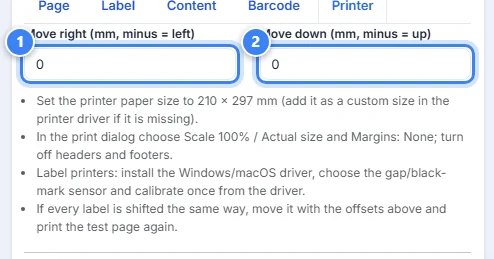 Barcode layout - Printer tab
- Move right — horizontal print offset in millimeters (negative moves left).
- Move down — vertical print offset in millimeters (negative moves up).
Every field across all tabs
| Tab | Control | What it is for | Example | Required? | Default | What happens when changed | What depends on it |
|---|---|---|---|---|---|---|---|
| Queue | Product search | Selects catalog items for printing. | Basmati Rice |
Yes | Blank | Adds product row to print queue. | Items listed in print table. |
| Queue | Barcode scan | Adds items via scanner input. | 8901234567890 |
Optional | Blank | Scans product directly into queue. | Instant item entry. |
| Queue | Copies each | Bulk copies input for queued rows. | 20 |
Optional | 1 |
Sets quantity value for bulk apply. | Batch copy setting. |
| Queue | Apply to all | Applies bulk copies to all rows. | Click button | Optional | — | Updates quantity on all items. | Total label count. |
| Queue | Start at label | Start position on partial sheet. | 5 |
Optional | 1 |
Skips already peeled label spots. | First printed label location. |
| Queue | Reset | Clears the print queue. | Click button | Optional | — | Removes all queued product rows. | Print list contents. |
| Page | Printer / paper | Sets sheet or thermal roll mode. | Sheet of labels |
Yes | Sheet | Changes layout options for paper. | Visible paper controls. |
| Page | Paper | Standard paper size. | A4 |
Optional | A4 | Sets standard page dimensions. | Page width and height. |
| Page | Orientation | Page print direction. | Portrait |
Optional | Portrait | Rotates sheet orientation. | Page dimensions. |
| Page | Page width | Custom page width in mm. | 210 |
Optional | 210 |
Adjusts printable page width. | Column calculations. |
| Page | Page height | Custom page height in mm. | 297 |
Optional | 297 |
Adjusts printable page height. | Row calculations. |
| Page | Columns | Number of columns across. | 3 |
Yes | 3 |
Sets horizontal label count. | Label layout grid. |
| Page | Rows | Number of rows down. | 8 |
Yes | 8 |
Sets vertical label count. | Total labels per sheet. |
| Page | Top margin | Top edge margin in mm. | 12 |
Optional | 10 |
Shifts label grid downwards. | Top alignment. |
| Page | Left margin | Left edge margin in mm. | 8 |
Optional | 8 |
Shifts label grid rightwards. | Left alignment. |
| Page | Gap between columns | Horizontal gap between labels. | 2 |
Optional | 0 |
Spaces columns apart. | Grid spacing. |
| Page | Gap between rows | Vertical gap between labels. | 2 |
Optional | 0 |
Spaces rows apart. | Grid spacing. |
| Label | Label width | Width of single sticker in mm. | 65 |
Yes | 65 |
Sets sticker printable width. | Content boundaries. |
| Label | Label height | Height of single sticker in mm. | 35 |
Yes | 35 |
Sets sticker printable height. | Content boundaries. |
| Label | Inner padding | Inner margin inside sticker. | 2 |
Optional | 1.5 |
Keeps text away from sticker edge. | Internal spacing. |
| Label | Alignment | Text alignment on sticker. | Center |
Optional | Center | Aligns title and barcode graphic. | Visual alignment. |
| Label | Border | Border outline style. | Solid |
Optional | None | Prints cutting or visual outline. | Border appearance. |
| Label | Corner radius | Rounded border corner radius. | 2 |
Optional | 0 |
Rounds border outline corners. | Visual styling. |
| Label | Content scale | Scaling percentage. | 100 |
Optional | 100 |
Shrinks or enlarges label elements. | Element fit. |
| Content | Show header | Displays company name line. | Checked | Optional | Unchecked | Shows company name on sticker. | Header line display. |
| Content | Header text | Custom header company text. | Sylloo Retail |
Optional | Blank | Overrides store name on header. | Header text. |
| Content | Header font size | Font size for header text. | 9 |
Optional | 8 |
Adjusts header text size. | Header text sizing. |
| Content | Show product name | Displays item title on sticker. | Checked | Optional | Checked | Shows product title. | Item title visibility. |
| Content | Bold | Sets item title font to bold. | Checked | Optional | Checked | Emphasizes item name. | Text weight. |
| Content | Name lines | Maximum title text lines. | 2 |
Optional | 1 |
Allows item name to wrap. | Title line count. |
| Content | Name font size | Font size for item title. | 10 |
Optional | 9 |
Adjusts title font size. | Title text size. |
| Content | Display Price | Displays item retail price. | Checked | Optional | Checked | Prints retail selling price. | Price display. |
| Content | Price source | Price source tax selection. | incl. VAT |
Optional | incl. VAT | Selects VAT inclusive price. | Price amount calculation. |
| Content | Price label | Price prefix word. | MRP |
Optional | Blank | Prepends text before price amount. | Price label prefix. |
| Content | Price font size | Font size for retail price. | 12 |
Optional | 11 |
Adjusts price text size. | Price visibility. |
| Content | Show currency | Shows currency symbol. | Checked | Optional | Checked | Displays currency before price. | Currency formatting. |
| Content | Show unit | Shows measurement unit. | Checked | Optional | Checked | Displays unit suffix like /kg. |
Unit display. |
| Content | Show product code | Displays item SKU on label. | Checked | Optional | Checked | Prints SKU identifier on sticker. | SKU display. |
| Content | Show barcode note | Displays custom barcode note. | Checked | Optional | Unchecked | Prints item variant note. | Note line display. |
| Content | Footer text | Footer text line on sticker. | No return without label |
Optional | Blank | Prints footer line at bottom. | Footer line. |
| Barcode | Barcode type | Barcode symbology format. | Code 128 |
Yes | Code 128 | Generates selected barcode format. | Scanner compatibility. |
| Barcode | Barcode height | Height of barcode bars in mm. | 15 |
Optional | 14 |
Sets height of vertical bars. | Barcode graphic size. |
| Barcode | Barcode width | Barcode width percentage. | 85 |
Optional | 80 |
Sets width proportion on sticker. | Barcode horizontal spread. |
| Barcode | Show code text | Shows readable digits below bars. | Checked | Optional | Checked | Prints human-readable code. | Manual code entry. |
| Barcode | Code font size | Font size for readable digits. | 8 |
Optional | 8 |
Adjusts digit font size. | Digit legibility. |
| Printer | Move right | Horizontal print shift in mm. | 1.5 |
Optional | 0 |
Offsets entire print job horizontally. | Hardware calibration. |
| Printer | Move down | Vertical print shift in mm. | -0.5 |
Optional | 0 |
Offsets entire print job vertically. | Hardware calibration. |
Example
Farid is labeling a newly unpacked shipment of tea packets:
- He opens Barcodes from the Product dock.
- In the Product search box, he selects
Premium Black Tea 500g. - In Copies each, he types
100and clicks Apply to all. - In the Page tab, he chooses
Sheet of labelsand selectsA4with3columns and8rows. - In the Content tab, he verifies that Display Price and Show currency are turned on.
- He reviews the live visual preview on the right side of the screen.
- He clicks Test page in the header to confirm printer alignment before printing all 100 stickers.
Common questions
How do I prevent wasting labels on partially used sticker sheets?
In the Start at label field, type the number of the first unused sticker spot on your sheet (for example, 7 if the first 6 stickers have already been peeled off). The system leaves the first 6 spots empty and starts printing on spot 7.
Can I save my custom label measurements for future use? Yes. After adjusting the settings across the tabs, type a name in Template name at the bottom of the layout card and click Save as new. Your custom template appears in the Template dropdown for instant recall.
What is the difference between Sheet mode and Roll mode? Sheet mode prints multiple labels arranged in columns and rows on standard A4 or Letter paper using laser or inkjet printers. Roll mode prints continuous labels one by one on specialized thermal barcode printers.
Related pages
- Product list — View all catalog items and their assigned barcodes.
- Add or change a product — Add or manage barcode values on the Barcode tab.
- Units — Configure measurement units printed beside prices.