
Customer portal
Enable online self-service access for your customers, manage portal sign-in credentials, and track customer orders, balances, and ledger statements.
Customer portal
The Customer portal provides your customers with an online self-service dashboard. Instead of calling your office for invoices or balance checks, customers can sign in securely to review past orders, verify outstanding dues, settle invoices, and download account statements.
As a business owner or administrator, you control which customers receive login access, configure their passwords, or send direct email invitations from their contact profiles.
When you use this
- You want to provide self-service access so customers can check invoices and delivery statuses anytime.
- You need to issue login credentials or send invitation emails to new wholesale or retail buyers.
- You want customers to download their complete ledger statements directly without staff intervention.
- You want to suspend or revoke portal privileges for inactive accounts.
Before you start
- Ensure your system has active contact records with valid email addresses.
- Verify that your contact type has the portal login setting turned on.
- Check that your business notification settings are configured if you send email invitations.
Turn on login access for contact types.
Before individual contacts can sign in, ensure their contact type permits portal logins:
- Open the Contacts menu and verify your customer categories.
- Confirm that the contact type (for example, Customer) has login access enabled.
- Once enabled, every customer record under this type displays the Login access tab in the edit window.
Grant login credentials to a customer.
Follow these steps to grant portal access to a specific contact:
- Go to Contacts on your main navigation menu.
- Locate the customer in the table and click the Edit (pencil) icon.
- Switch to the Login access tab on the contact form.
- Turn on the Enable login access and profile switch.
- Enter the customer's display name, login email address, and mobile phone number.
- Choose the assigned portal role (such as Customer).
- Enter an initial password, or send an email invitation link so the customer can set their own password.
- Click Add or Save to confirm. The customer can now sign in at your portal address.
Customer self-service experience.
Once signed in, customers interact with their dedicated portal dashboard.
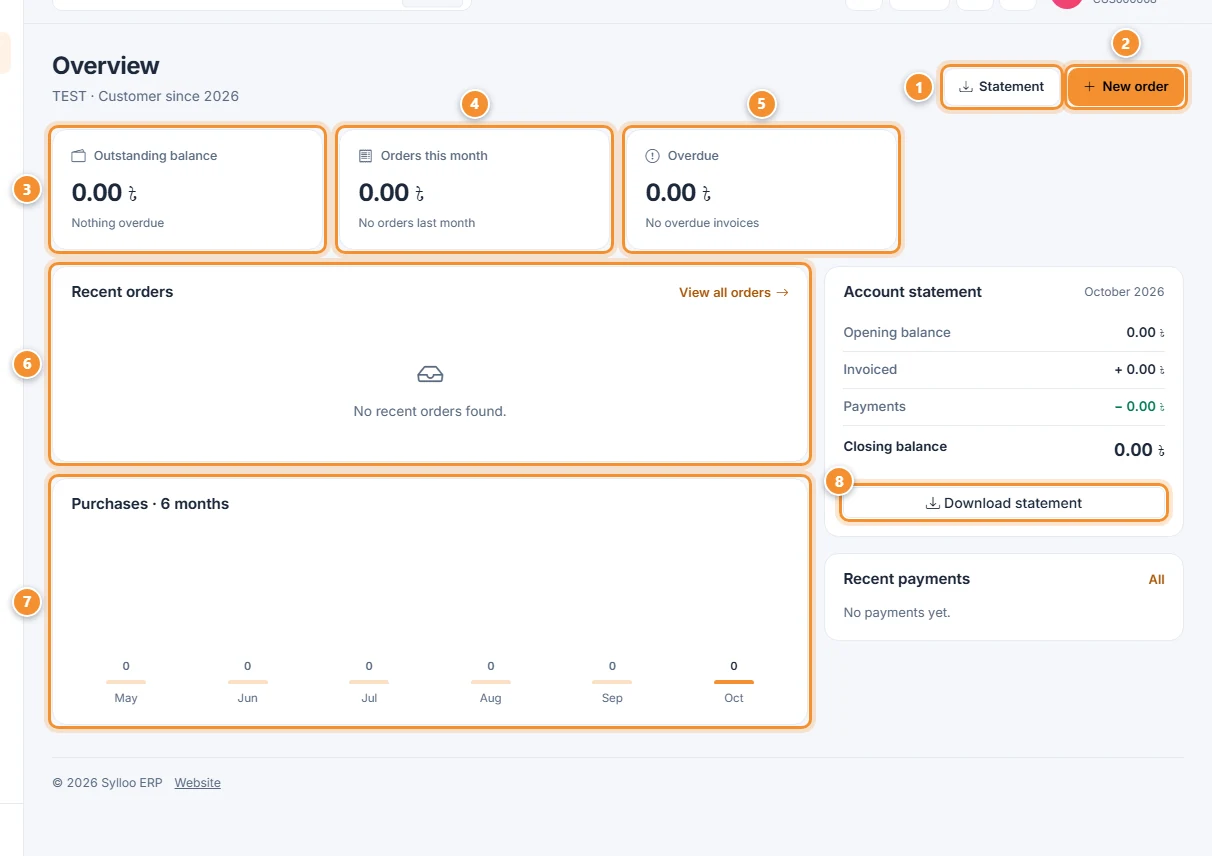 Customer self-service portal overview
- Download statement button — opens the customer accounting ledger statement.
- New order button — opens the customer catalog to browse products and place an order.
- Outstanding balance metric — displays total unpaid balance across all orders and invoices.
- Orders this month metric — shows monetary total and percentage change compared to the previous month.
- Overdue balance metric — highlights past-due invoice count and total overdue balance.
- Recent orders card — lists recently placed orders with delivery and payment status.
- Purchases trend chart — displays a six-month purchasing volume visual bar chart.
- Sidebar statement download link — provides a quick access link to generate customer statements.
Every field and control explained.
| Control | Type | Description |
|---|---|---|
| Download statement button (1) | Action button | Downloads the customer's complete transaction statement and payment history. |
| New order button (2) | Primary button | Opens the online catalog where customers can select products and submit new orders. |
| Outstanding balance metric (3) | Summary card | Shows the cumulative unpaid amount owed by the customer across all active bills. |
| Orders this month metric (4) | Summary card | Displays total purchases completed during the current billing cycle with percentage growth. |
| Overdue balance metric (5) | Alert card | Highlights bills that have passed their payment due date and need settlement. |
| Recent orders card (6) | Table list | Displays the latest transactions, order dates, fulfillment progress, and invoice codes. |
| Purchases trend chart (7) | Bar chart | Graphs monthly order expenditures over the past six months to show buying patterns. |
| Sidebar statement download link (8) | Navigation link | Provides a direct shortcut in the left menu to generate a printable ledger report. |
Real-life example.
A building materials distributor supplies hardware stores across the region. Store owners frequently request duplicate copies of invoices and updated account balances before making monthly wire transfers.
The distributor opens Contacts, edits the profile for "Metro Hardware", and opens the Login access tab. The manager enters the buyer's email [email protected] and clicks Add. The buyer receives an automated activation email and sets their password.
The next morning, Metro Hardware signs in to their portal account. The buyer reviews the Outstanding balance metric showing $3,450. They check the Recent orders card to verify yesterday's delivery, and click Download statement button to attach the ledger report to their accounting payment voucher. The distributor saves hours of administrative communication each week.
Common questions
How do customers find the portal sign-in page?
Customers visit your business address followed by your portal sign-in path. You can share this link on your invoices, website header, or via welcome emails.
Can a customer have multiple user accounts under one company?
Yes. Open the contact's Login access tab to add multiple staff members with individual email addresses and passwords under the same business contact.
What happens if I ban a customer user?
Check the Banned box in the contact's login tab and save. The user is prevented from signing in immediately, but all their historical orders and ledger entries remain intact.
Can customers place orders if their credit limit is exceeded?
If you configured a strict credit limit in the contact's settings tab, the portal notifies the customer to settle overdue invoices before completing new checkout orders.
Related pages
- Customers and suppliers — browse, filter, and manage your master contact directory.
- Add or change a contact — configure contact profile details, credit limits, and delivery addresses.
- Customer portal getting started — comprehensive walkthrough of every customer portal feature.
- Orders — track incoming customer orders and oversee fulfillment workflows.