
Add or edit website template
Inspect and customize the ordered section list of a website page template, and launch the section settings editor.
Add or edit website template
The Add or edit website template window lists every section in a chosen page layout. From here, you can review layout blocks, check section types, and launch the configuration editor for any section.
When you use this
- Reviewing all the building blocks and sections assigned to a specific storefront page (such as your homepage, about page, or contact layout).
- Launching the section editor to customize text headings, images, button links, and color schemes for a specific block.
- Verifying the structural sequence and component types defined inside a page layout schema.
Before you start
- You need an active user account with permission to update website templates.
- Ensure your theme has been installed and that the page template file exists.
- Open this window by clicking the Edit action button on any template row in the Website templates list table.
Open the template editor window
- Go to Website in the desktop navigation bar and select Themes.
- Open the action menu on your active theme card and select Templates.
- Locate the template you want to inspect (for example,
home) and click the Edit button. - The Template modal opens, displaying the table of configured page sections.
Select a section to configure
- Review the numbered section rows to check the layout structure.
- Identify the section you want to customize (such as the slideshow banner, hero greeting, services list, or testimonial cards).
- Click the blue Edit section settings button (pencil icon) in the actions column.
- The Configure section settings window opens to let you edit images, text, and styles.
Every field on this screen
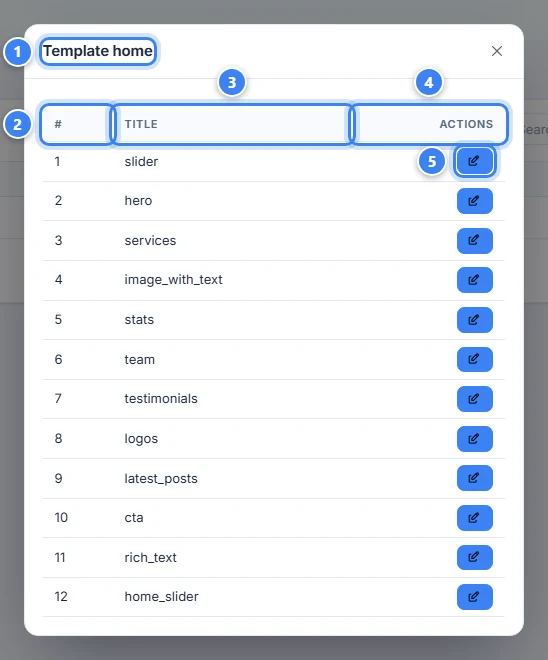 Template section editor modal
- Template editor modal title — Displays the window title and the unique template name currently open (for example,
Template home). - Section order index column — Sequential numbers (
#) indicating the top-to-bottom rendering order of sections on the live storefront page. - Section title and type column — Shows the descriptive title or widget type name of each layout block (such as
hero,services, orhome_slider). - Section action header — Header cell for the column containing configuration and management buttons.
- Edit section settings button — Opens the dedicated settings editor modal for this specific section block.
Section columns reference
| Column | Description |
|---|---|
| # | Numerical sequence position determining where this section renders on the page from top to bottom. |
| Title | The readable section title or component identifier (for example, hero_1, services_1, or testimonials_1). |
| Actions | Action buttons to configure options, headings, media, and styles for this block. |
Examples
Example: Modifying the homepage hero greeting
Suppose you want to update the headline text and call-to-action button on your storefront's main banner:
- Open the Website templates list and click Edit on the
hometemplate row. - In the sections table, locate the
hero_1row at sequence position 2. - Click the Edit section settings button on the
hero_1row. - Update the heading text and button labels in the settings editor, then save your changes.
Example: Checking testimonial reviews on your storefront layout
Suppose you want to verify whether testimonial cards are included in your active homepage:
- Open the
hometemplate editor modal. - Scroll through the section table and confirm the
testimonials_1row is listed. - Click the edit button on
testimonials_1to inspect current customer quotes and star ratings.
Common questions
Can I rearrange section order directly in this modal?
This modal provides a quick tabular list of sections and direct access to section settings. For interactive visual reordering and live previews, use the Visual website theme builder.
What happens if a template has no sections added?
The modal displays a friendly notice stating that no sections have been added yet. You can add section blocks using the visual builder.
Can I delete an individual section from here?
Sections can be hidden or removed within the visual theme builder. This window focuses on inspecting and configuring section schemas.
Related pages
- Website templates list — Browse and manage all layout files in your theme.
- Visual website theme builder — Interactive visual editor with drag-and-drop section reordering.
- Configure section settings — Customizing schema settings, text, images, and colors for individual sections.