
Add or change a variant
Create or edit product variant templates with preset attribute values like size, color, and storage capacity.
Add or change a variant
Use this window to create a new product variant template or modify existing attribute values. Variant templates define reusable attribute sets—such as Size (S, M, L), Color (Blue, Black, Red), or Pack Size (Pack of 3, Pack of 6)—allowing you to quickly generate multiple SKU combinations for a master product.
Variant window opens when you click Variant Add on the variant list or click Edit on an existing variant template row.
When you use this
- You introduce apparel or shoes requiring standardized size sets like Small, Medium, Large, and Extra Large.
- You sell electronics or devices with varying specifications such as color finishes or internal memory sizes.
- You need to add a newly requested size or color option to an existing template.
- You temporarily deactivate a discontinued attribute set so it cannot be selected for new inventory.
Before you start
- Have the attribute name ready (such as
ColororSize). - Prepare the list of individual option values you want to include.
Open the variant window
On the Variant list, click the blue Variant Add button in the header, or click Edit on any variant row.
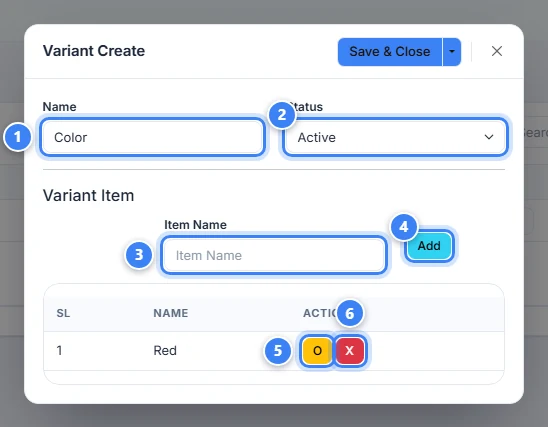 Variant template creation window
- Name — variant attribute title such as Size or Color.
- Status — Active or Inactive.
- Item Name — specific option value like Small, Red, or 64GB.
- Add — adds the option value into the items list.
- O — loads the item name back into the input for editing.
- X — removes the option value from the template.
Every field on the variant window
| Control | What it is for | Example | Required? | Default | What happens when changed | What depends on it |
|---|---|---|---|---|---|---|
| Save | Button saving the template and closing the window. | Click button | Yes | — | Saves the variant template into the system. | Template availability on product forms. |
| Name | Attribute group title. | Size or Color |
Yes | Blank | Sets the attribute template name. | Product variant generation options. |
| Status | Operational availability status. | Active |
Yes | Active | Controls whether items can use this template. | Dropdown list on product forms. |
| Item Name | Input for an individual attribute value. | Large or Red |
Yes | Blank | Prepares the option value for adding. | Row added into items table. |
| Add | Button inserting the value into the template list. | Click button | Yes | — | Appends the value to the items table below. | Generated product variation rows. |
| O | Button loading an existing value back to the input. | Click button | Optional | — | Enters edit mode and switches Add button to Update. | Modifying a misspelled option value. |
| X | Button deleting an option value from the list. | Click button | Optional | — | Removes the value from the template items table. | Excludes option from future variants. |
Example
Arif is configuring size options for shoe collections:
- He opens Variants from the Product dock and clicks Variant Add.
- In the Name field, he types
Shoe Size. - In the Item Name field, he types
40and clicks the blue Add button. - He repeats the step for sizes
41,42, and43, watching each appear in the items table. - He clicks the green Save button in the modal header.
- The new
Shoe Sizetemplate is now ready to generate variant footwear items.
Common questions
What happens if I set a variant template to Inactive? Existing items that were created using this template retain their variations, pricing, barcodes, and inventory counts. However, staff cannot select an inactive template when creating new products.
Can I delete an option value that is already used on products? Removing an option value from a template affects future product creations only. Products previously generated with that value retain their individual variant records.
Can I assign multiple variant templates to a single product?
Yes. When adding a product on the Variant tab, you can combine multiple attributes (such as both Color and Size) to generate matrix combinations like Red - Large and Blue - Small.
Related pages
- Variant list — View, search, export, and manage variant templates.
- Product list — View products and filter by variant attributes.
- Add or change a product — Apply variant templates to items on the Variant tab.