
Website templates list
Browse, filter, and manage individual page template schema files across your website theme layouts.
Website templates list
The Website templates list table displays all individual page layout schema files defined inside your chosen website theme. You can search templates by name or file path, inspect template structures, launch the section editor modal, and export file listings.
When you use this
- Inspecting which page layout files exist within a theme (for example, homepage, product catalog, contact page, or custom landing pages).
- Opening the section editor modal to view and modify block settings for a specific page layout.
- Searching for specific layout template files by keyword or file location.
- Exporting a spreadsheet inventory of your theme's layout templates for technical reviews or backup records.
Before you start
- You need an active user account with permission to manage website templates.
- Ensure your theme has been installed and has a valid template directory.
- You can access this table by selecting Templates from the action menu on any theme card in the themes gallery.
Open the template files list
- Go to Website in the desktop sidebar and click Themes.
- Locate your active or target theme card in the themes grid.
- Open the theme's action menu (three dots) and select Templates.
- The Website templates list table opens, displaying all template schemas registered under that theme.
Search, edit, or manage templates
- Type a keyword into the Search template input to locate a specific template file by title or path.
- Click the Edit template button on any row to open the section configuration window for that page.
- To remove a custom layout file that is no longer needed, click the More actions menu and choose Delete.
- To download a local report of your template configurations, click Export templates button and choose Excel or CSV.
Every field on this screen
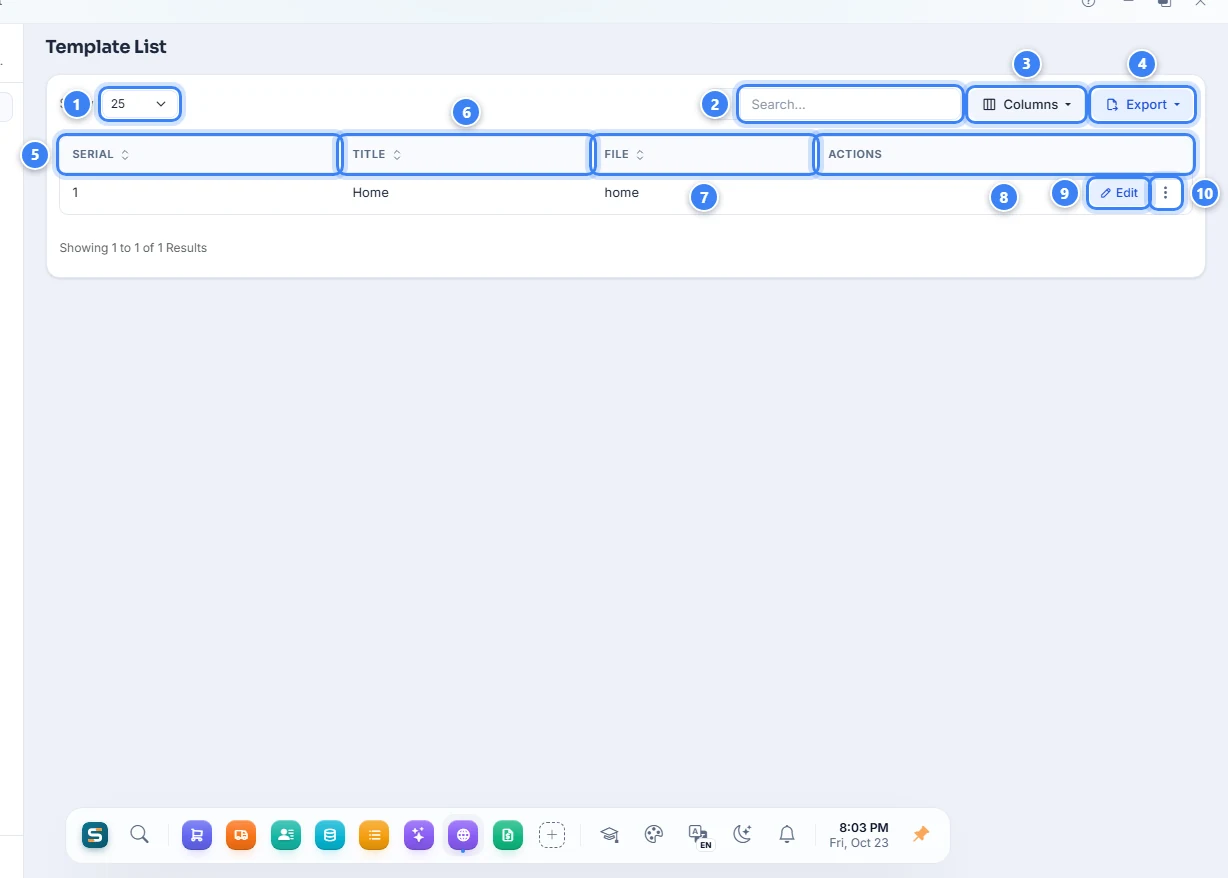 Website template list showing files path layout settings and template actions
- Page size selector — Configures how many template rows are displayed per table page (10, 25, 50, 100, or 250 rows).
- Search template input — Real-time search filter matching keywords against template titles and file names.
- Column visibility selector — Toggles which table columns are visible or hidden in your current browser view.
- Export templates button — Downloads the currently filtered template records into Excel or CSV spreadsheet files.
- Serial column — Displays the unique identifier number or key assigned to the template schema.
- Template title column — Shows the human-readable display title of the page template layout (such as Home, About, or Contact).
- File name column — Indicates the relative template file identifier within the theme's templates directory.
- Row actions column — Header cell grouping management and configuration buttons for each row.
- Edit template button — Opens the template modal window to reorder or edit the sections and schema settings of this layout.
- More actions menu — Three-dot dropdown button offering extra row options, including permanently deleting a custom template file.
Table columns reference
| Column | Description |
|---|---|
| Serial | Sequential numeric identifier or slug key representing the template record. |
| Title | The readable title of the page template, used in dropdown selectors and navigation menus. |
| File | The layout file name (for example, home or page) storing section arrangements. |
| Actions | Interactive buttons for modifying sections or removing layout files. |
Examples
Example: Finding and editing your storefront homepage template
Suppose you want to inspect which sections make up your homepage:
- Open the templates list for your active theme.
- Enter
homeinto the Search template input. - Locate the
homerow in the filtered results table. - Click the Edit template button (pencil icon).
- The template editor modal opens, displaying all 12 configurable homepage sections (such as slider, hero, and services).
Example: Exporting an inventory of page templates
Suppose your web designer needs a complete list of all templates configured in your theme:
- Open the Website templates list screen.
- Select
100in the Page size selector to display all rows at once. - Click the Export templates button in the upper right toolbar.
- Choose Excel to download the formatted spreadsheet with titles and file names.
Common questions
Can I create new template files from this table?
New template files are created when you add custom pages in the visual builder or install a theme. This table lists and edits existing template schemas.
What happens if I delete a template file?
Deleting a template removes its layout arrangement from the theme directory. Any storefront page relying on that template layout will fall back to the default page template.
Why are some theme templates not showing in this list?
The list displays layout configuration files in the theme's templates directory. Source template code is managed in the Developer Console Theme Studio.
Related pages
- Website themes and templates grid — Browse, preview, and switch storefront themes.
- Visual website theme builder — Interactive visual editor for header, footer, and section blocks.
- Configure section settings — Customize content, typography, and styling for individual sections.