
Store and SEO settings
Configure online store contact channels, SEO meta tags, search engine indexing directives, and tracking scripts.
Store and SEO settings
Use the Store and SEO settings screen to manage customer-facing contact details for your online website, configure search engine optimization (SEO) meta tags, manage web crawler indexing directives, and embed third-party analytics scripts.
When you use this
- Launch an online storefront and publish contact channels, support emails, and operating addresses.
- Optimize your homepage search engine ranking with customized meta titles, descriptions, and keywords.
- Manage search engine indexing permissions and bot crawling behavior using robots directives.
- Insert analytics, marketing pixels, or tracking codes into your storefront header.
Screen layout
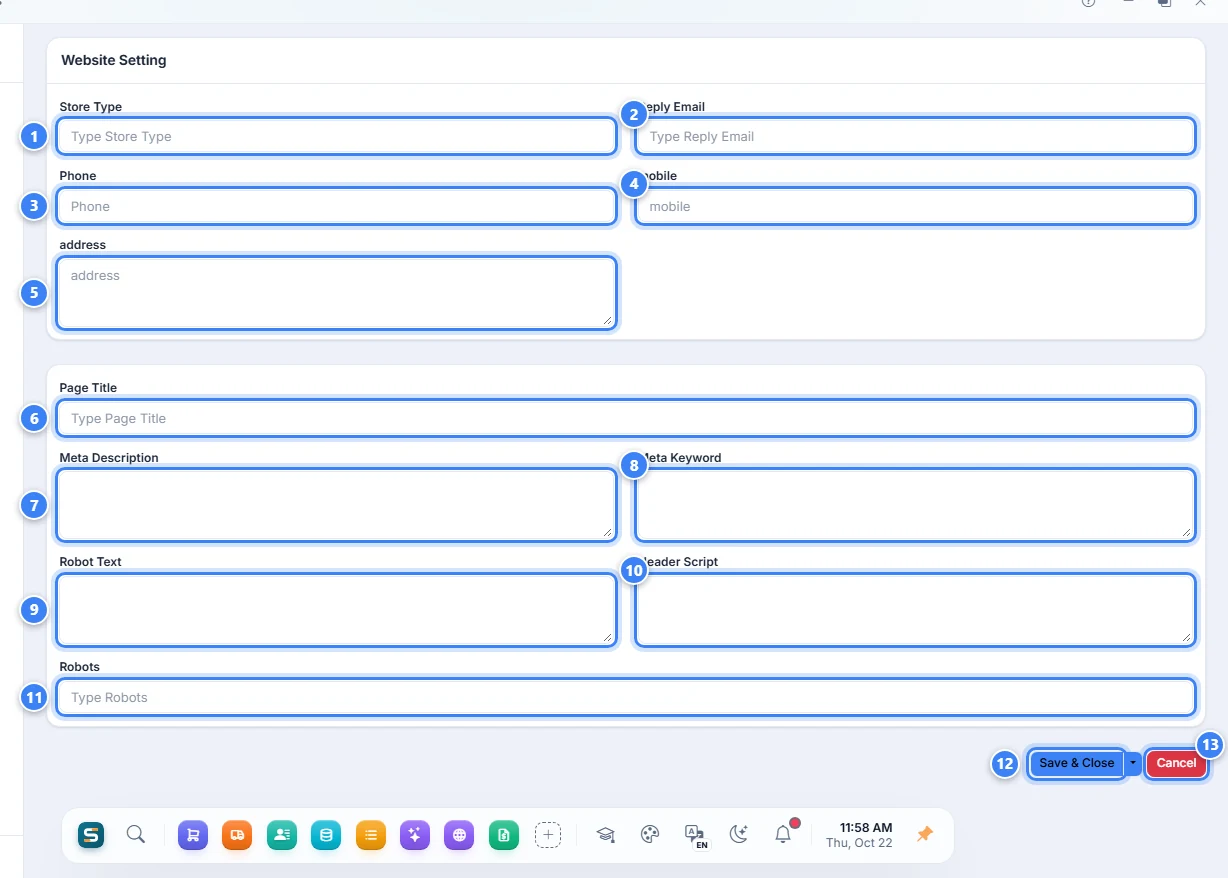 Storefront and SEO configuration
- Store Type — commercial storefront classification or retail category.
- Reply Email — customer inquiry response and feedback email address.
- Phone — landline telephone contact for storefront customer inquiries.
- Mobile — mobile hotline number displayed on website headers.
- Address — physical store location and customer return address.
- Page Title — primary website browser title and search engine heading.
- Meta Description — search engine summary snippet displayed in organic results.
- Meta Keyword — comma-separated indexing keywords for catalog discovery.
- Robot Text — crawler indexing directives and robots.txt content rules.
- Header Script — custom analytics and tracking scripts injected into head tags.
- Robots — meta robots tag values (index, follow, noindex, nofollow).
- Save button — saves store contact information and SEO configurations.
- Cancel button — discards unsaved field modifications.
Step-by-step: Configuring store contact details and search engine metadata
- Open Settings from your navigation bar and choose Store & SEO.
- Define your commercial storefront profile in Store Type (1).
- Provide your customer communication email in Reply Email (2), along with Phone (3) and Mobile (4) contact numbers.
- Enter your public showroom or warehouse address in Address (5).
- In the SEO card, specify your homepage title in Page Title (6).
- Write a descriptive marketing summary in Meta Description (7) and targeted catalog search terms in Meta Keyword (8).
- Enter crawler instructions in Robot Text (9) and define indexing behavior in Robots (11).
- Paste third-party tracking or verification tags in Header Script (10) if required.
- Click the Save button (12) to publish your changes immediately.
Every field and control
Website contact information
- Store Type (1): Classifies your retail business model (such as B2B Wholesale, Electronics Boutique, or Grocery Mart) to format storefront theme attributes.
- Reply Email (2): Inbound customer support inbox displayed on website contact forms and footer sections.
- Phone (3): Landline telephone contact printed in header contact banners.
- Mobile (4): Cellular hotline number for customer phone or messaging inquiries.
- Address (5): Formatted physical street address, town, and postal code displayed on website maps and contact pages.
SEO meta tags and scripts
- Page Title (6): Main title string rendered inside browser tabs and displayed as the primary clickable headline in search engine search results.
- Meta Description (7): One or two concise sentences summarizing your catalog offerings. Search engines display this text snippet beneath your link.
- Meta Keyword (8): Key search phrases separated by commas that describe your core products and brand catalog.
- Robot Text (9): Directives governing search engine crawlers, defining paths to allow or restrict across website folders.
- Header Script (10): Custom HTML or JavaScript snippets (such as Google Analytics or Meta Pixel) automatically injected into storefront document headers.
- Robots (11): Standard indexing instruction directives (such as
index, followornoindex, nofollow) for search engines.
Action buttons
- Save button (12): Validates entered metadata and immediately updates website templates.
- Cancel button (13): Discards any uncommitted changes and resets form fields to their last saved values.
Common questions
How long does it take for search engines to reflect new meta titles?
Search engines update their cached search results whenever their automated web crawlers re-index your storefront, which typically takes between a few days and several weeks.
Can I insert multiple tracking scripts into Header Script?
Yes. You can paste multiple <script> or <meta> verification tags consecutively into the Header Script field.
Where do the Phone and Mobile numbers appear on the live website?
These contact values automatically populate theme header contact widgets, customer support navigation bars, and website footer templates.
Related pages
- System and business settings — manage central organization names, currencies, and logos.
- Website builder — design custom storefront layouts, sections, and responsive pages.
- Pages, blog and menus — create website navigation menus and publish informational articles.