
Bank statement mappings
Create column mapping templates to import bank statements and automate matching rules.
Bank statement mappings
The Bank statement mappings screen allows you to configure automated import templates for bank statement files. By mapping your commercial bank CSV columns, date formats, and transaction indicators once, the system reliably imports external statements and suggests reconciliation matches against your general ledger entries.
When you use this
- Create a reusable CSV column mapping profile for a new commercial bank account.
- Specify custom date formats, column delimiters, and decimal separators used by your bank.
- Assign a default statement template to parse statements automatically upon upload.
- Review and manage automated keyword matching rules learned during bank reconciliation.
Screen layout
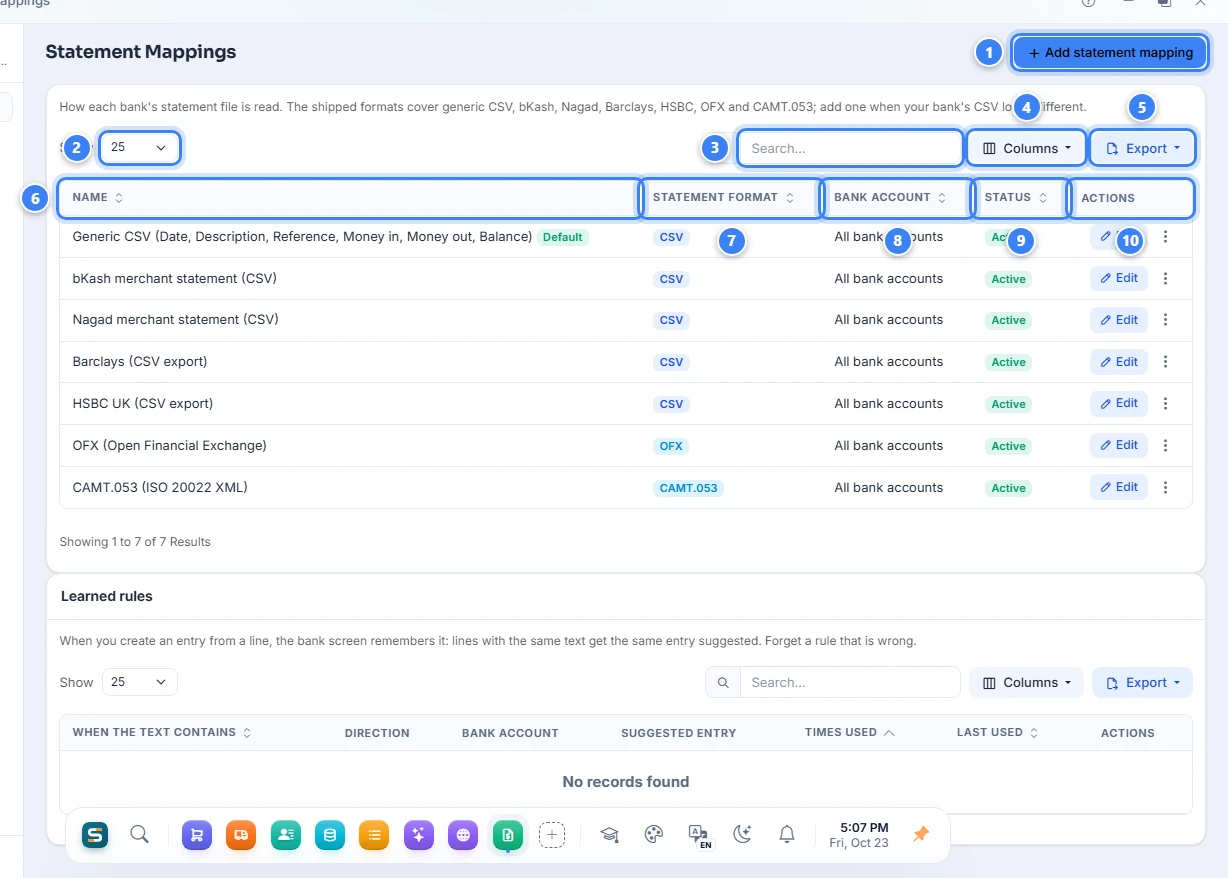 Bank statement mappings list
- Add statement mapping — opens the modal window to create a new bank CSV column mapping template.
- Rows per page — selects how many statement mapping profiles appear on each page.
- Search filter — filters mapping templates by name, format, or bank account.
- Columns toggle — customizes which data columns are visible in the mappings table.
- Export button — downloads the statement mapping profiles as an Excel spreadsheet or CSV.
- Name column — descriptive title of the statement format template.
- Statement format column — file structure type (CSV, Excel, MT940, or CAMT.053).
- Bank account column — linked general ledger bank account matching this statement format.
- Status column — active or inactive operational availability indicator.
- Actions column — row action buttons to modify mapping configurations or delete.
Step-by-step: Creating a CSV mapping profile
- Navigate to Settings and select Bank statement mappings.
- Click Add statement mapping (1) in the header toolbar.
- In the modal dialog, enter a descriptive title into Name (6) (such as
Standard Chartered CSV). - Choose the file format in Statement format (7) (select CSV).
- Choose your target ledger bank account in Bank account (8), or leave blank to make the template available to all bank accounts.
- Check Default statement mapping if this template should apply automatically to matching bank uploads.
- Open the CSV columns section to map your fields:
- Provide the column name for Transaction date and specify its Date format.
- Enter column headers for Description, Reference, and Counterparty.
- Enter column headers for Money in and Money out, or map a single signed Amount column.
- Set the appropriate Delimiter, Decimal separator, and Header rows count.
- Set Status (9) to Active and click Save.
Every field and control
Mappings table toolbar and filters
- Add statement mapping (1): Opens the template editor to configure file column mappings.
- Rows per page (2): Selects whether to show 10, 25, 50, or 100 mapping profiles per page.
- Search filter (3): Rapid text filter querying template titles, formats, and bank names.
- Columns toggle (4): Dropdown checklist to show or hide specific table columns.
- Export button (5): Downloads the complete profile register to Excel or CSV.
Mappings table columns and row actions
- Name (6): User-defined title for the statement template (
name). - Statement format (7): Supported statement file structure badge (
format_badge), including CSV, Excel, MT940, or CAMT.053. - Bank account (8): Specific ledger bank account linked to the template (
bank_name). Displays "All bank accounts" if usable across multiple banks. - Status (9): Operational state (
status_badge). Active templates appear in the import selector; inactive templates remain archived. - Actions (10): Controls including Edit (ti ti-pencil) to modify column definitions and Delete (ti ti-trash) to remove obsolete templates.
Statement mapping modal fields
- Name: Distinctive template name that helps users recognize which file layout to select.
- Statement format: The file encoding structure (CSV, Excel, MT940, or CAMT.053).
- Bank account: Dedicated bank ledger account, or blank to permit universal usage.
- Status: Operational availability toggle (Active or Inactive).
- Default statement mapping: When enabled, the system automatically selects this profile when importing files for the linked bank.
- Transaction date: Column header or zero-based index containing the transaction booking date.
- Date format: Standard date pattern representing how dates appear in the file (such as
d/m/YorY-m-d). - Description: Column containing payment narrative, memo, or transaction details.
- Reference: Column containing cheque numbers, bank reference codes, or transaction IDs.
- Counterparty: Column identifying the paying customer or receiving vendor.
- Balance: Optional column recording the running ledger balance after the transaction.
- Money in / Money out: Separate columns for credit deposits and debit withdrawals.
- Amount: Single combined column used when credit and debit share one field with positive and negative numbers.
- Sign rule: Interprets whether positive numbers represent money in (signed) or money out (inverted).
- Delimiter: Character separating fields in the file (comma, semicolon, tab, or pipe).
- Decimal separator: Period (
.) or comma (,) used for cents and fractional currency. - Header rows: Number of introductory header or title rows to skip before reading transaction lines.
- File encoding: Character set encoding (defaults to UTF-8; supports Windows-1252 and ISO-8859-1).
- Note: Internal documentation regarding bank specifications or layout quirks.
- Save: Validates the column rules and stores the template.
Learned matching rules section
Below the primary table, the Learned rules section displays automatic pattern rules. The system learns these rules during reconciliation:
- When the text contains: Keyword substring captured from bank statement descriptions.
- Direction: Indicates whether the rule applies to incoming receipts or outgoing payments.
- Bank account: Account where this rule operates.
- Suggested entry: Chart of accounts ledger head or transaction type suggested automatically.
- Times used / Last used: Usage statistics tracking rule frequency and recency.
- Actions: Option to remove obsolete learned rules.
Common questions
What should I do if my bank statement uses semicolon delimiters instead of commas?
Select Semicolon under the Delimiter setting in your CSV template configuration. The system splits columns correctly according to your bank layout.
How does the system handle single-column amounts versus two-column amounts?
If your bank exports separate columns for deposits and withdrawals, enter both into Money in and Money out. If your bank provides one signed column with positive and negative amounts, enter it into Amount and choose the matching Sign rule.
How are learned matching rules created?
When reconciling bank statements, whenever you assign an unrecognized bank description to a specific ledger head, the system saves a learned rule. Subsequent statements with matching text automatically suggest the same entry.
Related pages
- Bank reconciliation — import statements and reconcile accounts.
- Cheques register — track bank cleared dates for issued cheques.
- Chart of accounts — set up commercial bank ledger accounts.