
Website themes and builder
Install, activate, customize, and manage public website themes with the visual builder.
Website themes and builder
Use the Website themes and builder screen to design your public storefront and marketing pages. You can browse installed themes, install catalog themes, customize visual layouts with the live visual builder, and choose which theme serves your live website.
When you use this
- Launch the visual website builder to rearrange homepage sections, edit banners, and update colors.
- Switch your live storefront to a new seasonal or upgraded theme design.
- Install ready-made catalog themes, or a theme from a repository if you have a developer account.
- Export your customized theme or reset settings back to default options.
Screen layout.
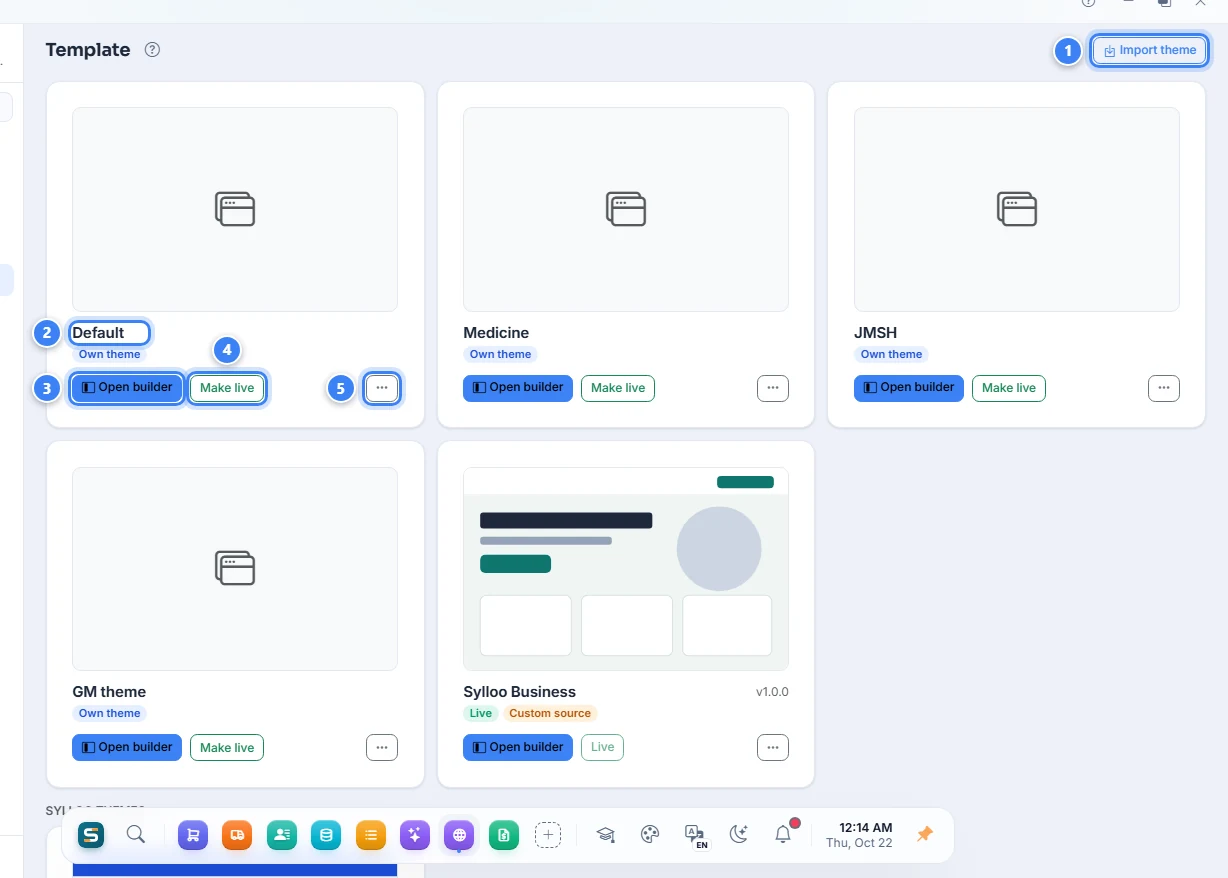 Website themes and builder
- Install from GitHub — installs a theme from a repository. Only a developer account sees it. This picture still shows the older import button in its place until it is retaken.
- Theme title — displays the name and version of each installed theme card.
- Open builder — launches the visual website builder to customize pages and sections.
- Make live — activates the selected theme as your public live website.
- Theme actions menu — opens additional theme management tools such as export and reset.
- Install and make live — installs a catalog theme and immediately activates it.
- Install — installs a catalog theme to your library without making it live right away.
Step-by-step: Customizing and activating a theme.
- Go to Website > Themes & Builder.
- Locate your current theme under Installed themes and click Open builder (3).
- Select any section on the preview canvas to adjust its headings, background images, links, or styling options.
- Click Save inside the builder once you finish your changes.
- If you want to switch to a different theme, find it in the list and click Make live (4).
- Visit your public website address to confirm your live storefront layout.
Every field and control.
Header actions.
- Install from GitHub (1): Opens the window to install a theme from a repository. See Install a theme from a repository. Uploading a zip file is no longer possible.
Installed themes card.
- Theme title (2): Shows the name, author, and version number of the installed theme.
- Open builder (3): Opens the visual builder where you can customize sections, banners, navigation menus, and color palettes.
- Make live (4): Activates this theme as your public storefront for all website visitors.
- Theme actions menu (5): Opens a menu with management tools.
- Export theme: Downloads a complete theme backup zip file with all your saved styles and configurations.
- Reset options: Reverts color schemes, typography, and section settings back to initial defaults.
- Reset to default: Completely restores the theme to its original clean state.
Available themes catalog
- Install and make live (6): Downloads the catalog theme and activates it immediately as your public storefront.
- Install (7): Downloads the theme into your installed themes list so you can edit it before activating.
Common questions
Can I customize a theme before making it live?
Yes. Click Open builder (3) on any installed theme card. You can customize sections, colors, and content in preview mode without affecting the public live theme.
How does a theme get an update?
A theme linked to a repository gets updates through Source control in Theme Studio. Someone with a developer account pulls them, checks them and publishes. See Source control in Theme Studio.
Related pages
- Pages, blog, and menus: Create custom pages, write blog articles, and configure header menus.
- Sliders: Build animated homepage banners and promotional carousels.
- Forms: Design customer contact forms and feedback surveys.