
Template publish history
Review theme deployments, inspect file differences between revisions, restore earlier releases, or cancel scheduled publications.
Template publish history
The Template publish history window provides a complete log of every website theme deployment. It tracks who published each release and when it went live. Store owners can inspect side-by-side file differences or restore a previous version with one click.
When you use this
- Checking recent theme updates to see what was modified and who published it.
- Comparing code or template changes between an earlier release and the active storefront.
- Rolling back unwanted layout edits by restoring an earlier verified release.
- Cancelling an upcoming scheduled deployment before the target launch time arrives.
Before you start
- You need an account with store administration privileges or permission to publish website themes.
- At least one draft must have been published or scheduled for the active theme.
- Open this window from the Visual website theme builder top toolbar by clicking History, or from the theme management card.
Open the publish history window
- Open the Visual website theme builder for your active storefront theme.
- Locate the deployment toolbar along the top right of the builder canvas.
- Click the History button (clock icon).
- The Publish history window appears, listing all historical releases in reverse chronological sequence.
Compare file changes against the live storefront
- Find the version release row you wish to inspect.
- Click the Compare button on that row.
- The window displays the file diff view showing exact code differences.
- Green highlighted lines indicate added content, while red lines represent removed code.
- Click the Back button at the top left of the diff view to return to the deployment list.
Restore a previous version or cancel scheduled deployment
- To roll back your storefront to an earlier version snapshot, locate the desired release row.
- Click the Restore button. A confirmation prompt asks you to verify the rollback.
- Confirm the prompt to restore the chosen snapshot. The theme immediately activates that version files.
- If a future deployment is in pending state, click the red Cancel button on that row to cancel the scheduled launch.
Every field on this screen
The following screenshot shows the publish history window with numbered callouts.
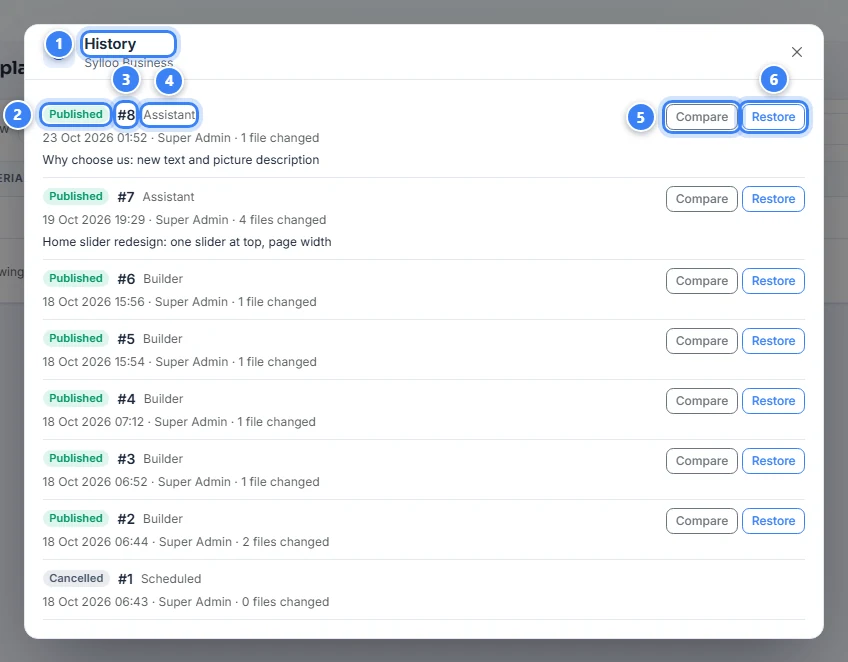 Website template publish history modal showing deployments versions diff compare and restore actions
- Publish history modal title — identifies theme deployment history window.
- Publish status badge — shows deployment state such as published, restored, or scheduled.
- Publish version serial — sequential version number of the release.
- Timestamp and author details — records publishing date time and operator who released the update.
- Compare changes button — opens line-by-line diff viewer comparing this version with current storefront files.
- Restore version button — rolls back storefront theme files to this previous deployment snapshot.
Deployment statuses and actions
Status badges
- Published (green) — The release was deployed successfully and served to storefront visitors.
- Restored (light blue) — The release was generated by rolling back to a previous deployment snapshot.
- Scheduled (dark blue) — The deployment is set to go live automatically at a future specified date and time.
- Failed (red) — The publishing process encountered an error, with an error message detailing the issue.
Change notes and sources
Each entry displays the origin of the deployment:
- Builder — Published manually from the visual theme builder interface.
- Assistant — Automated design update prepared by the AI assistant with an attached summary note.
- Schedule — Automated publication triggered when a scheduled release timer elapsed.
- System — Initial theme installation or setup record.
Action buttons
- Compare — Opens a detailed file comparison showing all modified template files alongside live storefront code.
- Back — Returns from the file comparison view back to the main release timeline.
- Restore — Reverts the active storefront files to the state captured in this release snapshot.
- Cancel — Cancels an upcoming release whose status is currently scheduled.
Common questions
What happens when I restore an older version?
Restoring an older release does not delete subsequent history. The system copies the files from that selected snapshot. It deploys them to the active storefront and records a new release entry with the Restored badge.
Can I cancel a publication that is already published?
No. Once a release has the Published status, it is already live on your storefront. To revert those changes, locate the prior stable version and click Restore. The Cancel action is available only for releases with the Scheduled status.
Does comparing changes modify any files?
No. Clicking Compare is completely safe and read-only. It only previews differences between the selected historical snapshot and the active storefront files.