
Website template drafts and live publishing
Understand how website drafts, live publishing, and scheduled rollouts work safely in Sylloo ERP.
Website template drafts and live publishing
This guide explains how website theme editing works safely in Sylloo ERP. You can design pages, test layouts in draft mode, and preview changes without altering what your public storefront visitors see. When you are satisfied, you can publish changes immediately or schedule them for a specific launch date.
When you use this
- Design storefront updates in private without taking down your active store.
- Collaborate with team members by taking over or continuing an active editing session.
- Schedule promotional banners or holiday homepages to activate automatically.
- Abandon experimental layout edits or revert to a previously published revision at any time.
Screen layout
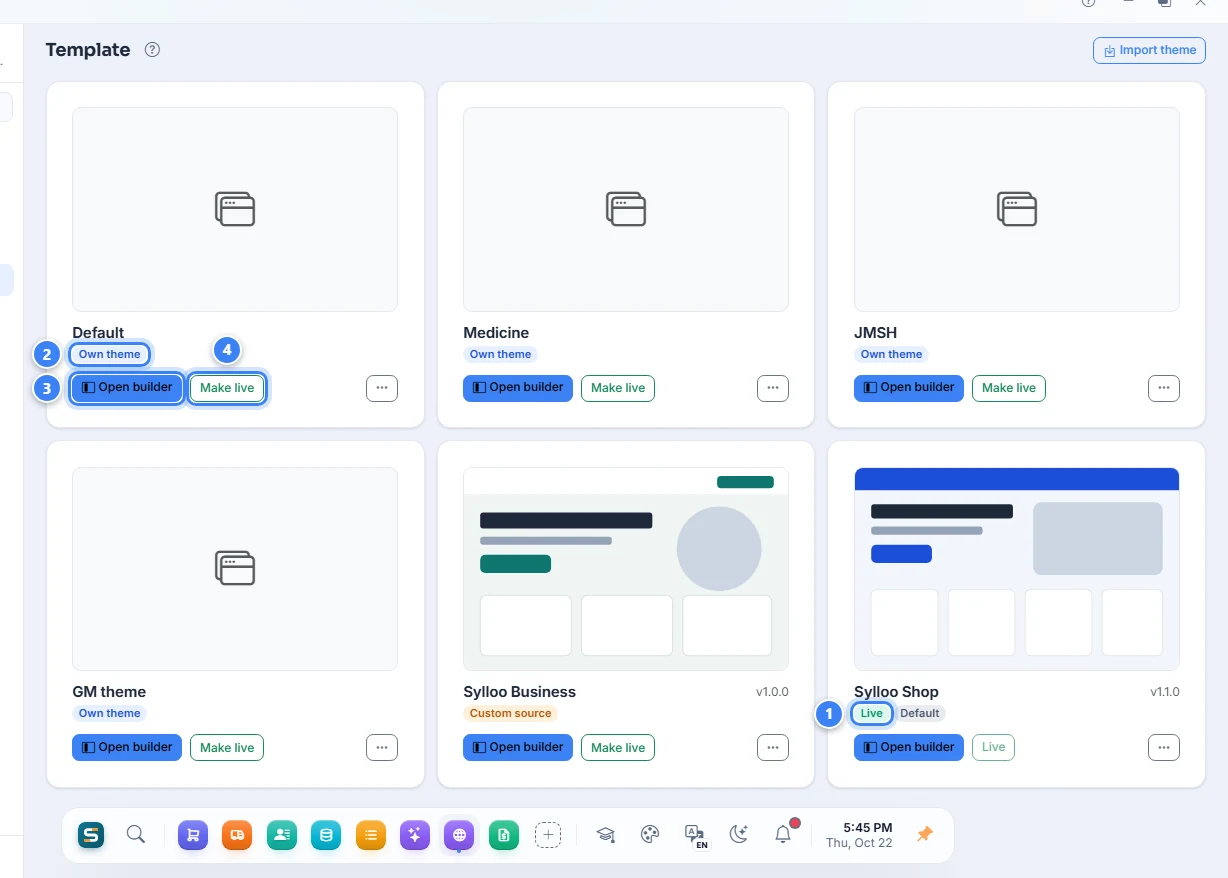 Website template draft and live publishing workflow with version states and live status
- Live theme badge — indicates the active default theme powering the public storefront.
- Theme customization state badge — shows whether the theme is unmodified source default options or customized for your shop.
- Open builder button — launches the visual website builder to customize pages and sections in draft mode.
- Set as live theme button — activates the theme as the primary default storefront template.
Step-by-step: Editing and publishing website templates
Step 1: Open the draft workspace
- Go to Website in the main desktop navigation bar and select Themes.
- Locate the storefront theme you want to update.
- Click Open builder button (3) to load the visual designer.
- If no draft exists, click Start a draft on the top action bar to begin editing. If another team member has an open draft, click Take over to assume control of the session.
Step 2: Make and test your changes
- Add, reposition, or configure sections in the visual workspace.
- Use Undo and Redo on the builder toolbar to step backward or forward through recent modifications.
- Click Preview link to generate a secret storefront preview address. Click Copy to share the link with colleagues or preview the design on external mobile devices.
Step 3: Publish immediately or schedule a rollout
- Publish immediately: Click Publish to push all draft sections and styling to your active storefront right away.
- Schedule rollout: Click Schedule, enter the desired target date and time in Publish on, and click Schedule the publish. The system automatically makes the draft live when the specified timestamp arrives.
- Cancel a schedule: If your marketing plans change before launch, click Cancel next to the scheduled notice to retract the scheduled release.
- Discard changes: Click Discard to wipe away uncommitted draft revisions and return the builder to the currently live version.
- Review version log: Click History to view previous publication records and restore an earlier snapshot.
Every field and control
Draft toolbar controls
- Undo — Button. Reverses your most recent action within the current editing session. Disabled when no earlier action exists.
- Redo — Button. Reapplies an edit that was previously undone. Disabled when no newer action exists.
- Take over — Button. Reclaims an open draft session previously held by another collaborator or device.
- Start a draft — Button. Creates a fresh, private workspace snapshot based on the current live storefront configuration.
- Preview link — Button. Generates a temporary, shareable URL to review draft layouts on any web browser without logging in.
- Copy — Button. Copies the generated secret preview link to your clipboard.
- History — Button. Opens the version log modal to inspect prior release dates and author notes.
- Discard — Button. Permanently deletes all unpublished draft adjustments and restores the active storefront state.
Publishing and scheduling controls
- Cancel — Button. Cancels a queued automated publication schedule before it goes live.
- Publish — Button. Immediately synchronizes all draft edits to your live public website for all store visitors.
- Schedule — Button. Opens the scheduled release panel to choose an automatic rollout date and time.
- Publish on — Field (text / date). Specifies the date and time when the queued theme draft will automatically become live.
- Schedule the publish — Button. Confirms and queues the automated launch schedule for the chosen date and time.
Real-life business examples
Black Friday storefront campaign
You design a special promotional homepage with holiday banners and flash-sale product grids three days ahead of time. You generate a Preview link and share it with your marketing manager for review. Once approved, you set Publish on to Friday at 00:01 AM and click Schedule the publish. Your regular store remains active throughout Thursday, and the promotional look activates automatically at midnight.
Discarding accidental layout errors
While experimenting with layout sections, you accidentally delete a key product carousel. Rather than manually rebuilding the settings, you click Discard. The draft reverts back to your live storefront settings cleanly without affecting visitor traffic.
Common questions
Will shoppers notice when I make changes in the builder?
No. All modifications remain strictly inside your private draft session. Shoppers only see changes after you click Publish or when a scheduled publication date arrives.
What happens if two administrators edit the template simultaneously?
The builder displays an active session notification. The second user can review the session or click Take over to assume control. Only one user can hold the active drafting session at a time to prevent conflicting overrides.
Can I share a draft preview with someone outside our office?
Yes. Click Preview link and Copy to share the private preview URL. Anyone with the URL can inspect the full site layout and responsiveness without requiring an administrative login.
Related pages
- Website themes and templates grid — View and manage installed theme cards and live status.
- Theme settings — Configure brand colors, logos, fonts, and theme-specific options.
- Theme market — Browse and install official storefront designs.