
Two-factor sign-in
Protect your account with two-step verification, change your password, and manage active signed-in devices.
Two-factor sign-in
Use this screen to manage your account security. You can change your password, turn on two-step verification using a mobile authenticator app, inspect active devices, and sign out of old browser sessions.
Two-factor authentication (2FA) adds a second layer of security by requiring a 6-digit code from your phone whenever you sign in.
When you use this
- You want to protect your staff account against unauthorized sign-ins.
- You received a temporary initial password and need to set your own permanent password.
- You lost a phone or worked on a shared office computer and want to sign out of all other devices remotely.
- You need to generate a new set of emergency recovery codes.
Before you start
- Install an authenticator application (such as Google Authenticator, Microsoft Authenticator, or 2FAS) on your mobile phone before setting up two-step verification.
- Have your current password ready.
Open the Security page
Click your avatar icon or name in the desktop dock or top navigation bar, then select Security.
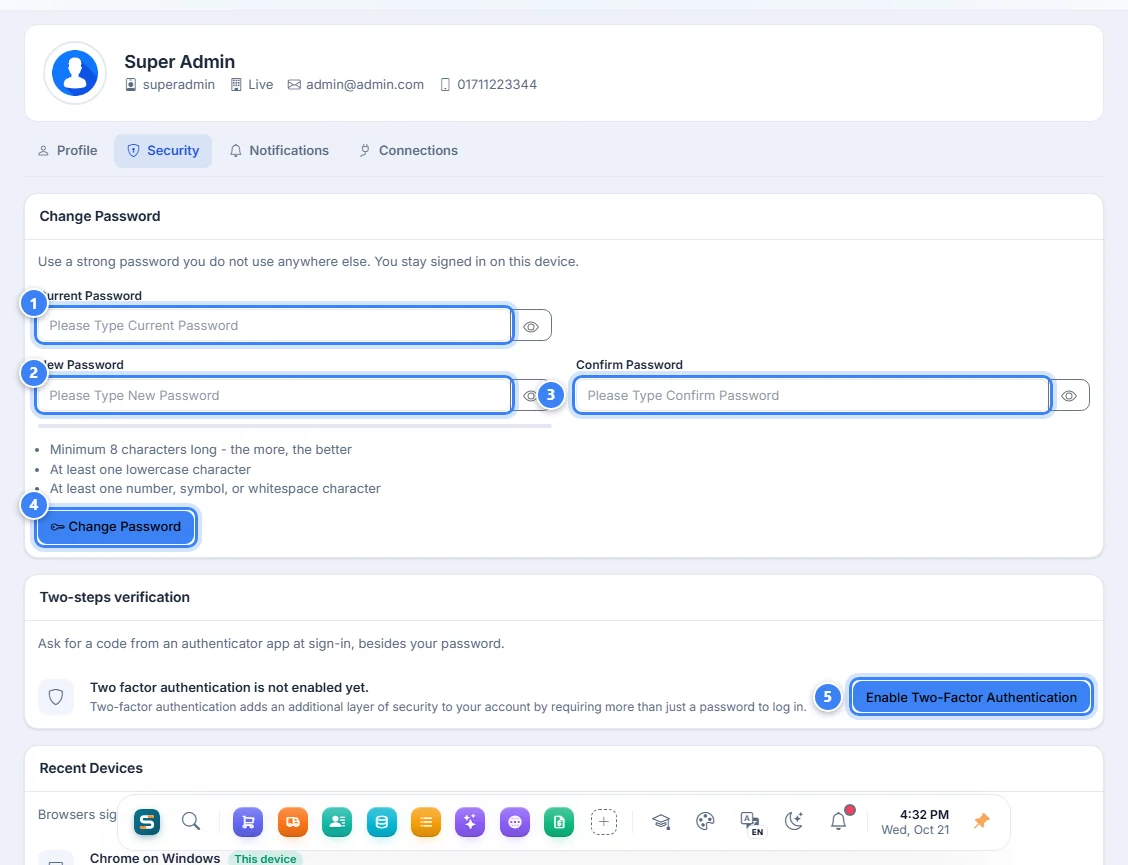 Account security, password changes, and two-factor authentication
- Current Password — type your current password to authorize changes.
- New Password — enter your secure new account password.
- Confirm Password — re-type your new password to verify typos.
- Change Password — submits and updates your password.
- Enable Two-Factor Authentication — starts setup for Google Authenticator or mobile TOTP app.
Change your password
- In the Change Password section, type your Current Password.
- Type your New Password. The live strength bar indicates whether your password meets complexity requirements.
- Type the identical password in Confirm Password.
- Click Change Password. Your password updates immediately.
Turn on two-step verification
- Under Two-steps verification, click Enable Two-Factor Authentication.
- The screen displays a setup QR code and a secret setup key.
- Open your mobile authenticator app, choose scan QR code, and point your phone camera at the screen.
- Enter the generated 6-digit code in the verification box.
- Click Turn on.
- Save the displayed emergency recovery codes in a safe place. If you ever lose your phone, each recovery code can be used once as a sign-in code.
- If you ever need to cancel setup before verifying, click Cancel.
Every field on this screen
| Field | What it is for | Example | Required? | Default | What happens when changed | What depends on it |
|---|---|---|---|---|---|---|
| Current Password | Confirms your identity before changing credentials. | •••••••• |
Yes | Blank | Verified against your existing password hash. | Unlocks password update or two-factor removal. |
| New Password | Your chosen replacement password. | Secur3#Pass99 |
Yes | Blank | Evaluated for length, numbers, and casing. | New login authentication credential. |
| Confirm Password | Verification input to prevent typing mistakes. | Secur3#Pass99 |
Yes | Blank | Must match New Password exactly. | Prevents accidental lockout. |
| Change Password | Submits your new password choice. | Click button | Required | — | Saves your updated password immediately. | Future sign-in sessions. |
| Enable Two-Factor Authentication | Initiates authenticator app pairing. | Click button | Optional | Disabled | Displays QR code and verification prompt. | Activates 2FA protection. |
Two-steps verification controls
- 6-digit code: Enter the temporary one-time passcode generated by your authenticator app.
- New recovery codes: Generates a replacement list of backup codes when you run low. Requires typing a fresh 6-digit code to confirm.
- Turn off two-factor codes: Disables two-step verification. Requires typing your current password and a valid authenticator code or backup recovery code.
- Turn on: Confirms initial setup and binds your phone to your account.
- Cancel: Closes the enrollment QR code without saving.
Managing Recent Devices and Sign-ins
- Recent Devices: Shows every browser and mobile phone currently signed in to your account. Each entry displays the browser name, operating system, IP address, and last active time.
- Sign out this device: Click next to any unrecognized or old device to disconnect its session immediately.
- Sign out all other devices: Click this button at the top right of Recent Devices to log out of all computers, tablets, and phones other than the one you are currently using.
- Recent sign-ins: An audit history showing recent login attempts, timestamps, IP locations, and whether sessions ended normally or expired.
Example
Nasrin sets up two-step verification on her phone:
- She opens Security from her profile menu.
- She clicks Enable Two-Factor Authentication.
- She opens Google Authenticator on her mobile phone and scans the QR code shown on screen.
- She types the 6-digit code
482910shown in her mobile app into 6-digit code and clicks Turn on. - Sylloo displays her one-time recovery codes. She copies them to a secure password manager.
- When Nasrin logs in tomorrow, Sylloo asks for her password followed by a fresh code from her phone.
Common questions
What happens if I lose my mobile phone? Use one of your printed emergency recovery codes instead of the 6-digit app code on the sign-in screen. Each recovery code works once. Once logged in, open the Security page to pair a new phone.
Can I turn off two-factor authentication later? Yes. Open this screen, scroll to Two-steps verification, type your current password and a valid code, and click Turn off two-factor codes.
What should I do if I see an unfamiliar device in Recent Devices? Click Sign out this device immediately, or click Sign out all other devices, then change your password.